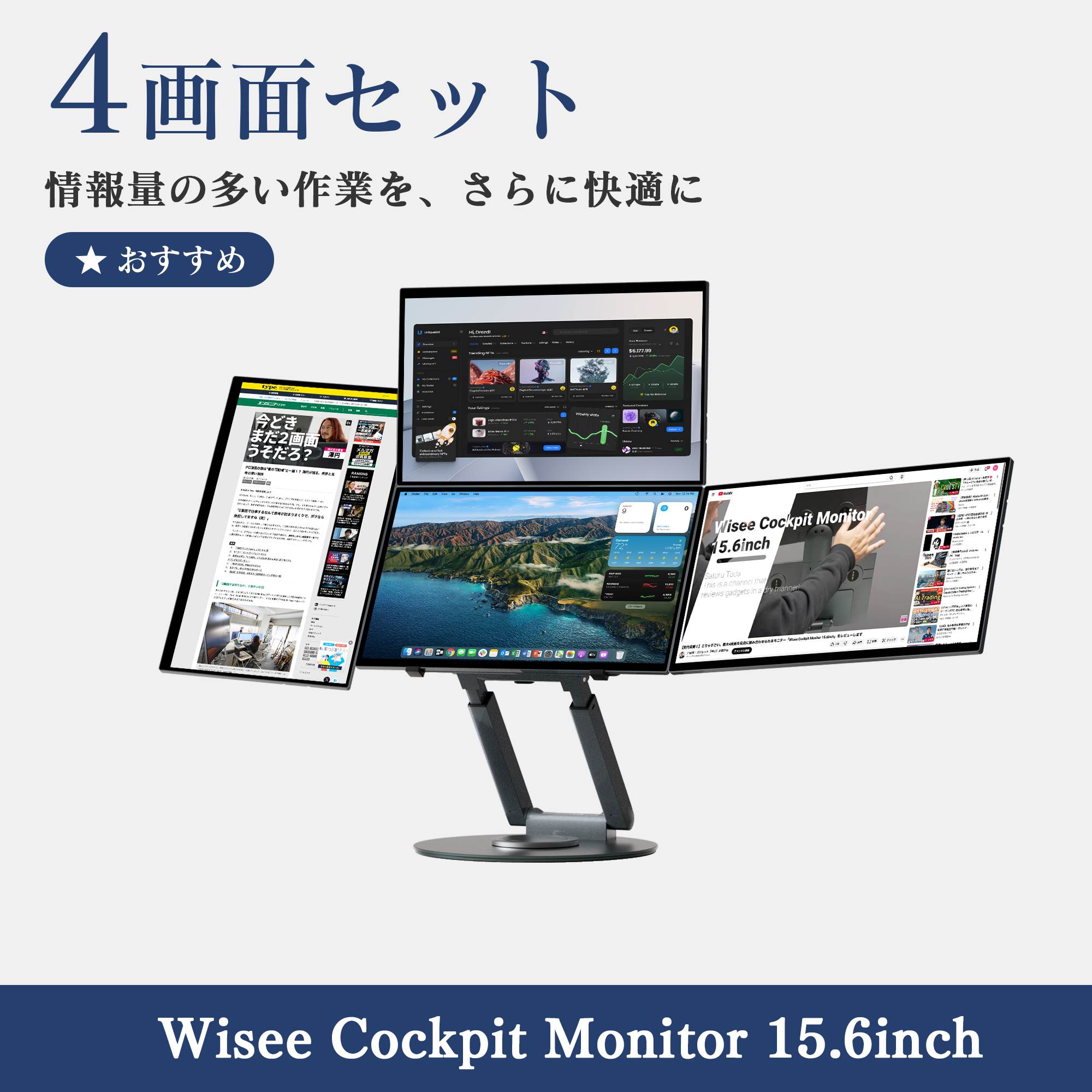
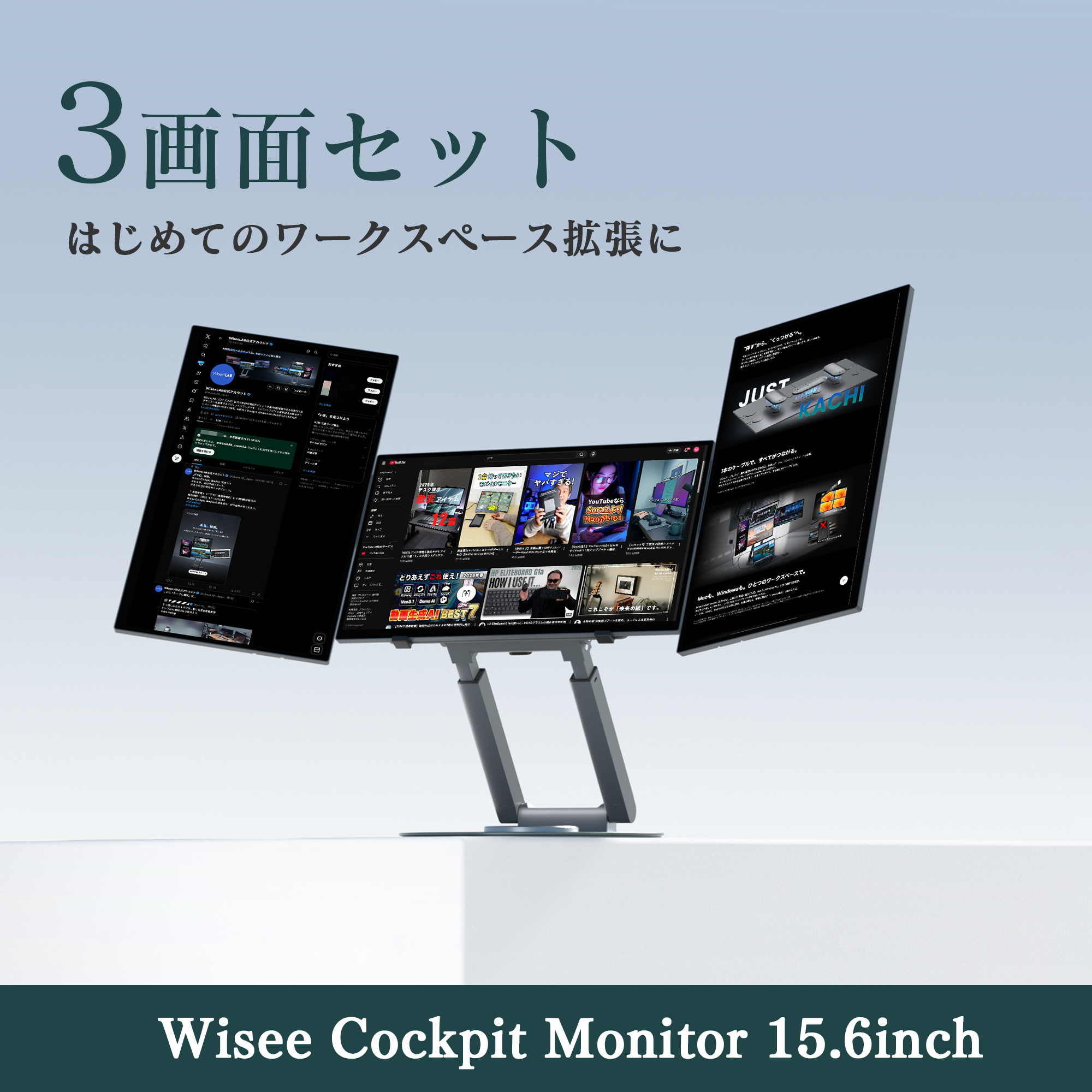
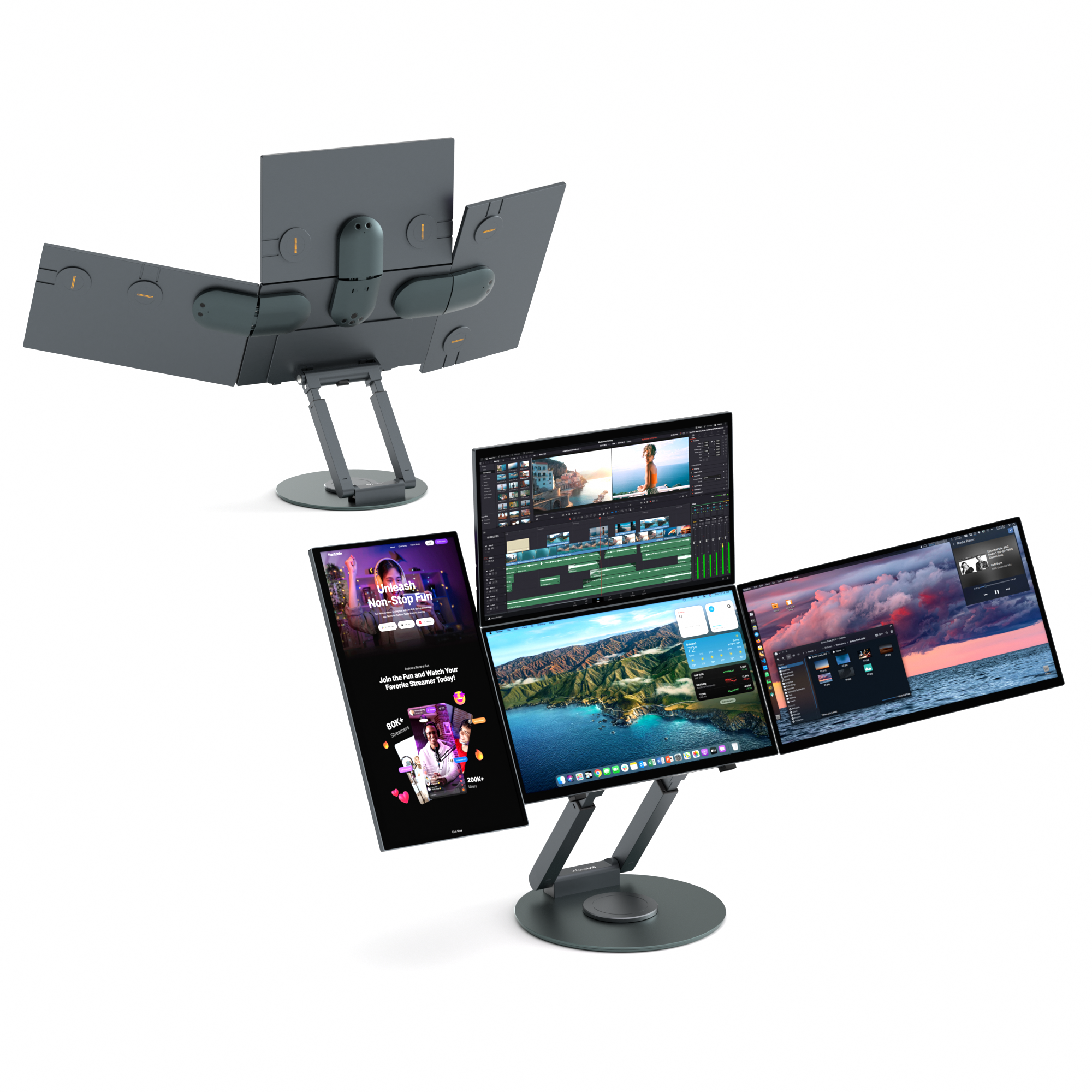
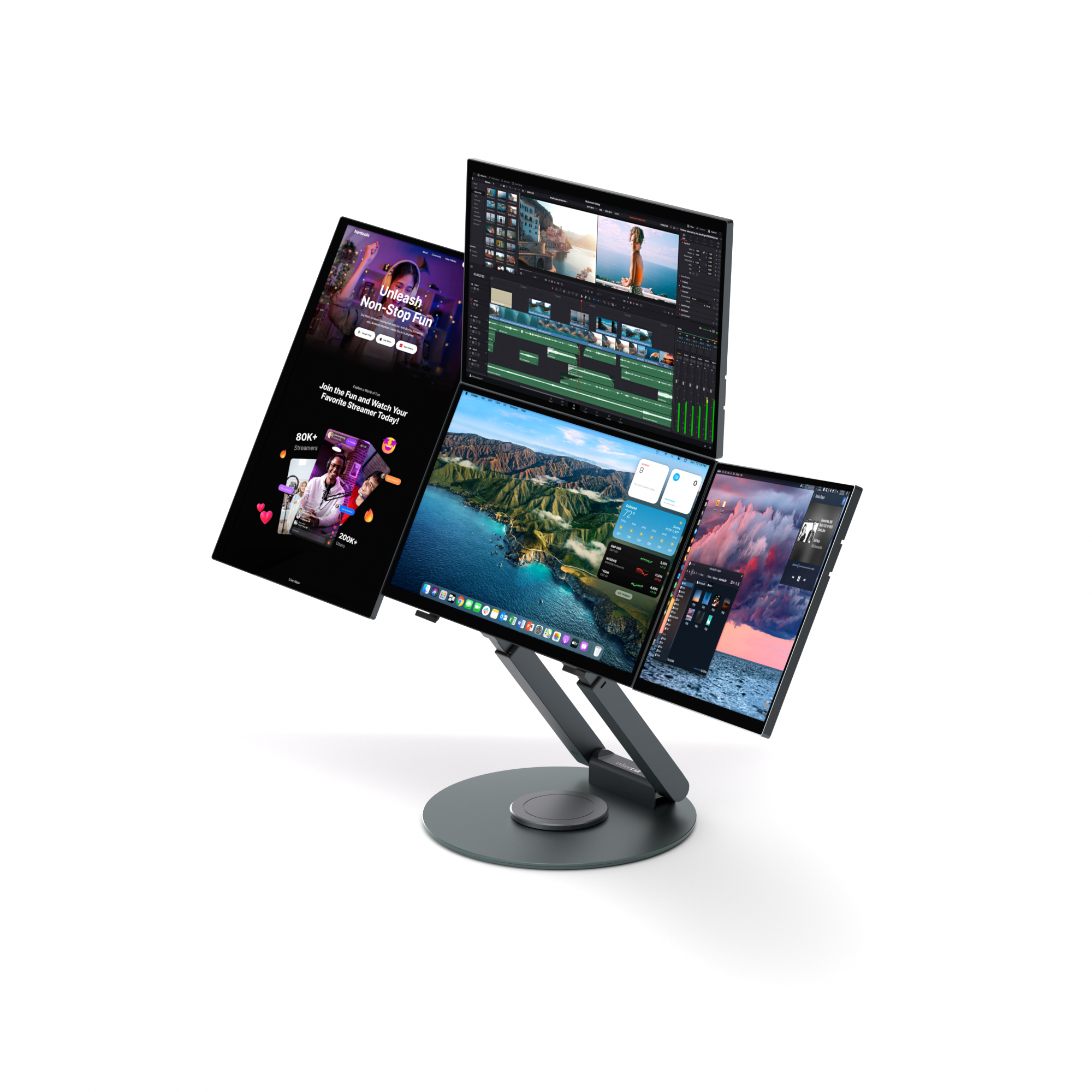
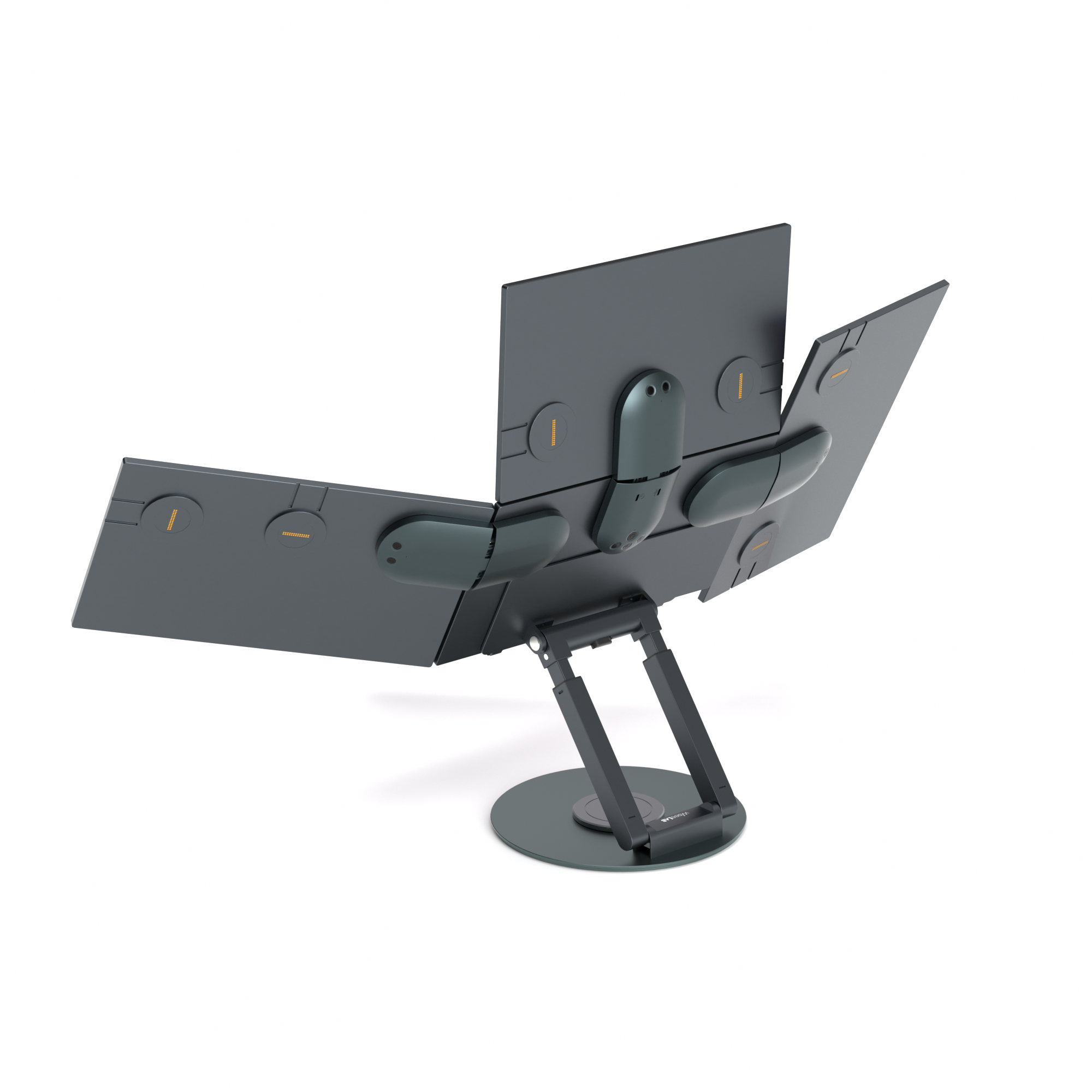
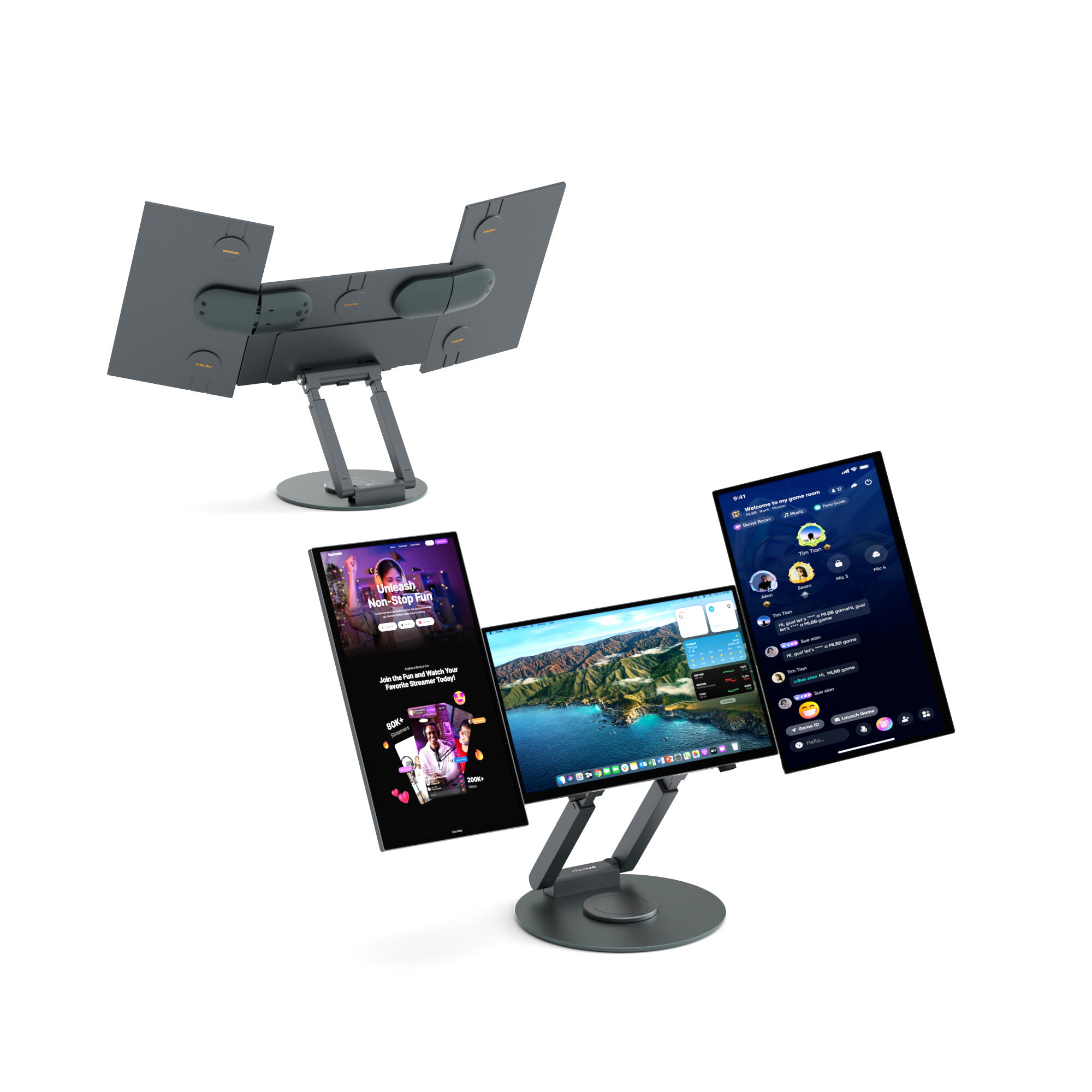
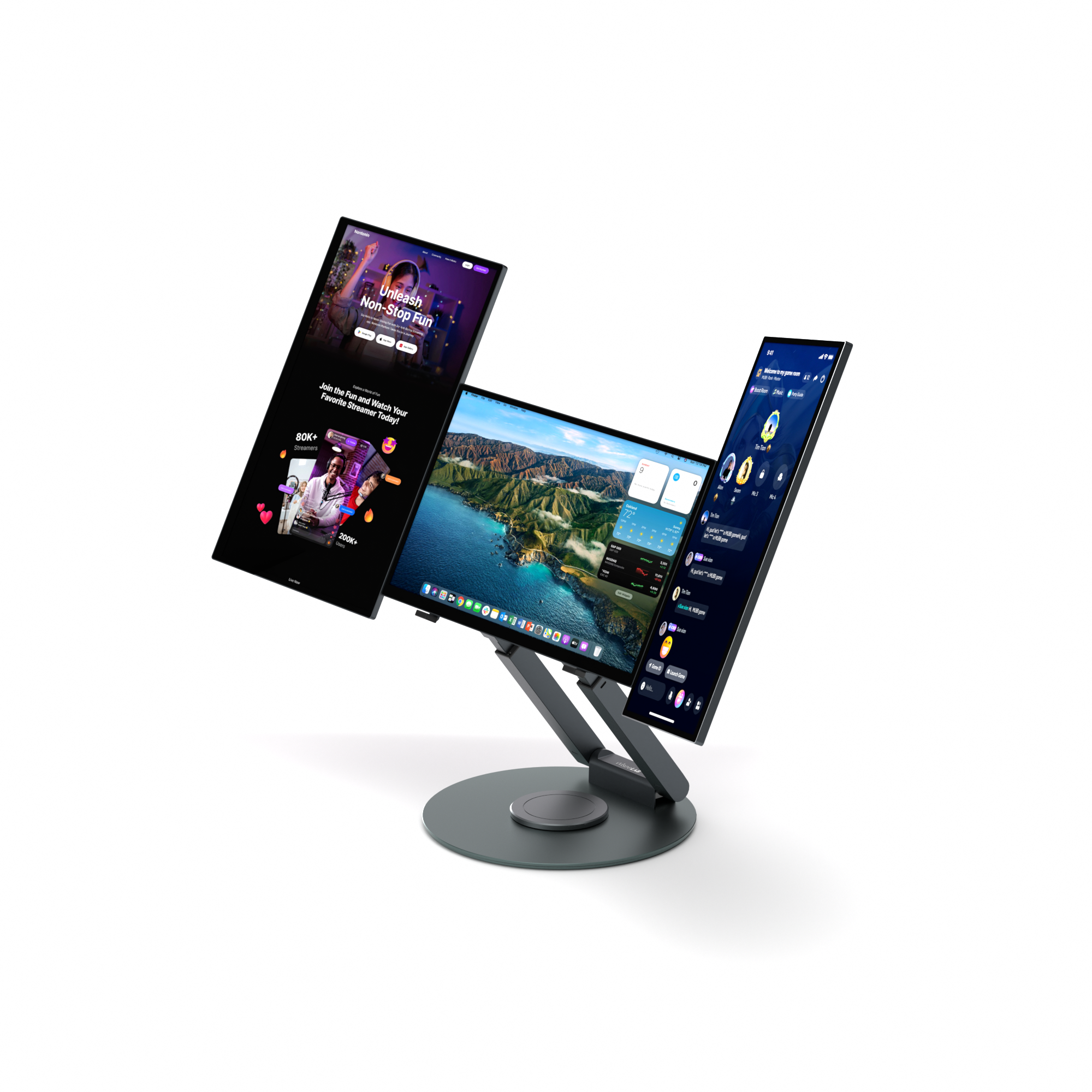
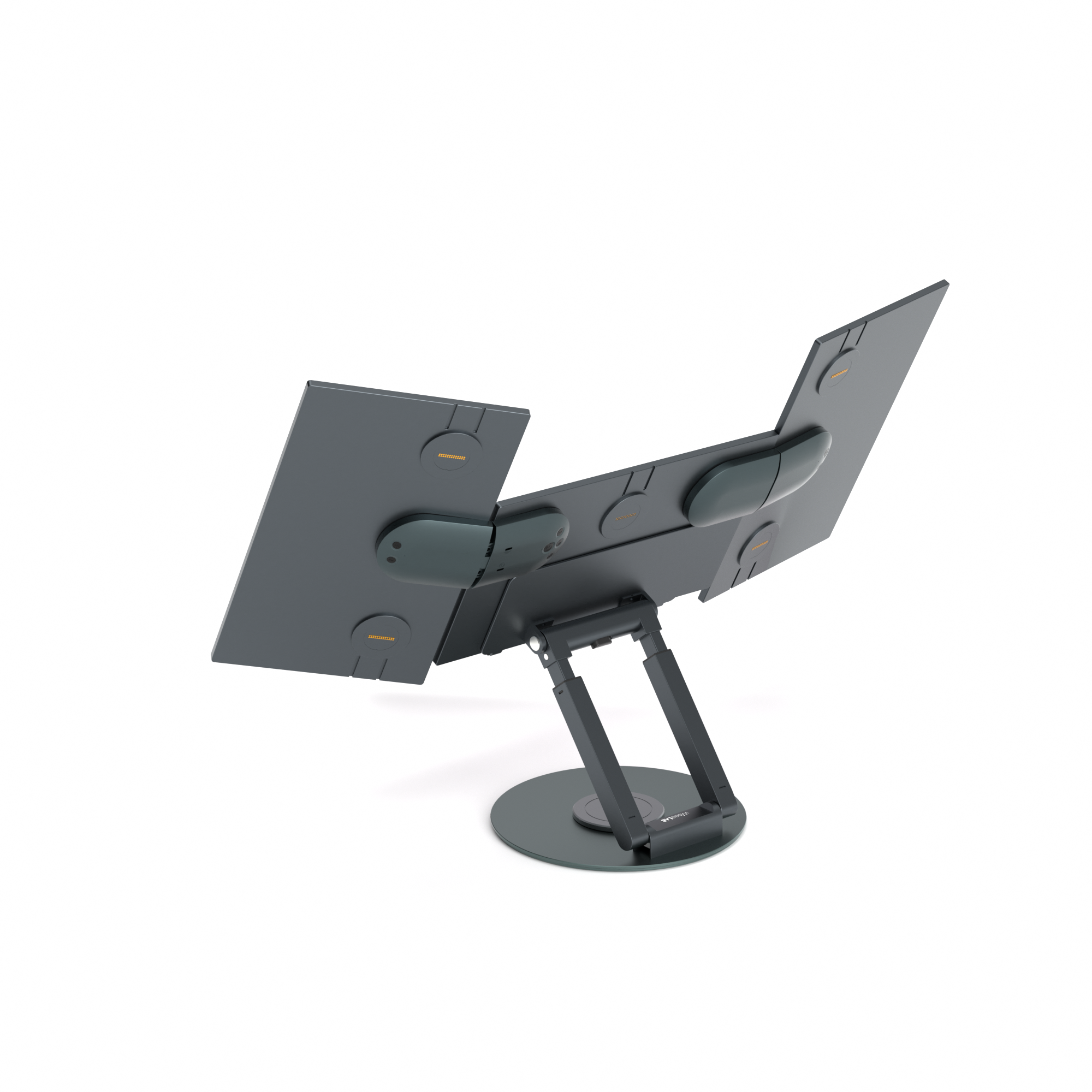
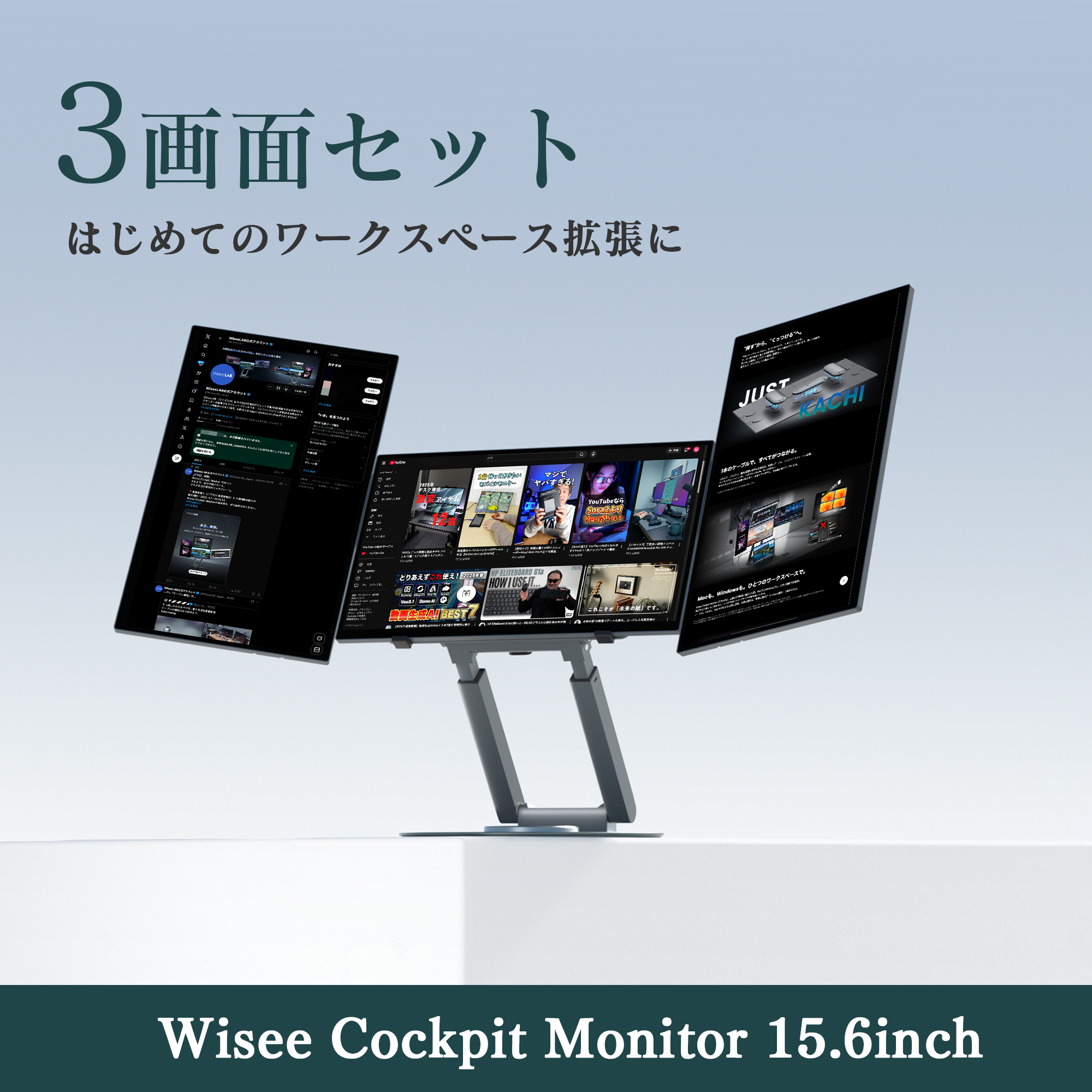
Wisee Cockpit Monitor 15.6inch|WiseeLAB Cockpit Monitor

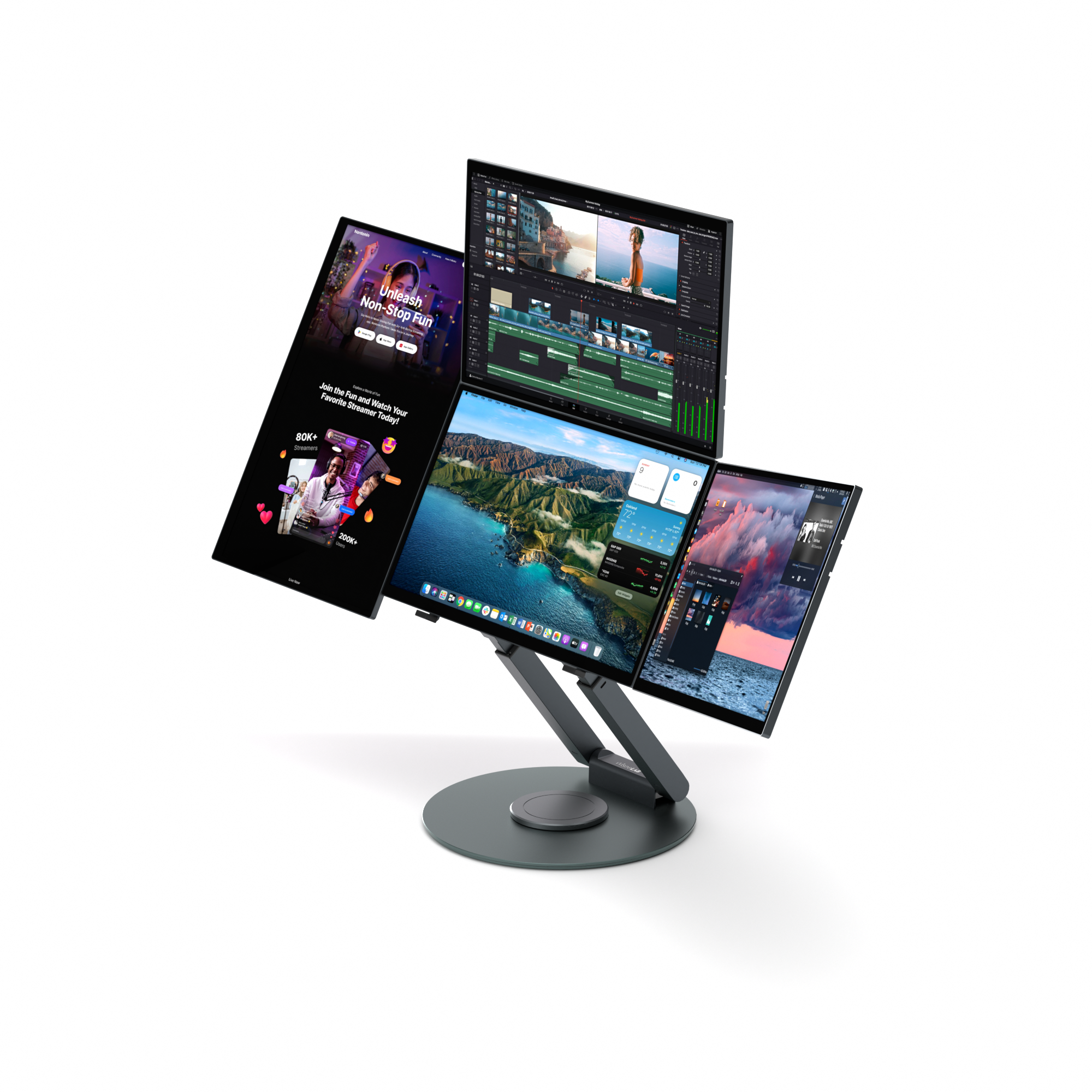
This is an extended display system that can be used in addition to your current PC and external monitor setup.
Save $213.00 USD
$998.00 USD
$1,211.00 USD
style
Shipping Plan​
Amazon購入ボタン
*This is the product price.
*Import taxes and customs duties are not included.
*This is the product price.
*Import taxes and customs duties are not included.
Shipping & Availability
About customs duties and taxes
Checkpoints before purchasing
Instruction manual and driver
Mastercard VISA Diners Apple Pay Google Pay
Product Specifications and Compatible Environments
Please check if it can be used with your PC, including compatible OS, connection conditions, and basic specifications.

Basic Specifications

Product Name: Wisee Cockpit Monitor 15.6inch
Model Number: RS-4156A
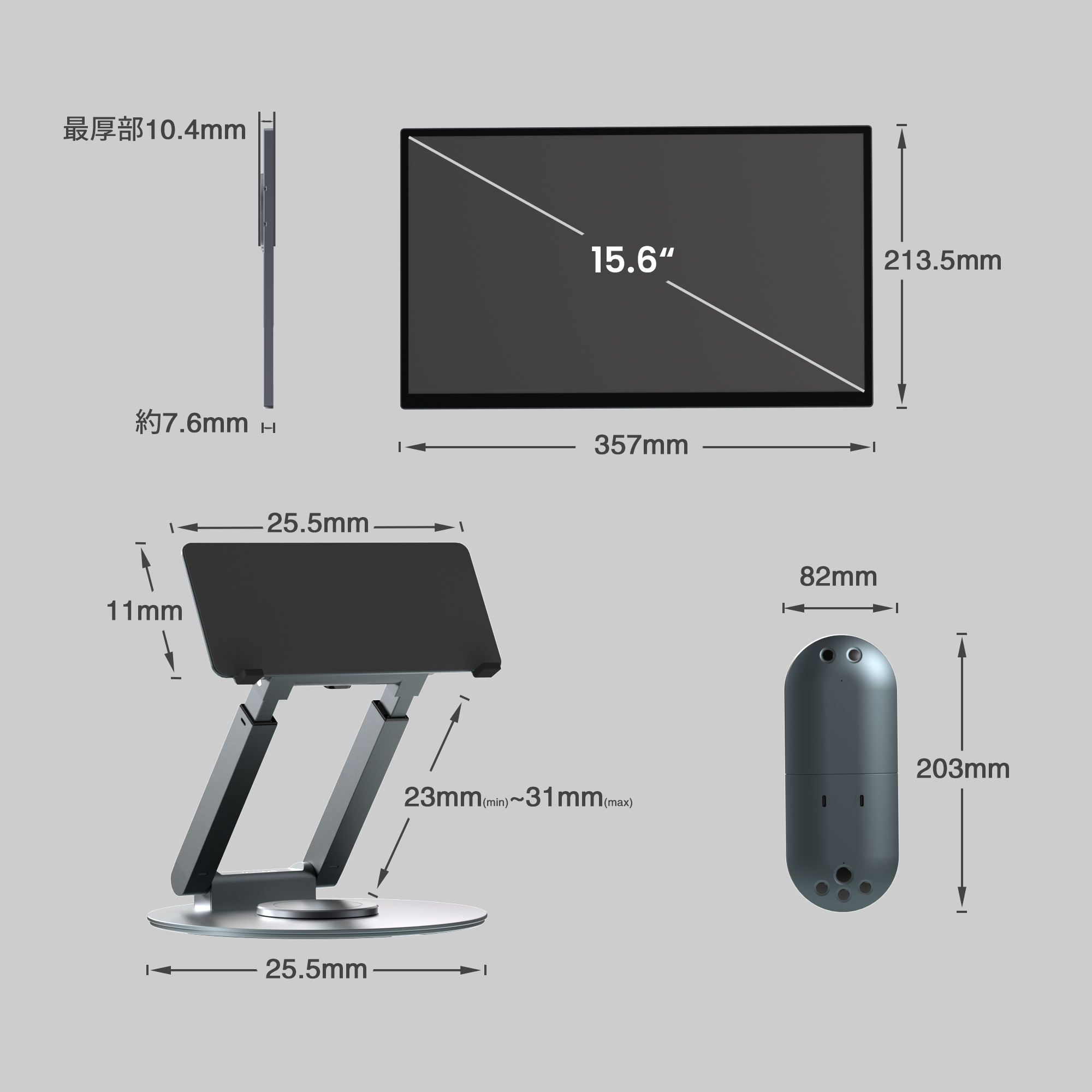
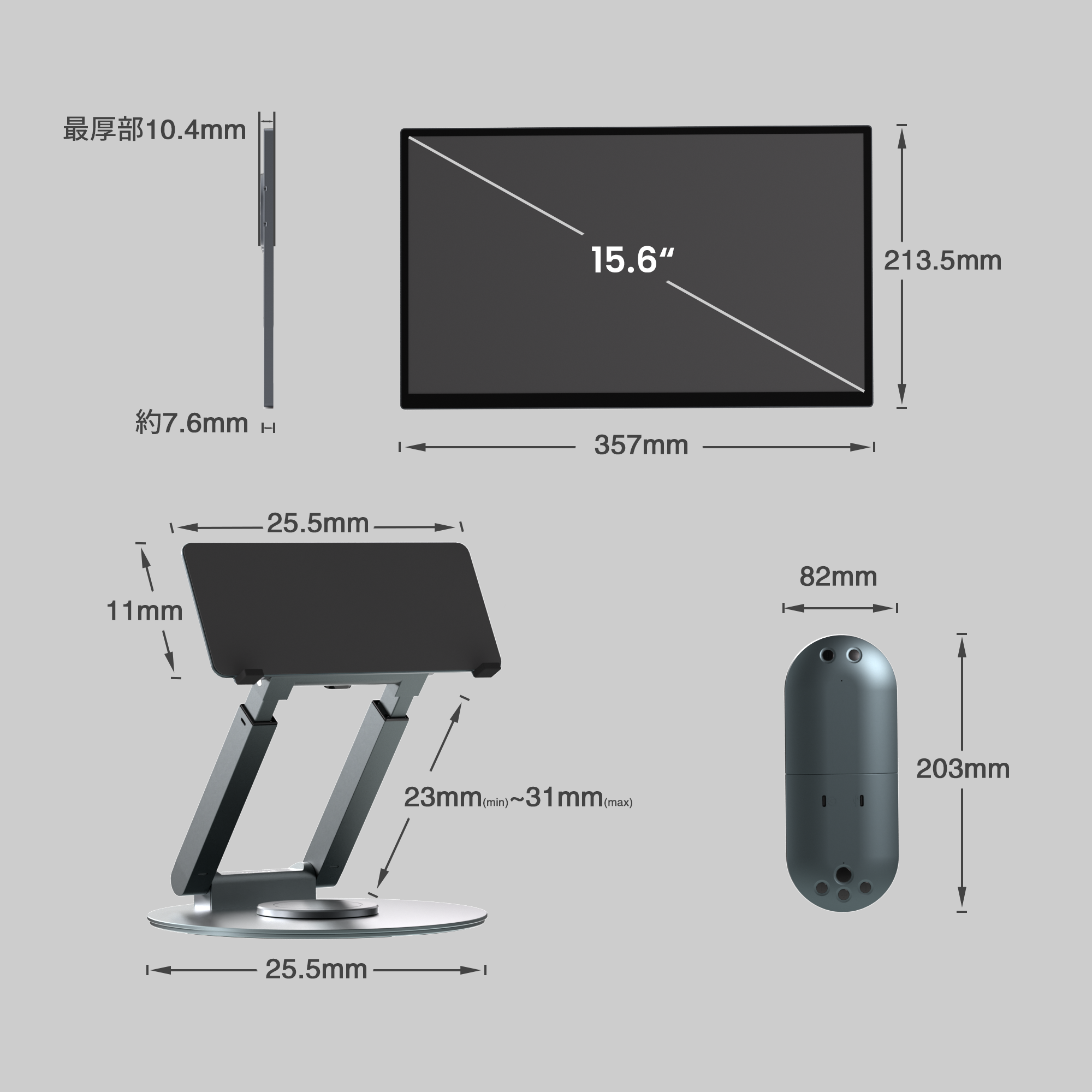
Screen Size: 15.6inch
Color:
  • Monitor Body: Space Gray
  • Magnetic Hub / Dedicated Magnetic Metal Stand: Jade Black Green

Monitor Performance

Panel Type: IPS TFT
Surface Treatment: Non-glossy
Resolution: 1920 × 1080 (FHD)
Aspect Ratio: 16:9
Color Temperature: 6500〜7000K
Contrast Ratio: 1000:1
Brightness: Max 350nit
Refresh Rate: 60Hz

Dimensions and Weight

Monitor Body (1 Screen):
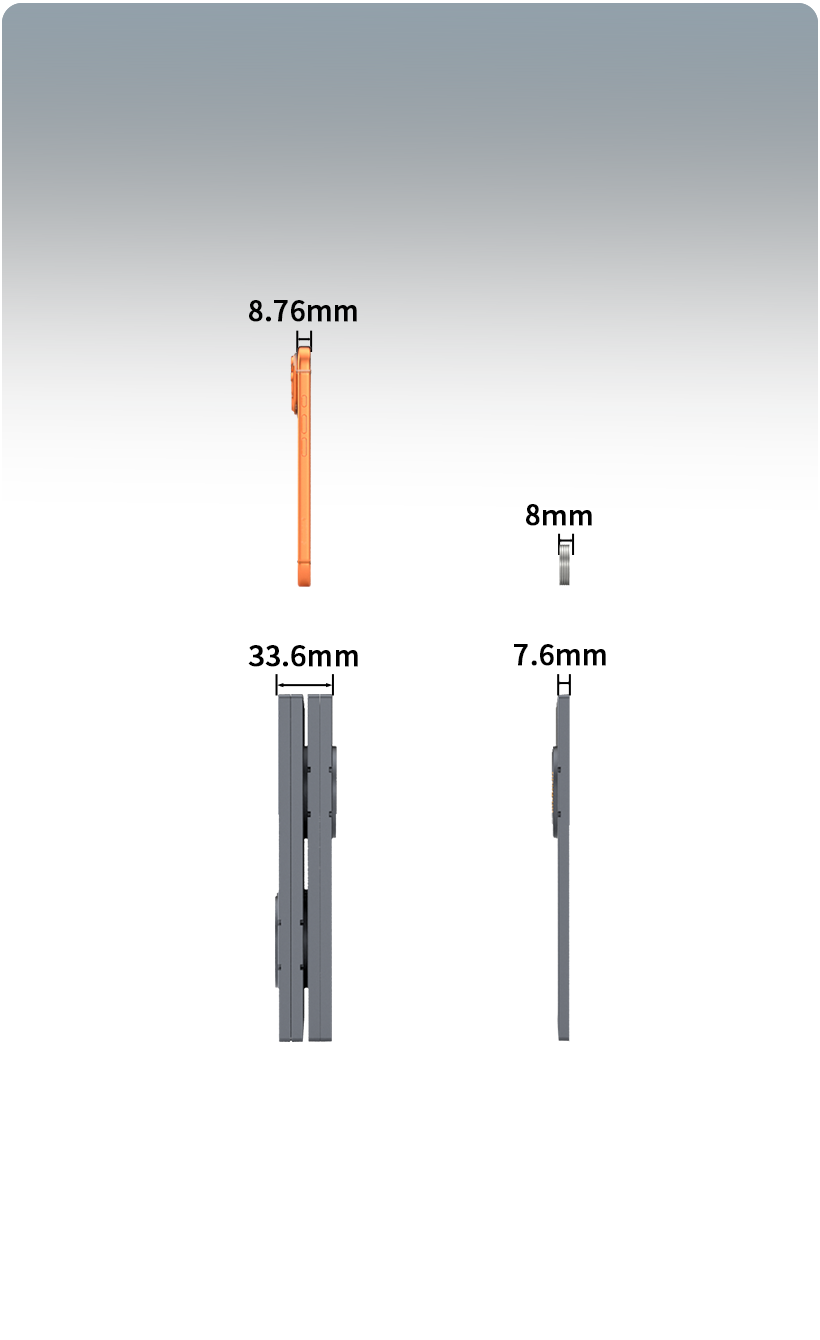
  • Size: Width 357mm × Height 213.5mm × Depth 7.6mm~10.4mm (thickest part)
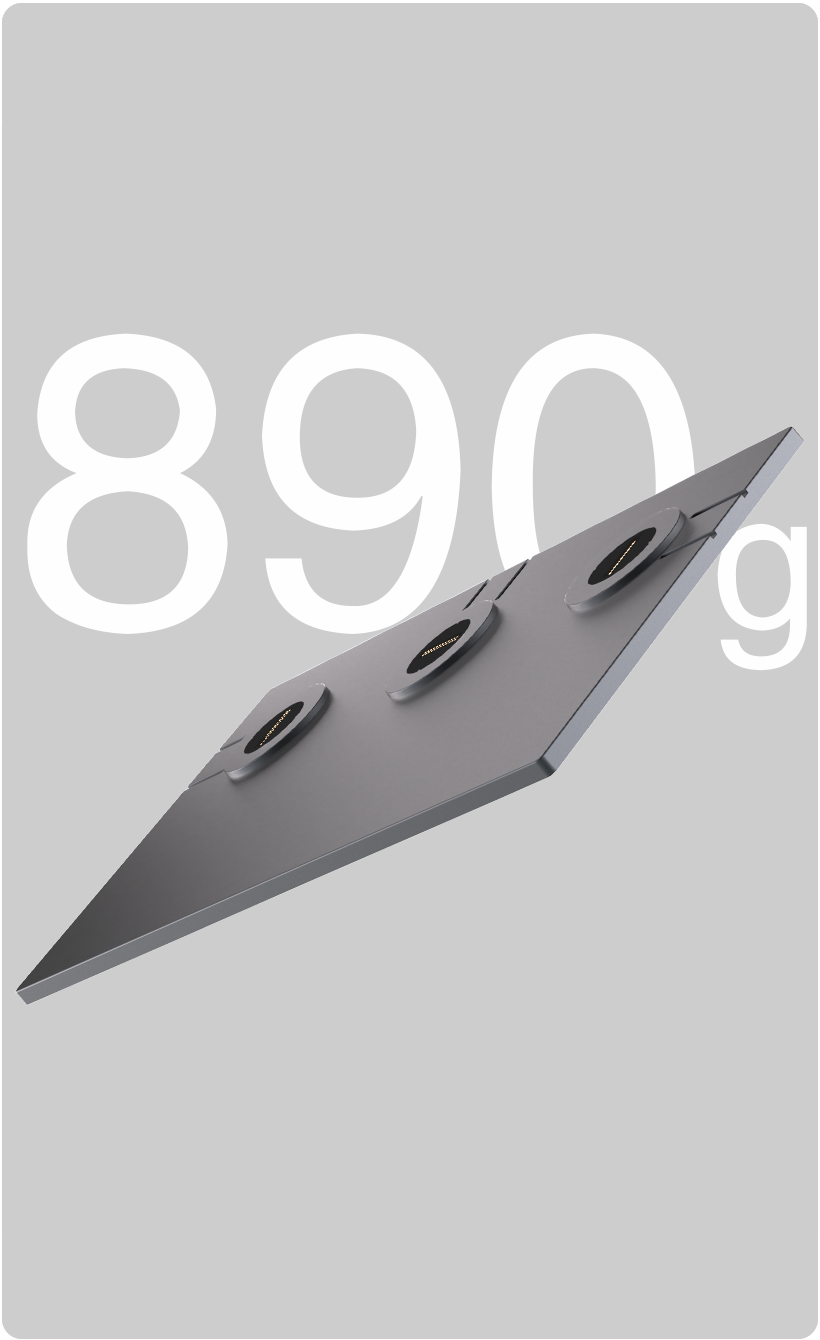
  • Weight: Approximately 890g
Installation Size (Reference Value):
  • Max Height: Approximately 530mm (when stacked 2 high)
  • Max Width: Approximately 1430mm (when 4 screens are arranged horizontally)
  • Max Depth: Approximately 260mm (stand base diameter)
*Size may vary depending on configuration and angle.
Accessories Size and Weight:

Magnetic Hub

  • Weight: Approximately 190g

Dedicated Magnetic Metal Stand

  • Weight: Approximately 1.4kg

Power Adapter

  • Size: Width 58.2mm × Depth 58.2mm × Height 29mm
  • Weight: Approximately 200g

Connectivity and Expandability

Number of Connectable Screens: Up to 5 screens (including laptop screen)
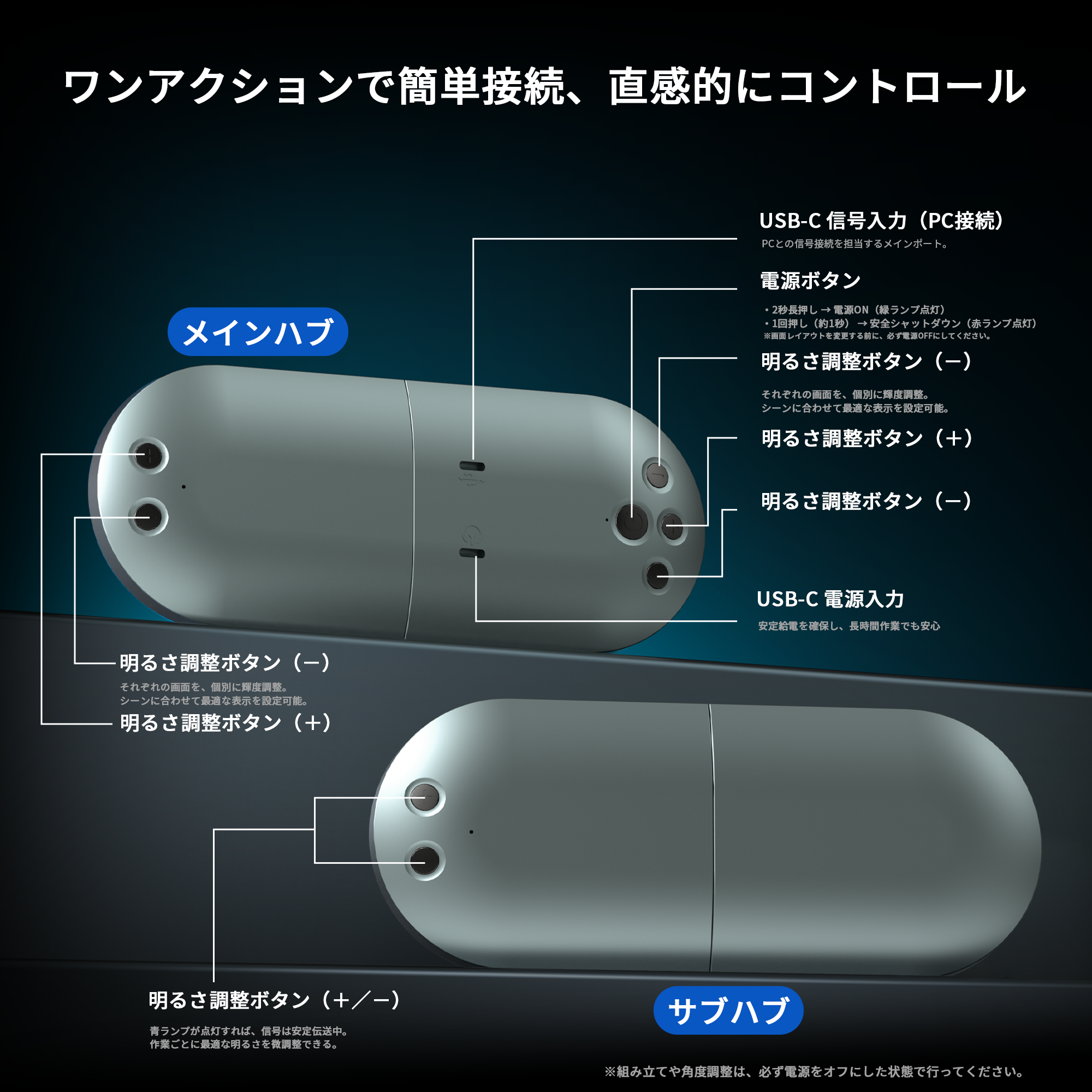
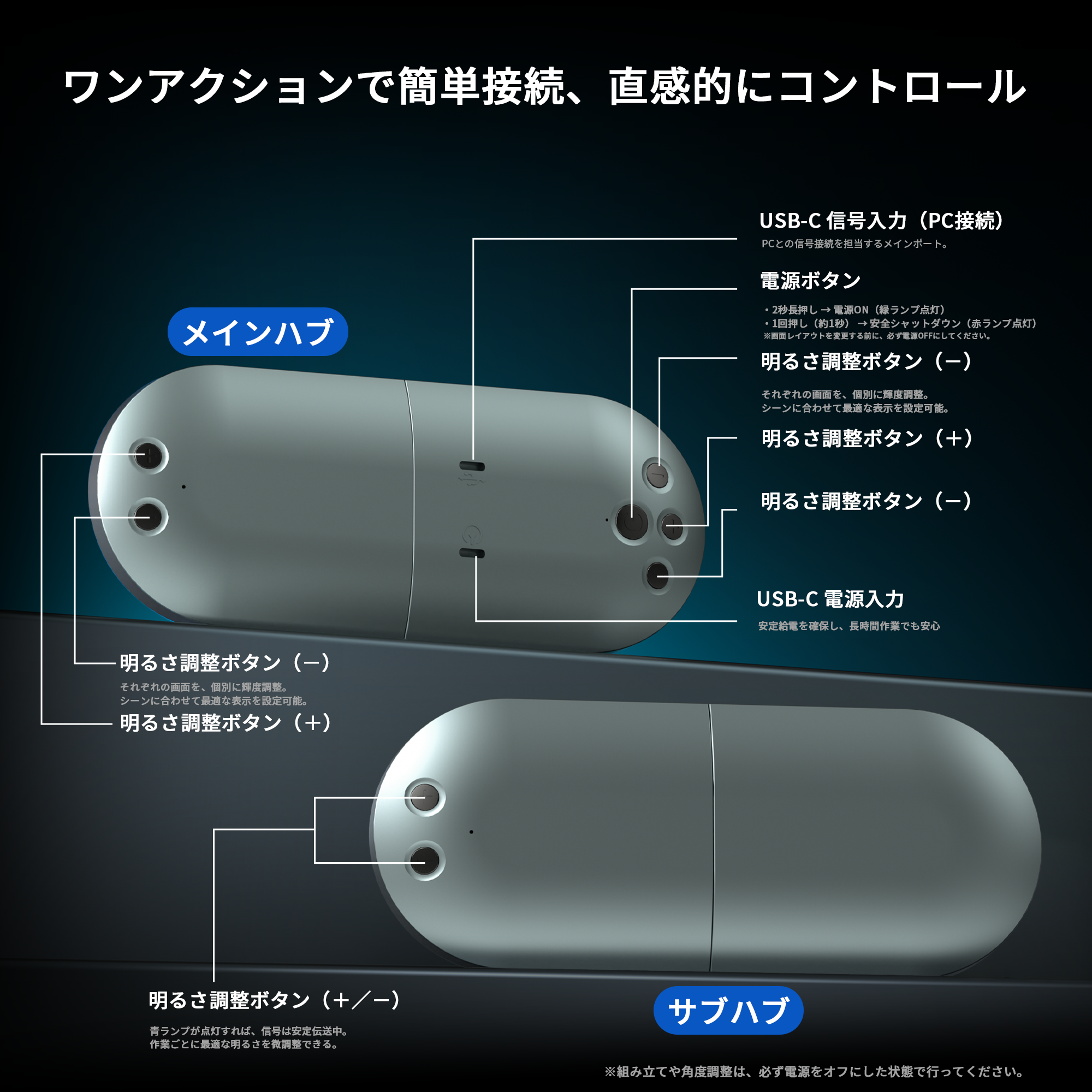
Interface (Main Magnetic Hub):
  • USB-C 2.0 ① (Signal Input)
  • USB-C 2.0 ② (Power Supply)
  • Power Button
  • Brightness Adjustment Button (+/−)
Interface (Sub Magnetic Hub):
  • Brightness Adjustment Button (+/−)

Power and Environmental Conditions

Input Power: AC 100-240V (50/60Hz)
Power Consumption: MAX 12V/5A
Operating Temperature Conditions: 0℃ ~ 50℃
Operating Humidity Conditions: 10% ~ 85%
Power Lamp Indication:
  • Green: On
  • Red: Off / Standby
  • Blue: Signal Transmission

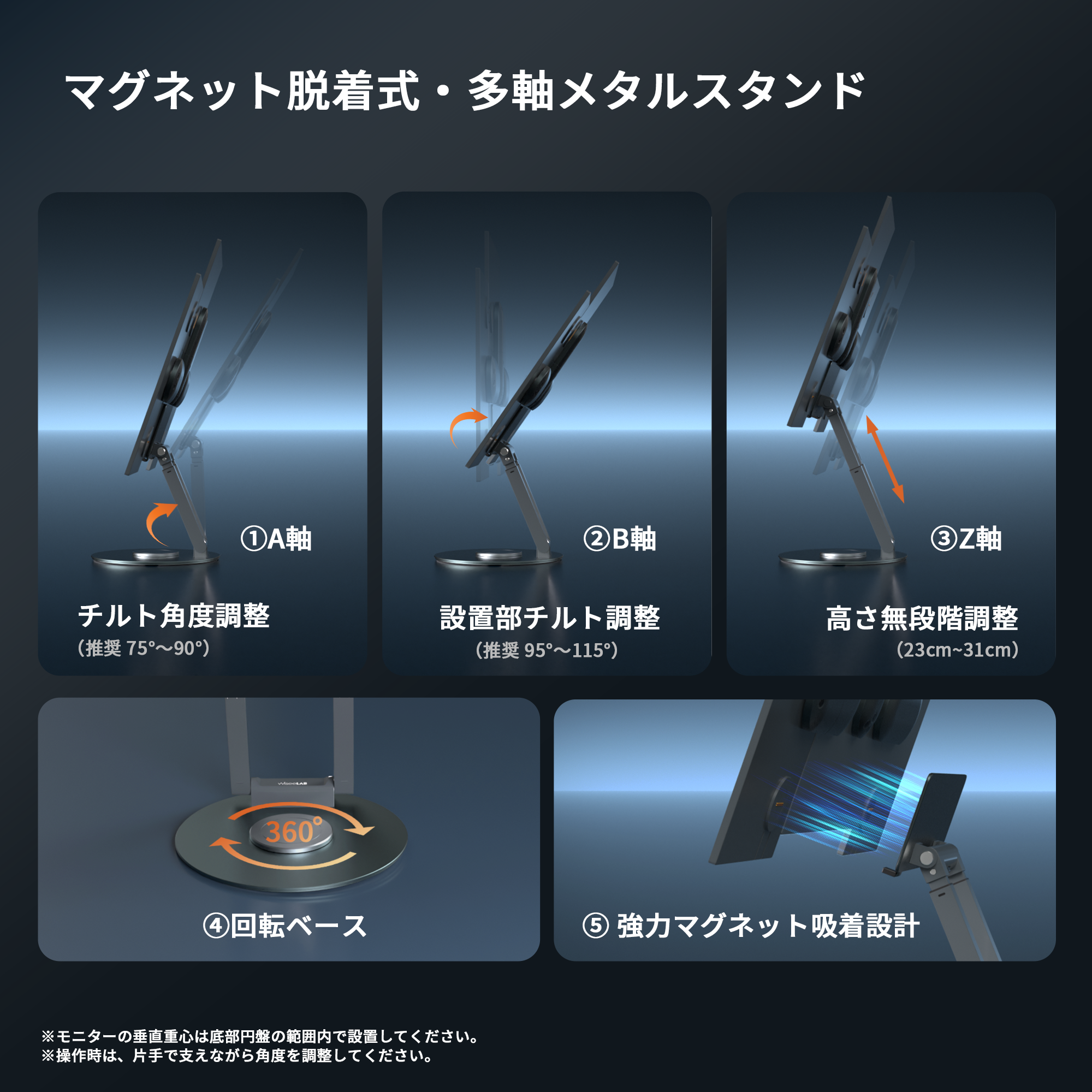
Dedicated Magnetic Metal Stand Specifications

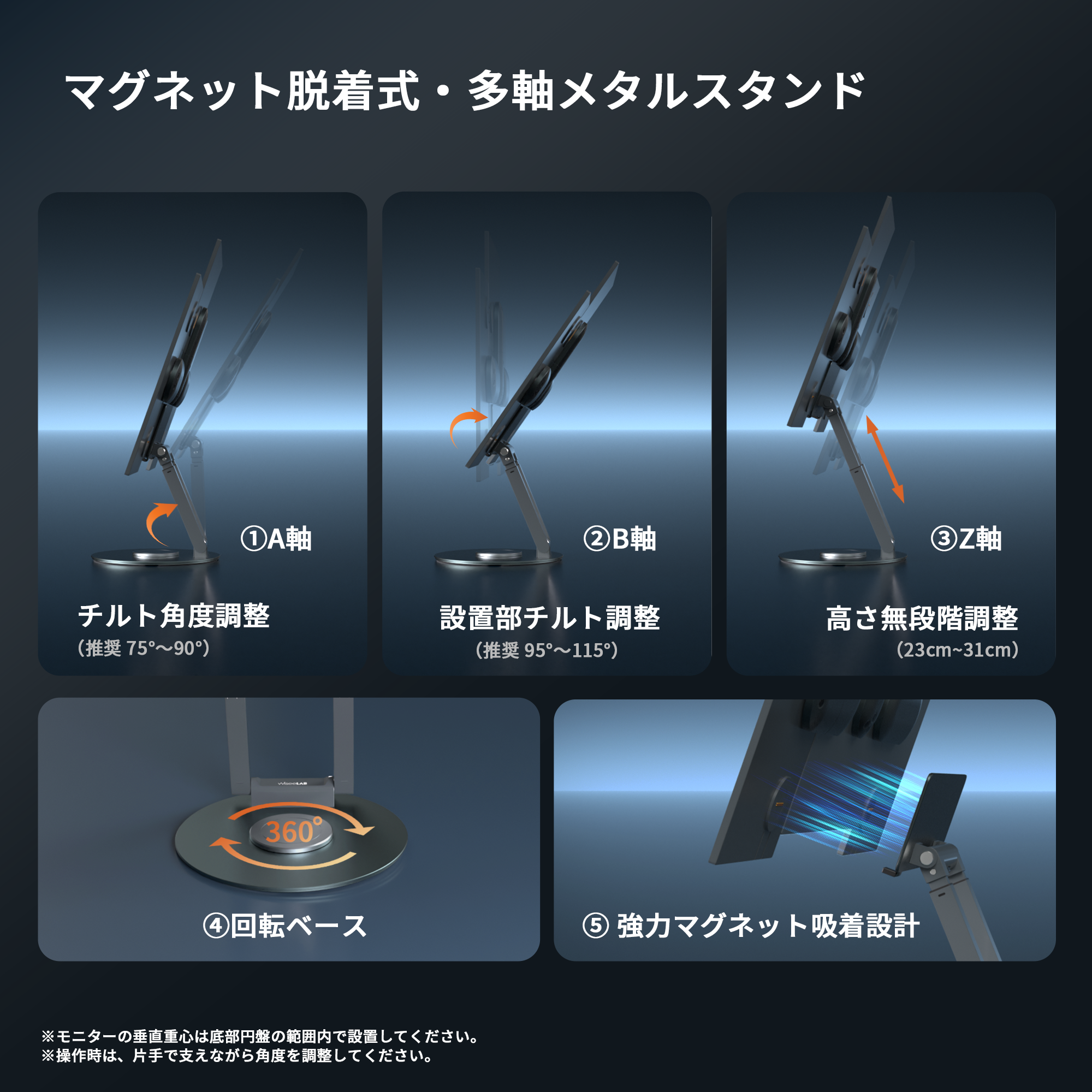
A Axis (Arm Tilt Angle): 75°〜90° (Recommended)
B Axis (Installation Tilt Angle): 95°〜115° (Recommended)
Z Axis (Height Adjustment Range): 23cm~31cm (Stepless)
Rotating Base: 360°

Supported OS

macOS & Windows Compatibility List (Standard Support)
  • macOS V10.15 and later* M1/M2/M3/M4
  • Windows 10 Intel/AMD
  • Windows 11 Intel/AMD/ARM
*In macOS environments, installation of dedicated drivers is required. Especially for Mac mini, it can be used after installation with existing monitors.
Connection Environment and Recommended Connection Method
  • Recommended Connection Environment: Directly connect the PC (Windows laptop / MacBook / Mac mini / Mini PC / Desktop PC, etc.) with the included USB-C to C or USB-A to C signal cable
  • Connection Notes: Connecting through USB Hub, docking stations, or conversion adapters may result in unstable screen recognition or screen arrangement retention depending on the environment.
*To ensure stable use, please connect the PC and Wisee Cockpit Monitor directly during initial setup and normal use.
*Power connection using the included power adapter is required for this product.
Customization Compatible Environment (Consultation Available)
  • Ubuntu 19.1 and later
  • Android 5.0 and later
  • iOS (iPhone 16 series and later)

If you wish to use the above OS versions, please feel free to consult us.

Package Contents

Advance Set
(3 Screens)
Item Name Quantity
Monitor Body ×3
Main Magnetic Hub ×1
Sub Magnetic Hub ×1
Dedicated Magnetic Metal Stand ×1
Power Adapter ×1
USB-C to C Signal Cable ×1
USB-A to C Signal Cable ×1
User Manual ×1
Flagship Set
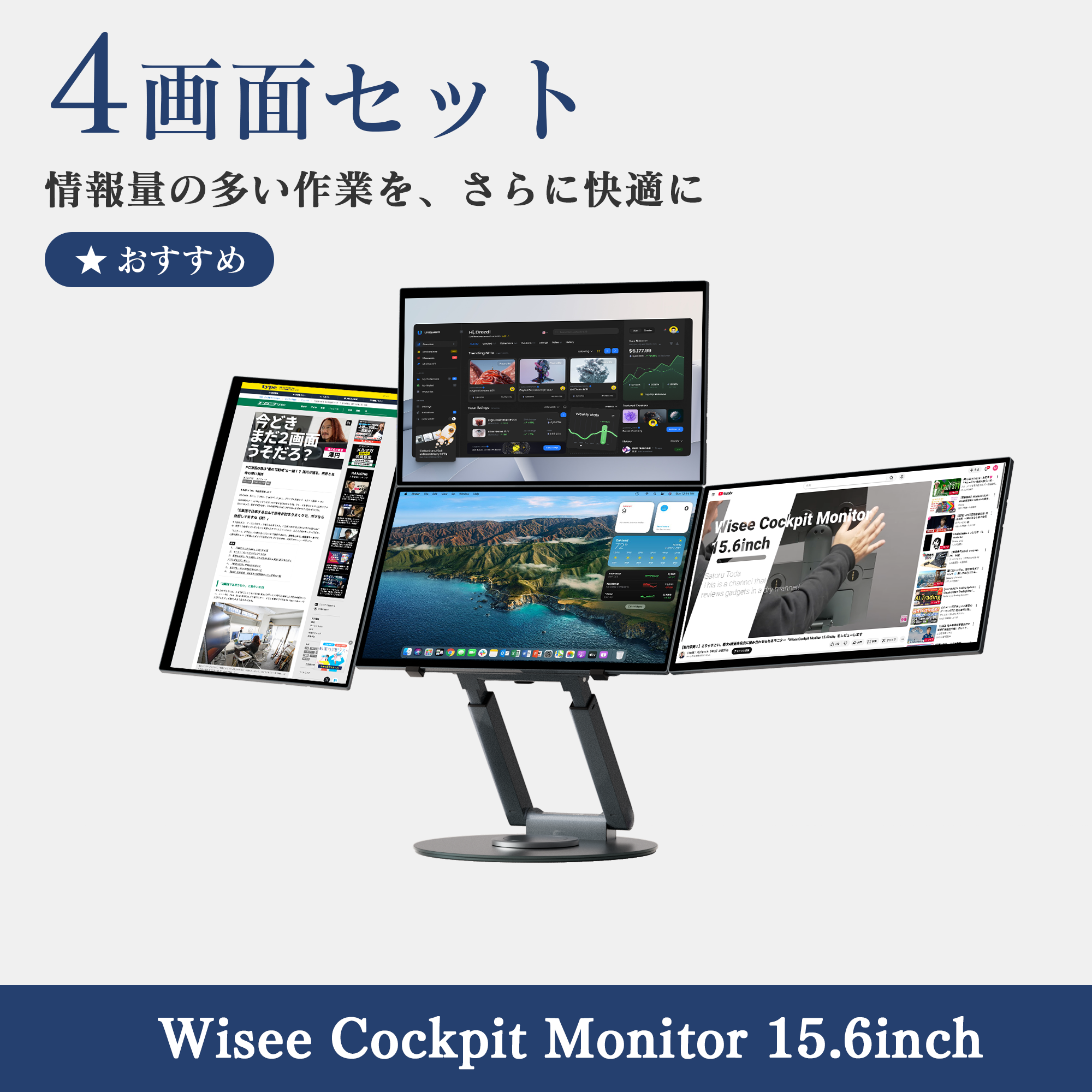
(4 Screens)
Item Name Quantity
Monitor Body ×4
Main Magnetic Hub ×1
Sub Magnetic Hub ×2
Dedicated Magnetic Metal Stand ×1
Power Adapter ×1
USB-C to C Signal Cable ×1
USB-A to C Signal Cable ×1
User Manual ×1

Safety and Usage Precautions

To use safely and comfortably, please check the following before use.

■ About Installation and Environment
  • Do not use in humid or wet places. Areas such as bathrooms, kitchens, and around pools may cause malfunction or electric shock.
  • Please install on a stable flat surface. There is a risk of injury or damage due to tipping or falling.
■ About Power and Operation
  • Please use the included adapter and cable. Using products from other manufacturers may cause malfunction or overheating.
  • Always perform assembly and adjustments with the power OFF. For safety, please turn the power button OFF or unplug the adapter before operating.
  • Power Operation: Red LED lights up → Power ON (changes to green after 2 seconds of long press) / Short press to OFF (returns to red).
  • Auto OFF Function: The power will automatically turn OFF approximately 30 seconds after disconnecting from the PC.
■ About Handling the Monitor and Stand
  • The monitor and stand have a magnetic attachment structure. Please ensure they are securely attached during assembly.

Manufacturer Warranty

Warranty Period: 1 Year

It can proceed without switching.

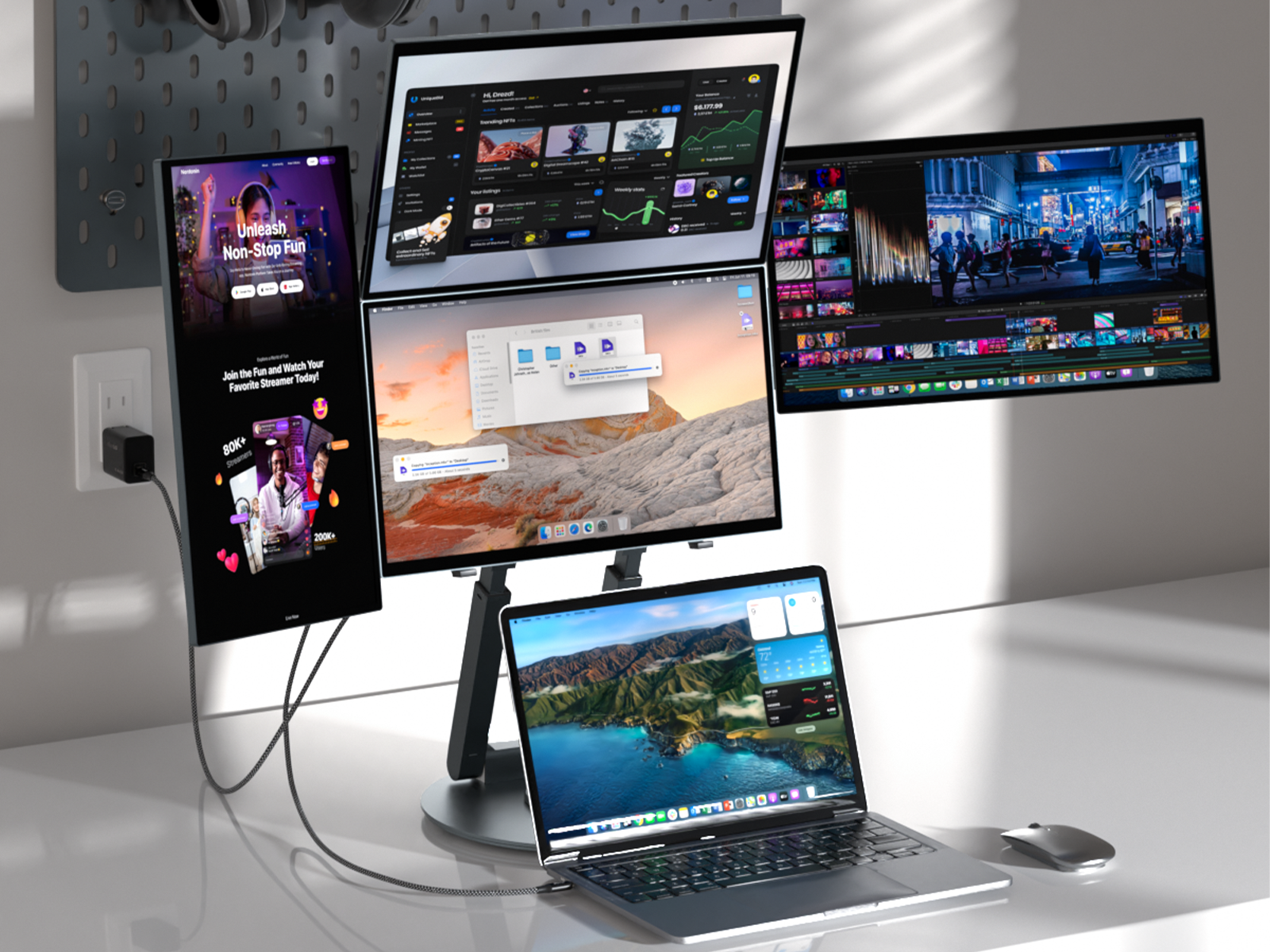
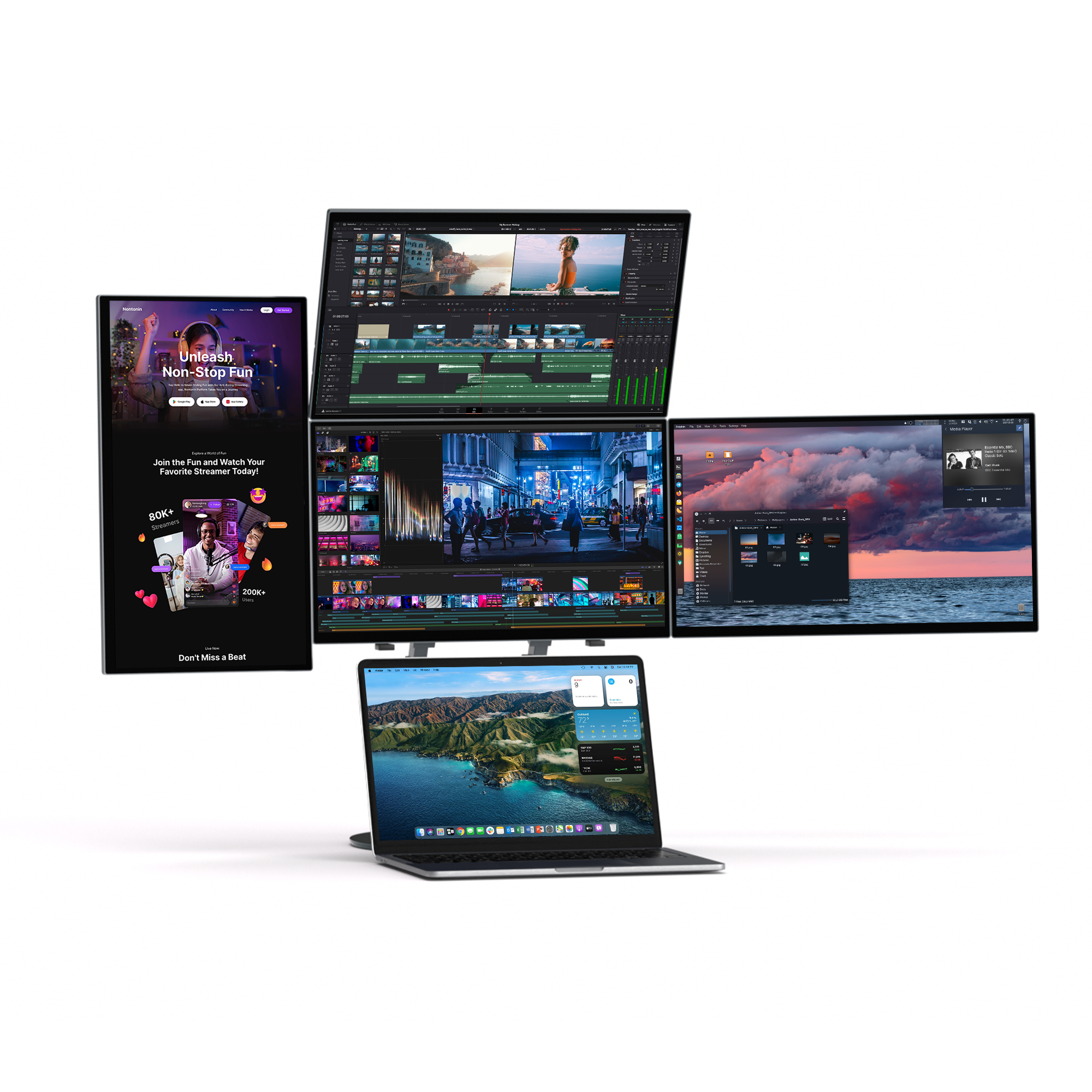
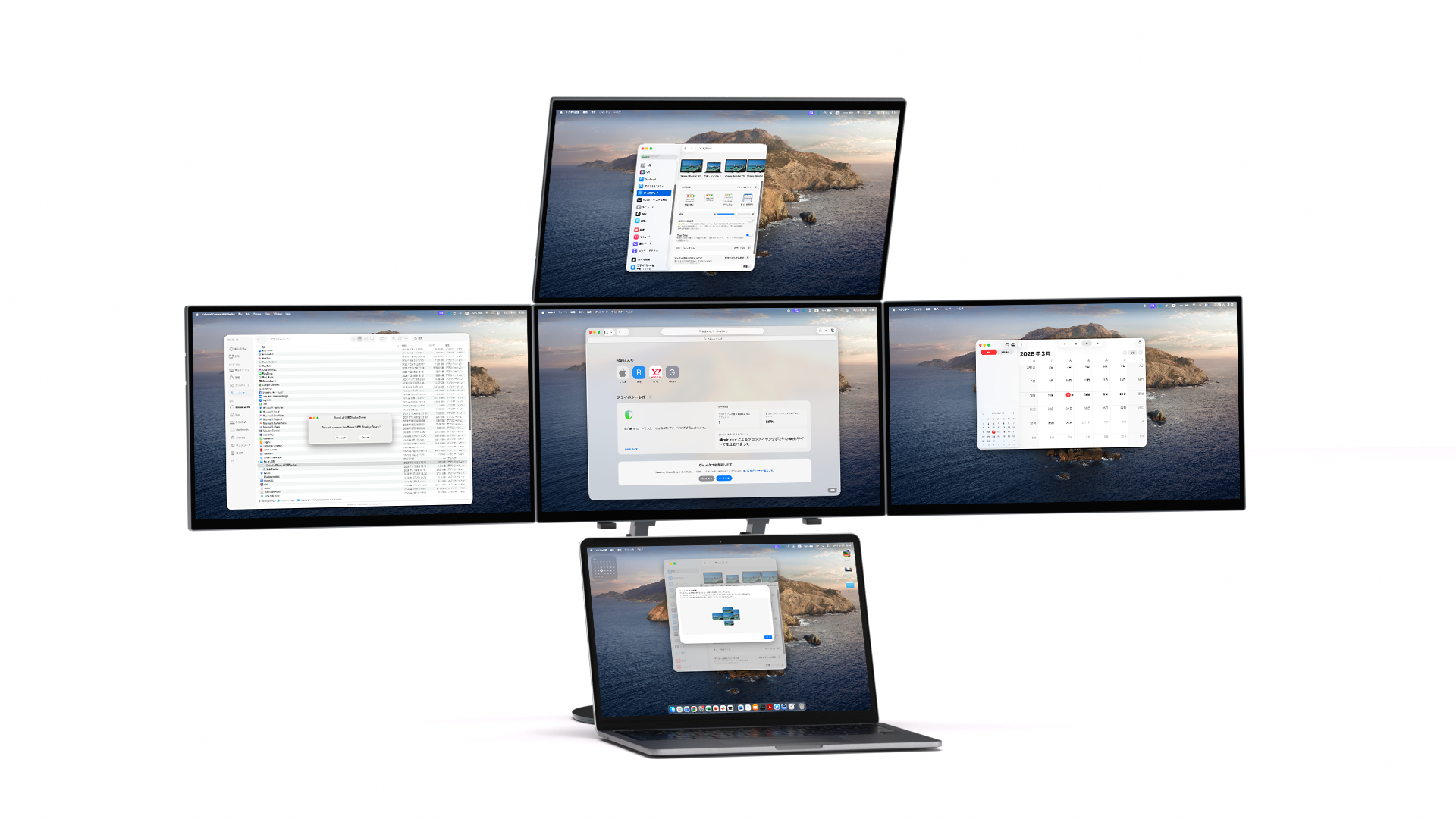
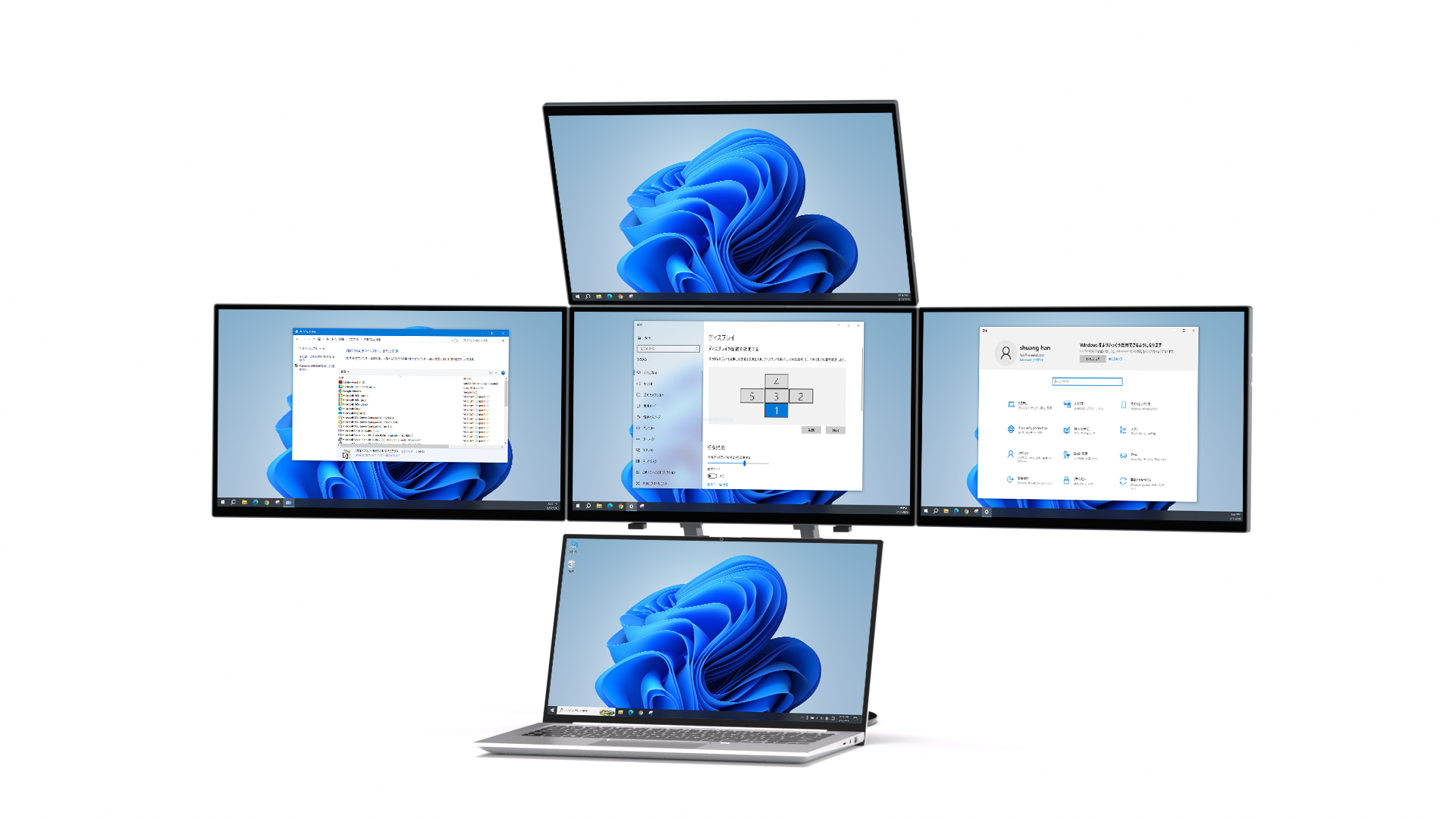
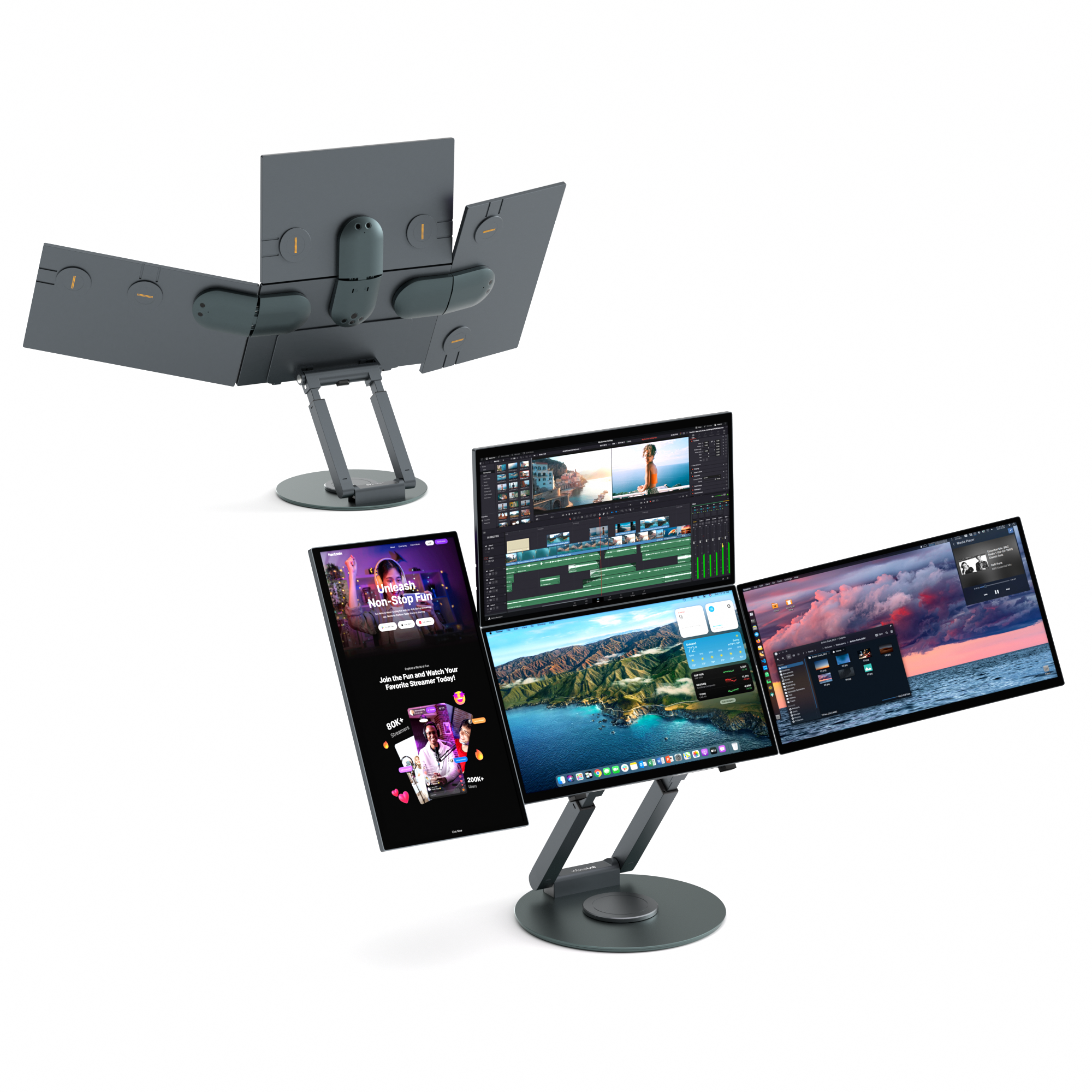
Anyone can create a 5-screen workspace with flexible vertical and horizontal layouts using their regular PC.

It can proceed without switching.

Anyone can create a 5-screen workspace with flexible vertical and horizontal layouts using their regular PC.

There are moments when you feel like a laptop alone isn't enough.

  • Research and organize. Think while chatting.

  • While switching between windows, I often lose track of what I was looking at.Don't you ever feel that way?

Instead of replacing something, we "add" it to the current environment.

Wisee Cockpit Monitor is a display system designed to add an additional information space to your familiar PC or external monitor environment.
Main tasks are on the current screen. AI, chat, documents, and reference information are on the additional screen. It expands the limits of screen space while making the most of your current environment.
Wisee Cockpit Monitor is a display system designed to add an additional information space to your familiar PC or external monitor environment.
Main tasks are on the current screen. AI, chat, documents, and reference information are on the additional screen. It expands the limits of screen space while making the most of your current environment.

Expand it further to suit the environment you're currently using.

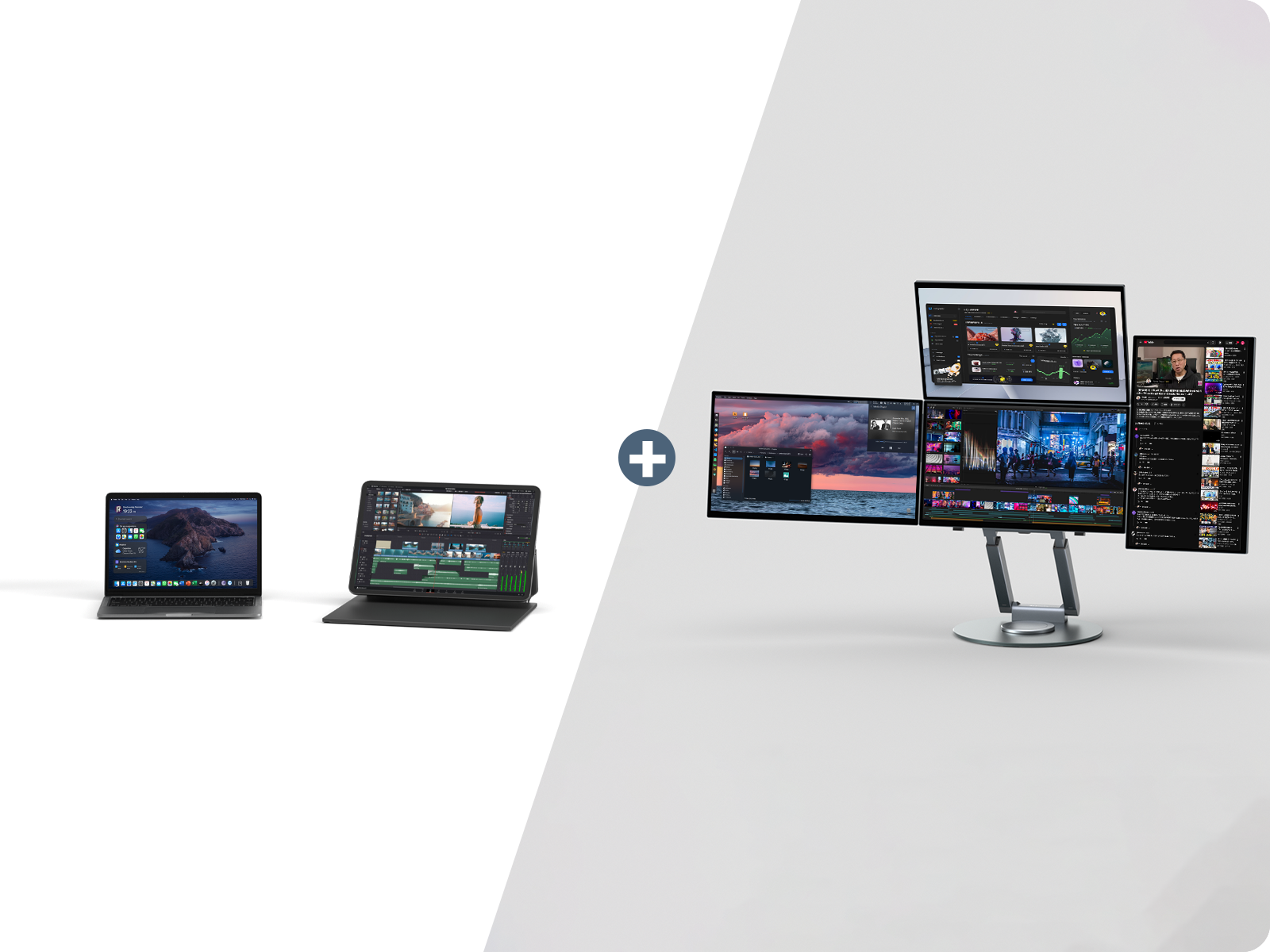
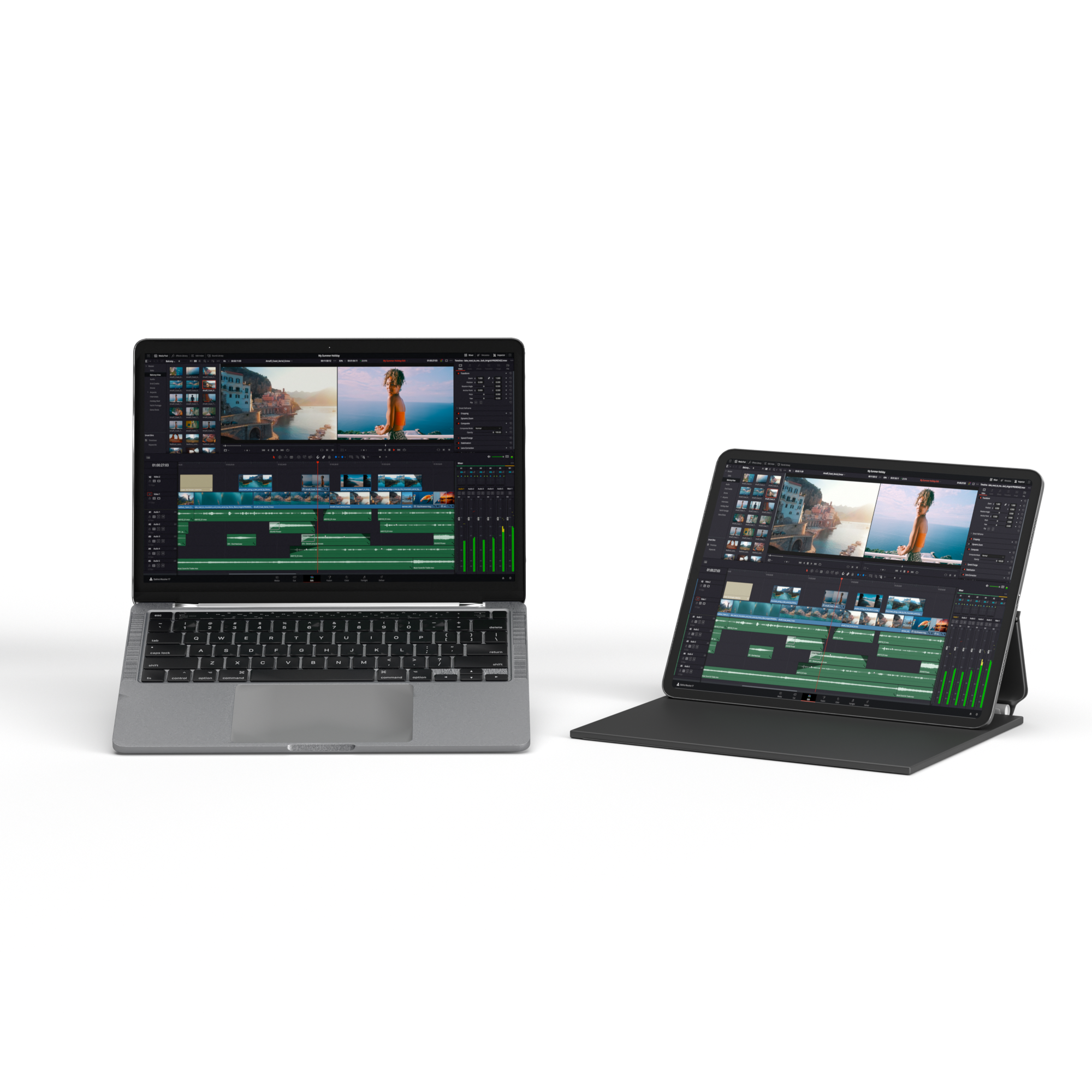
Portable monitor × Wisee Cockpit Monitor

The ease of use remains the same, but the space for fixing information is increased.

Add a screen for AI, materials, and chat to your laptop-centered work. This reduces the need to switch tasks while maintaining ease of mobility.

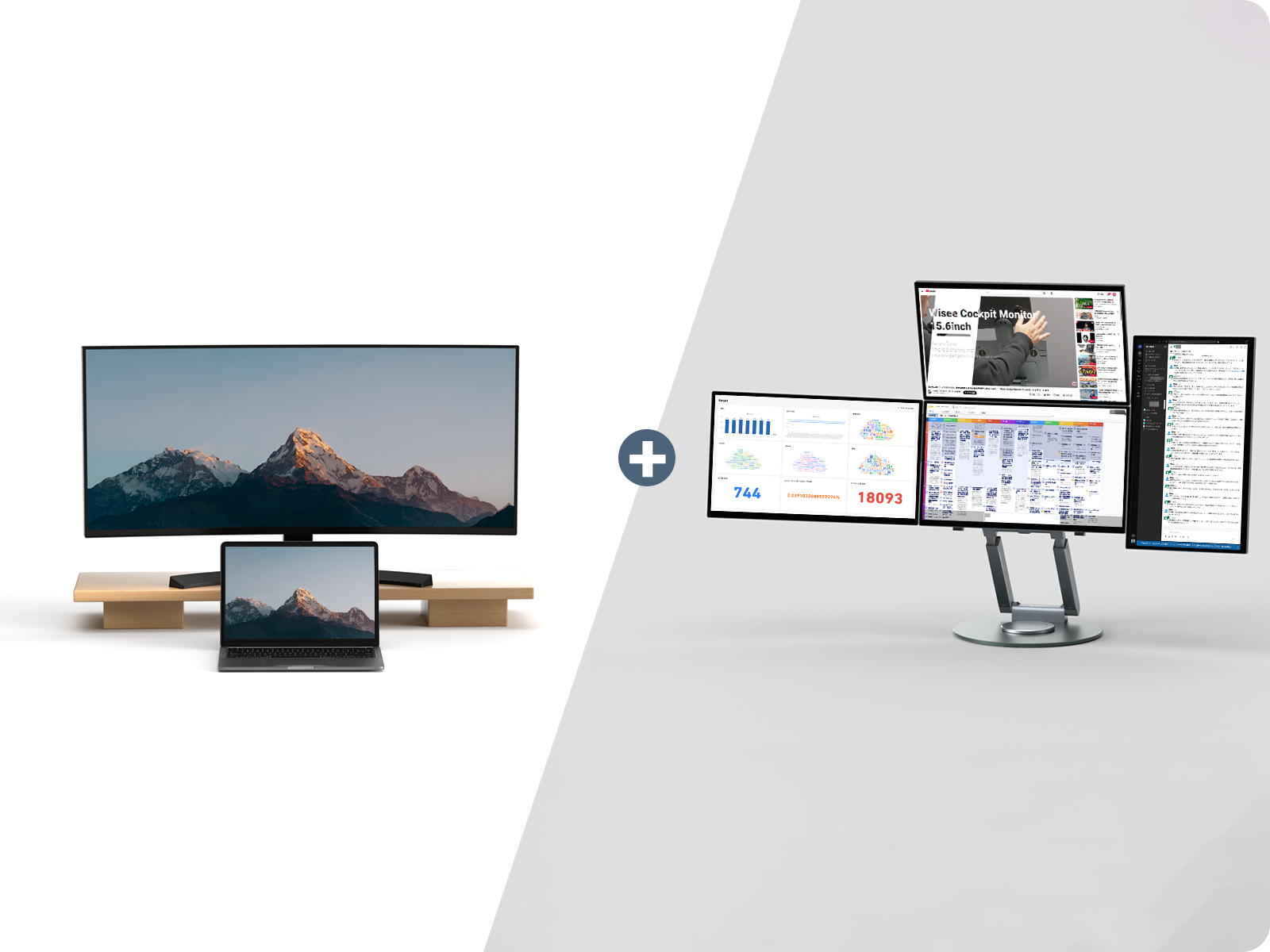
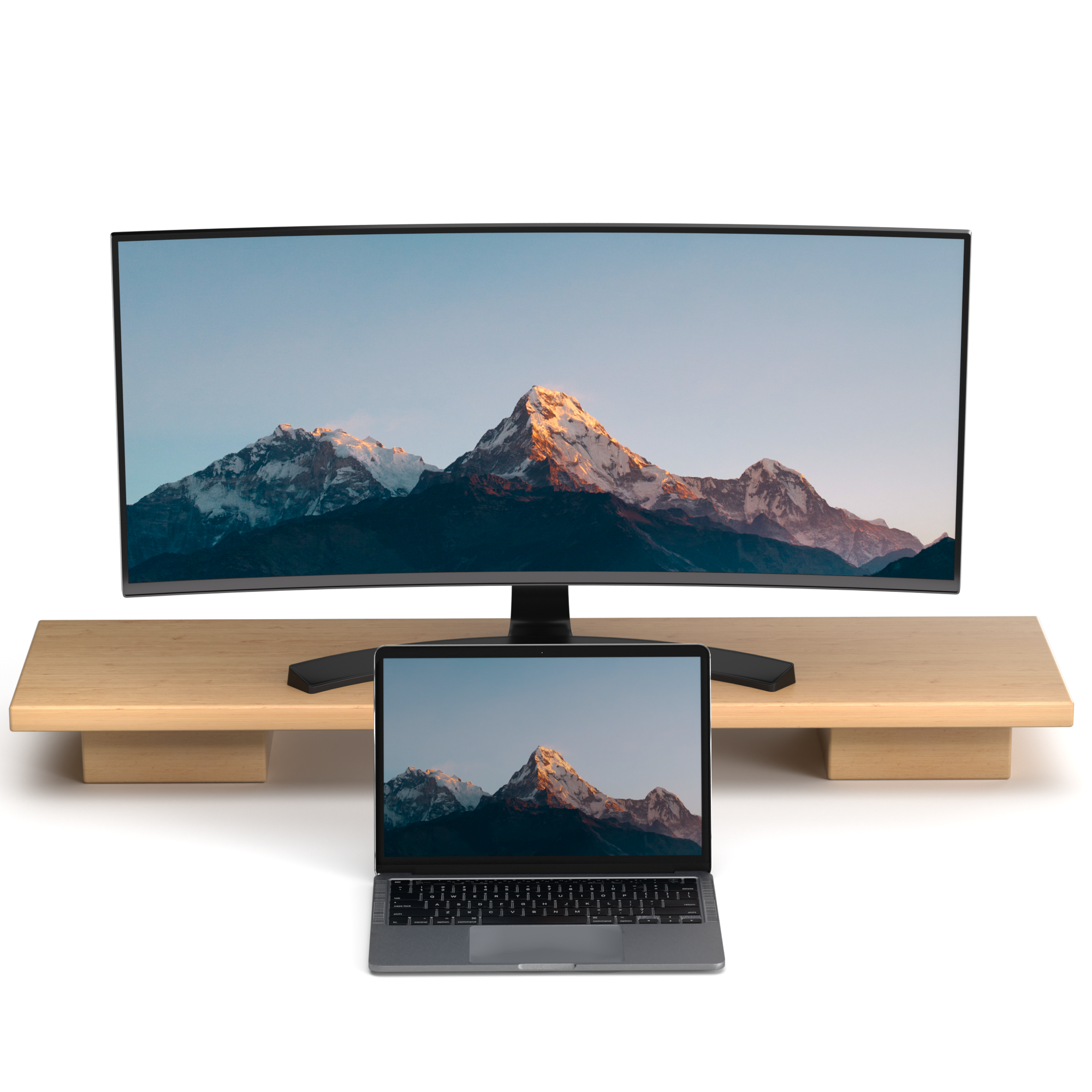
Ultrawide × Wisee Cockpit Monitor

Adding an independent information space to a broad overview.

While maintaining the ultra-wide width, AI, communication, and monitoring screens can be fixed on separate displays. Instead of splitting within a single screen, you can view them divided by their roles.

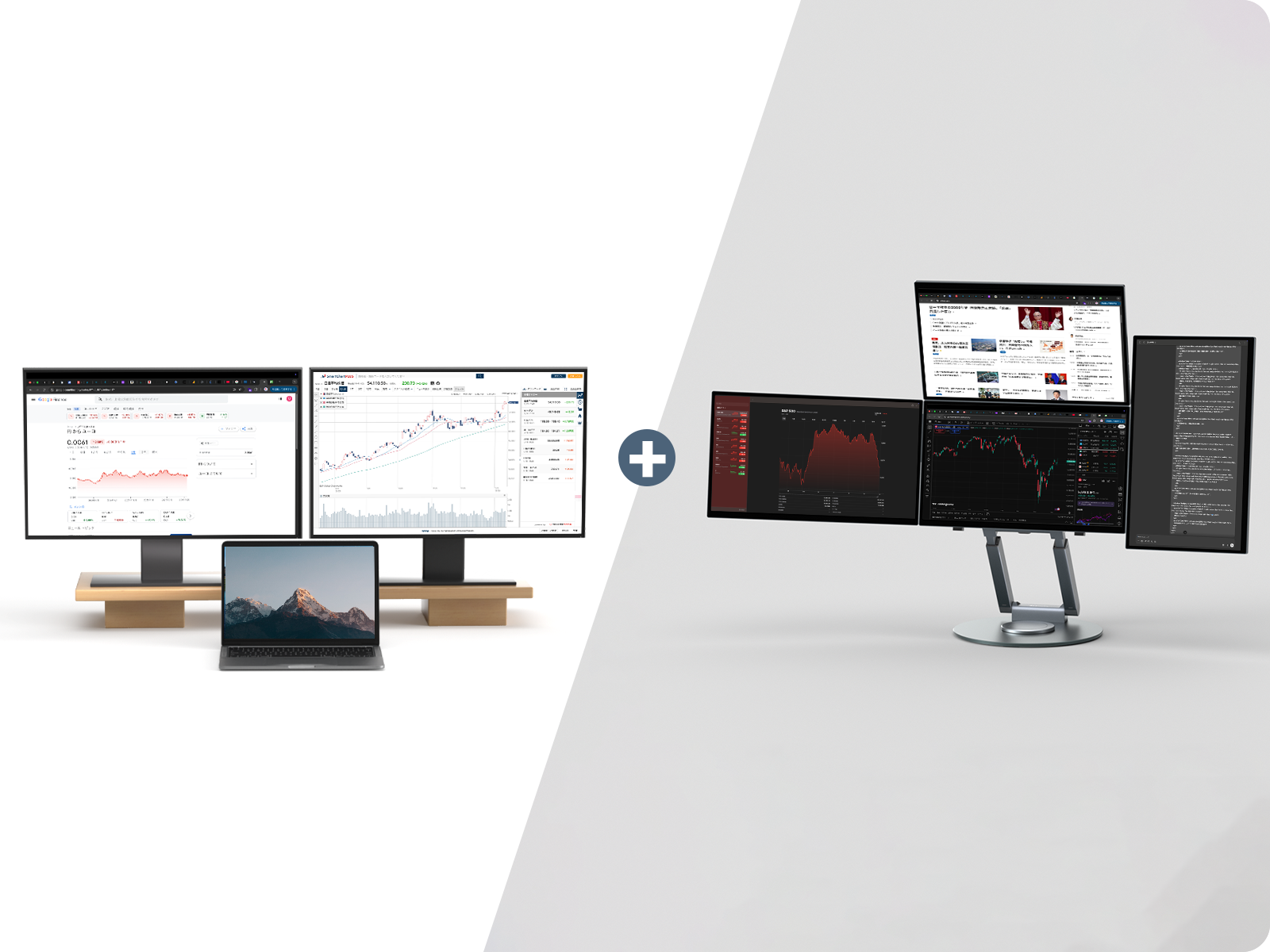
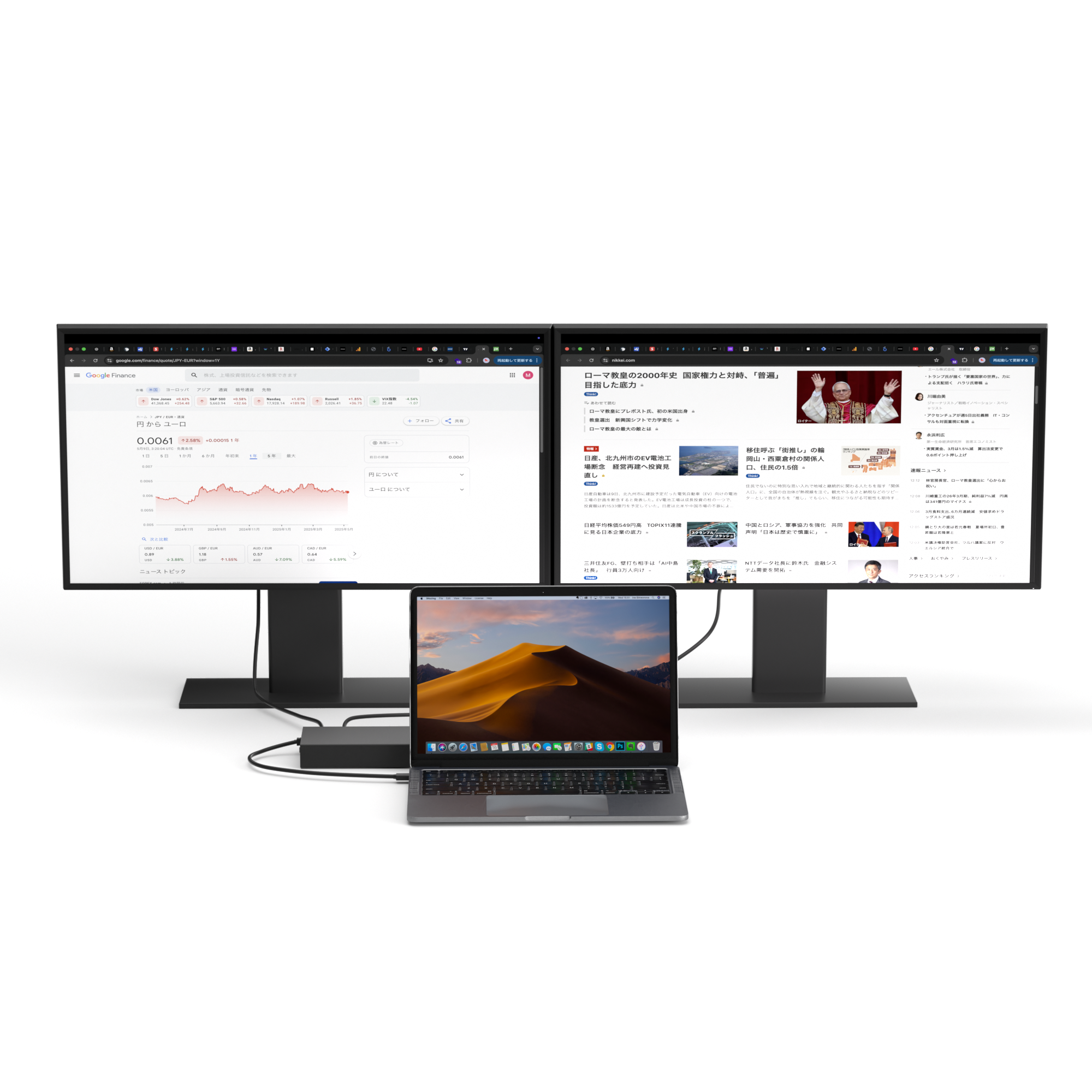
Conventional multi-monitor setup × Wisee Cockpit Monitor

Take your existing multi-screen environment one step further.

In situations where existing external monitors are insufficient, add an additional fixed screen. This makes it easier to progress with work, verification, and decision-making simultaneously.

I'm going to try multi-screen setup again, even though I had given up on it once.

  • I gave up because the wiring seemed complicated. I gave up because the setup looked troublesome. However, I actually wanted more screens. This is an option that I hope those who have had similar experiences will try again.

You can start using it right away without having to worry about the settings.

  • Minimal cables. Simply connect with magnets. You can start using it right out of the box without needing to understand how it works.

AI and work can proceed simultaneously.

  • We'll proceed with the AI without switching to a different system.

    While thinking with ChatGPT, I search on the browser.
    While looking at the materials, I summarize my notes.
    While checking Slack and emails, I make decisions.

    If I do all of these on one screen, I need to switch windows multiple times.
    With Wisee Cockpit Monitor, I can pin important information to each screen.

  • Reduce oversights and never stop making decisions.

    Email, chat, data, AI, browser, materials.
    When the information necessary for judgment is scattered across multiple locations, it can lead to missed confirmations and stress from back-and-forth navigation.

    By always displaying important screens, it reduces the chances of overlooking information and delays in confirmation, making it easier to maintain work accuracy. It is a supplementary tool to reduce unnecessary switching and decision-making errors.

Put the information you need in a place where it's always visible.

Instead of cramming everything onto one screen, separate the space for each piece of information. A cockpit-style workspace that allows you to grasp the necessary information all at once.

The layout and connections can be freely changed.

  • There's more than one way to arrange them.

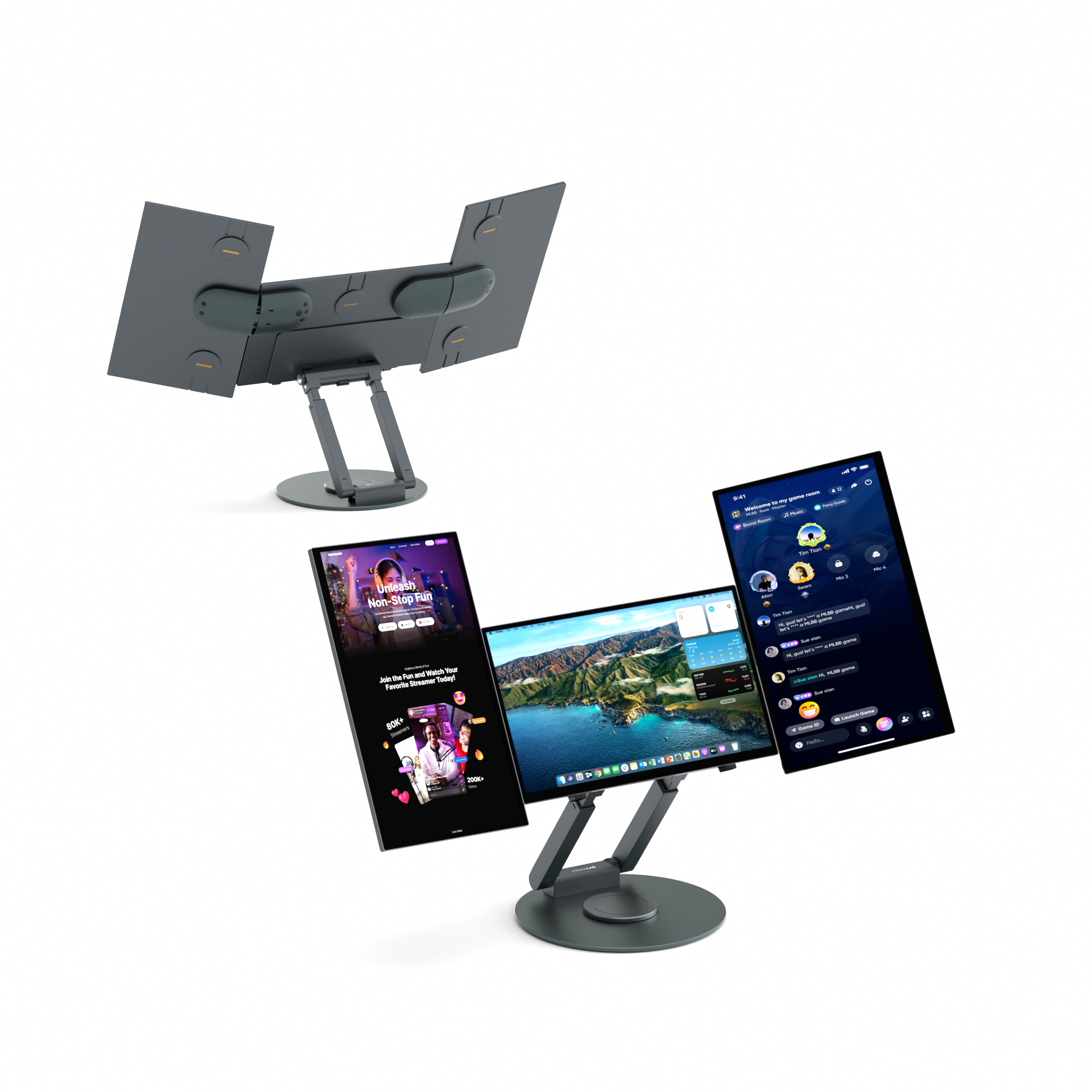
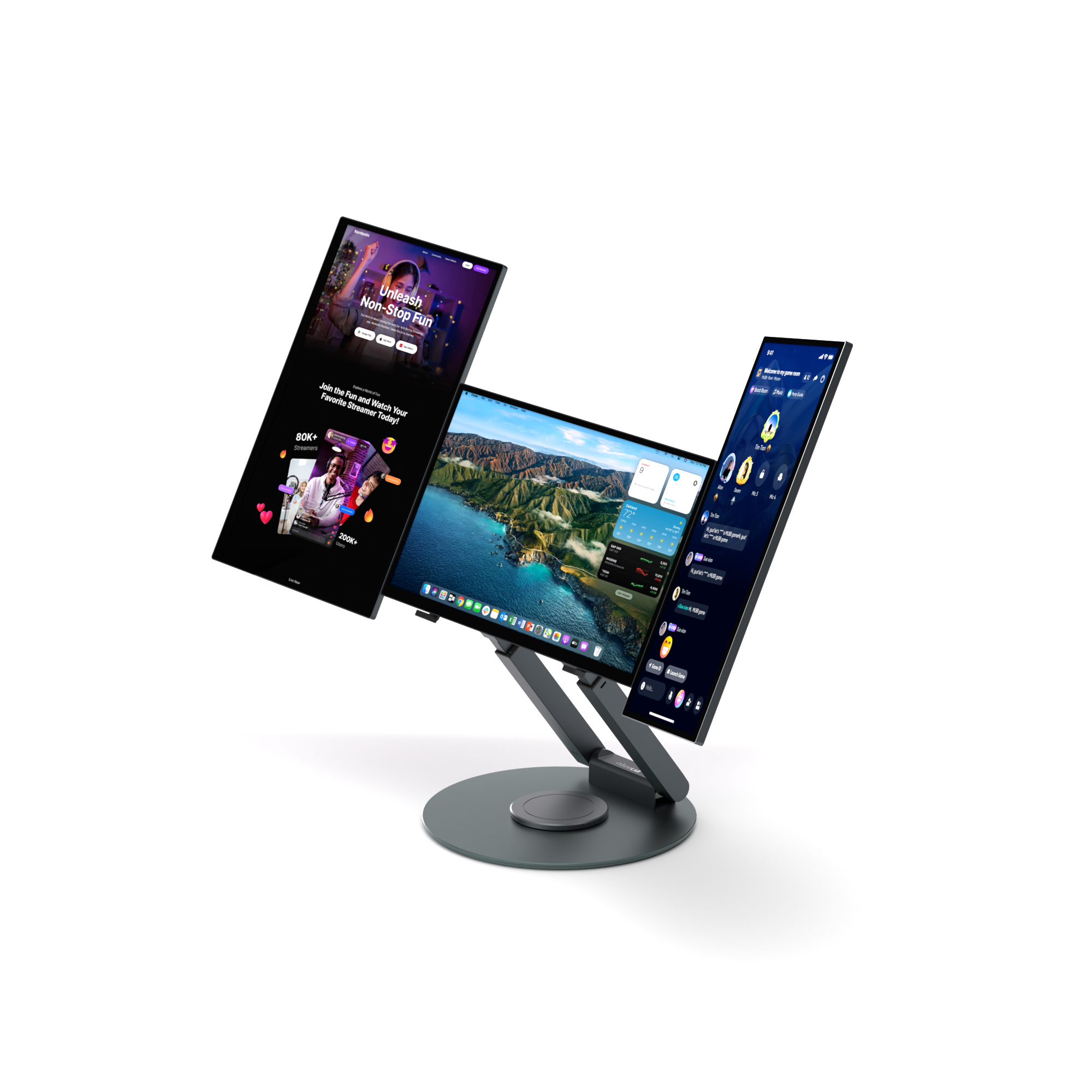
    You can freely layout vertically or horizontally according to your work content and desk environment.

    Expand horizontally to enhance visibility.
    Arrange vertically to make documents and chats easier to view.
    Add next to an existing monitor to use as a screen for information checking.

    You can rearrange the screen according to your own workflow.

  • Simply bring them close together and they'll connect.

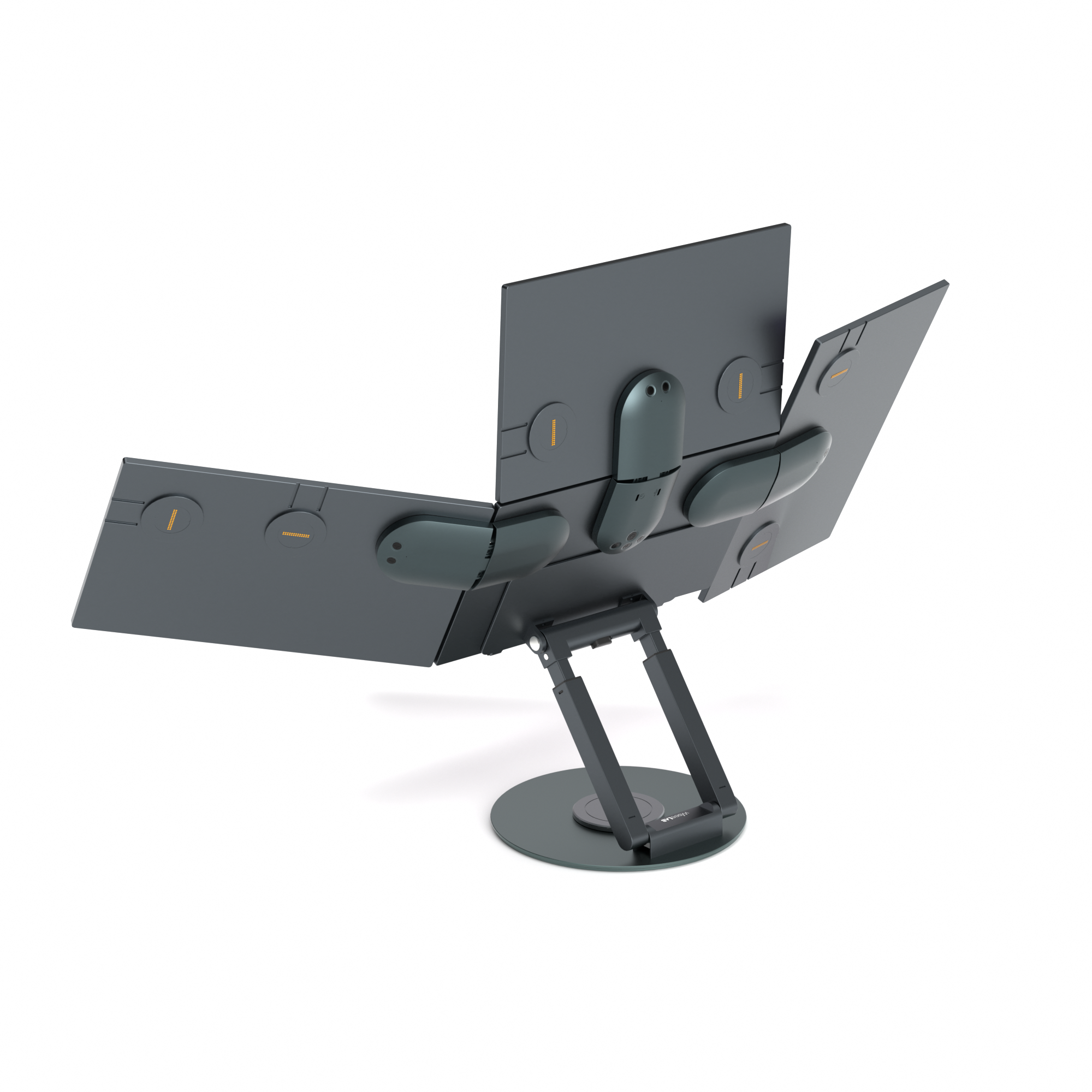
    Monitors are connected with magnets.
    They can be smoothly rearranged without using tools.

    While reducing the burden of installation and layout changes, they can be flexibly adjusted according to the required number of screens and orientations.

It can be used smoothly even with multiple screens.

Just plug it in and it's ready to use.

Monitors are connected via magnets.
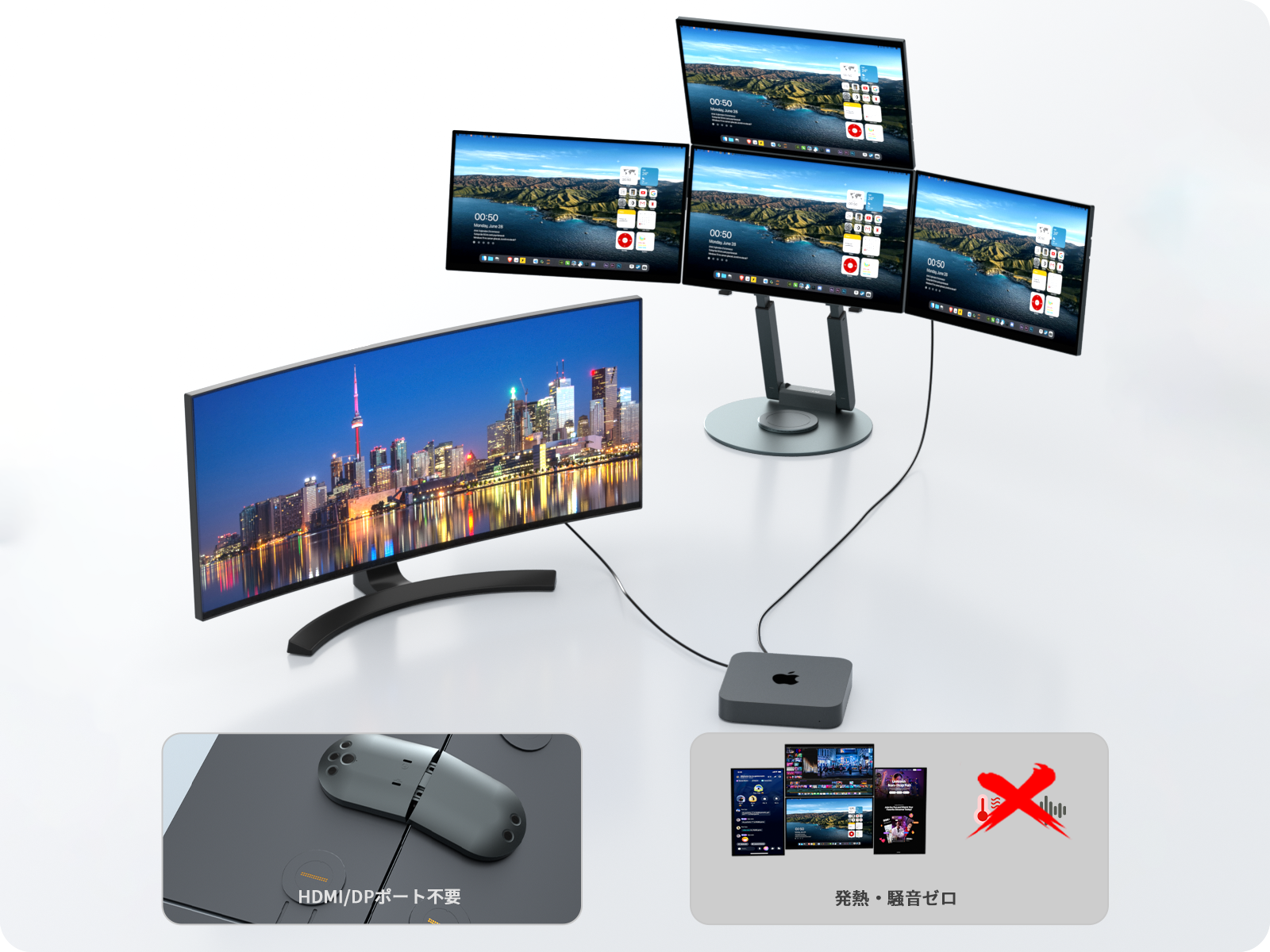
Just bring them close together, and you can connect both the signal and power at once.

Even in a multi-screen environment that can become complicated, you can use them in a neat state while minimizing wiring.

*Supports signal transmission with one USB-C cable and power supply with a separate cable.

Even with more screens, it doesn't tend to slow down.

Thanks to its unique design that does not rely on the GPU, it minimizes the load on the PC even when using multiple displays.

When increasing the number of screens, it tends to be concerning about the heaviness of operation and the increase in fan noise, but it helps to maintain a stable working environment.

It looks natural on any screen.

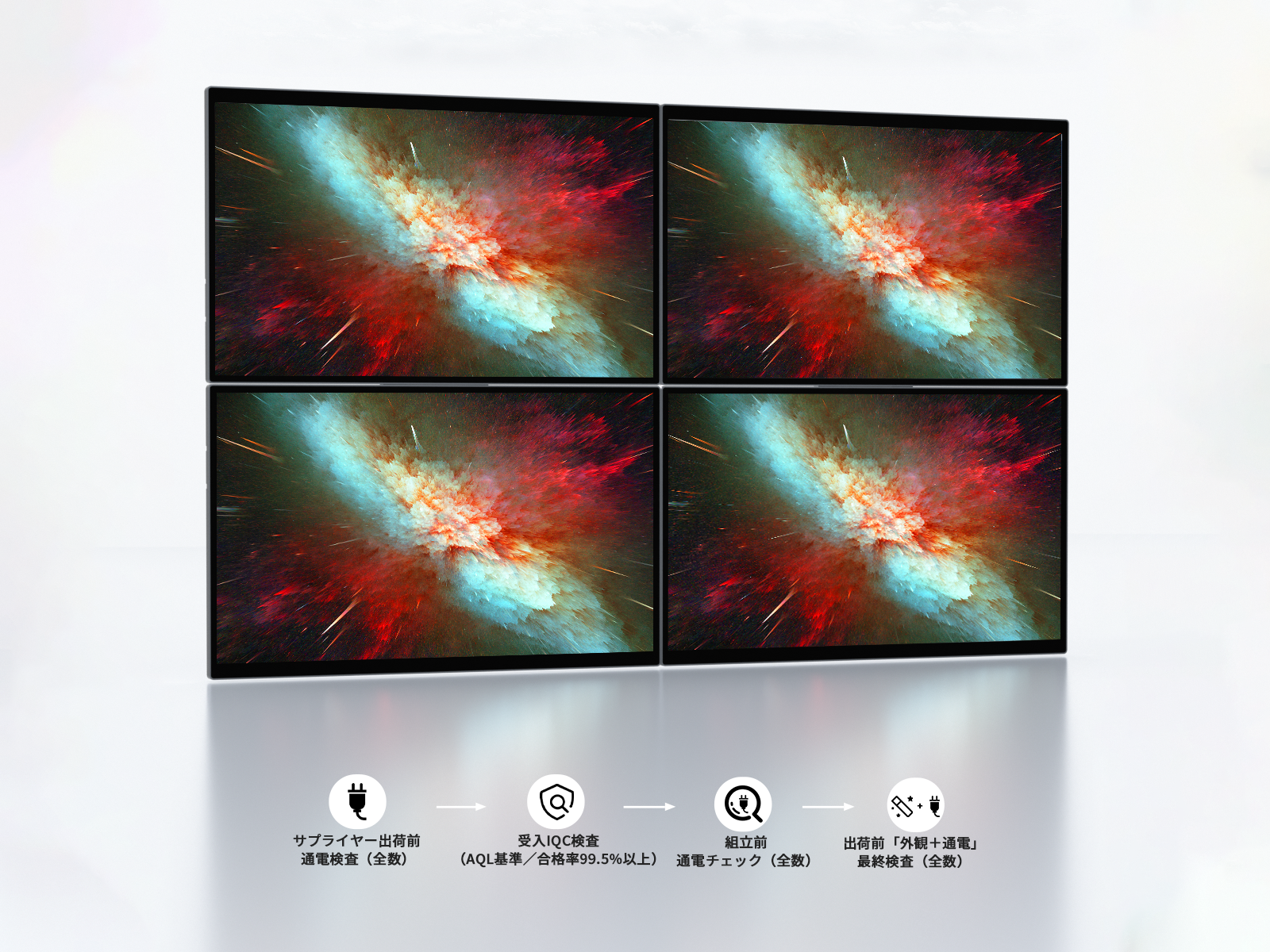
Calibration is performed on the same lot.
The color deviation is minimized even across multiple screens.

There is little discomfort between screens, making it easy to view and use as a single space.

Among the options available depending on your needs, there's the choice to "add."

Portable monitors, ultra-wide monitors, and traditional multi-monitors each have their own characteristics, and the feature that stands out is their ability to be added to the current environment.
They are suitable for those who want to increase their necessary information space according to their work requirements.

Comparison items
image
Wisee Cockpit Monitor
image
Portable monitor
image
Ultrawide monitor
image
Conventional multi-monitor setup

Ease of use

★★★★★

★★★★★

★★★★☆
★★★☆☆

Simultaneous information

★★★★★
★★★☆☆
★★★★☆
★★★★★

Layout flexibility

★★★★★
★★★☆☆
★☆☆☆☆
★★★★☆

Portability

★★★★☆
★★★★★
★☆☆☆☆
★☆☆☆☆

Workspace scalability

★★★★★

★★★☆☆
★★★☆☆
★★★★☆

AI multitasking

★★★★★

★★★☆☆
★★★★☆
★★★★★

Presentation God, Mr. Madoka Sawa

Expert Review

"The monitor is not just a gadget. It is the most important tool for keeping your thoughts flowing."
"It's better to think of one monitor as equivalent to one AI agent."

The Wisee Cockpit Monitor visualizes multiple pieces of information simultaneously, creating a workspace that keeps the flow of thought uninterrupted.

Source: Engineer type

"The monitor is not just a gadget. It is the most important tool for keeping your thoughts flowing."
"It's better to think of one monitor as equivalent to one AI agent."

The Wisee Cockpit Monitor visualizes multiple pieces of information simultaneously, creating a workspace that keeps the flow of thought uninterrupted.

Source: Engineer type

View the full article

A structure designed for long-term use. Thin enough for portability.

The unit structure allows for the replacement of only the necessary parts. It can be used long-term without the need to replace the entire unit.

The main body has a slim design of approximately 7.6mm.

It is easy to carry along with a laptop, enabling the expansion of an additional screen anywhere, whether at home, in the office, or on the go.

The unit structure allows for the replacement of only the necessary parts. It can be used long-term without the need to replace the entire unit.

The main body has a slim design of approximately 7.6mm.

It is easy to carry along with a laptop, enabling the expansion of an additional screen anywhere, whether at home, in the office, or on the go.

It can be freely adjusted to a position that is easy to see.

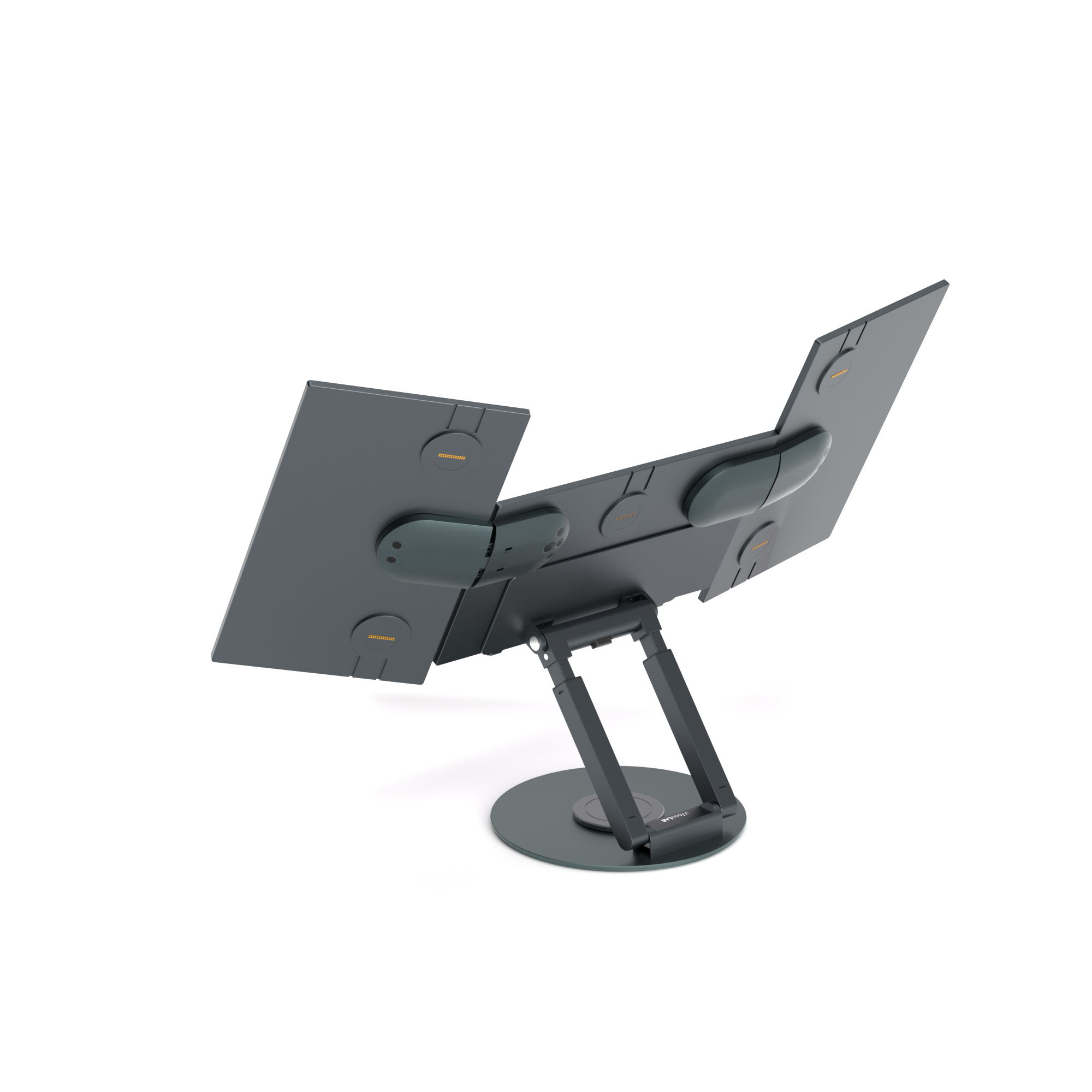
The dedicated metal stand employs a multi-axis structure.
The height, angle, and rotation can be freely adjusted, allowing for flexible layouts to suit the environment in which it is used.

Because it can be positioned to match the flow of your gaze, you can work comfortably for long periods of time in a natural posture.

Even beginners won't get lost. Learn how to set it up with our video tutorial.

The Wisee Cockpit Monitor provides easy-to-understand videos for assembly, connection, and adjustment, making it smooth for first-time users to get started.

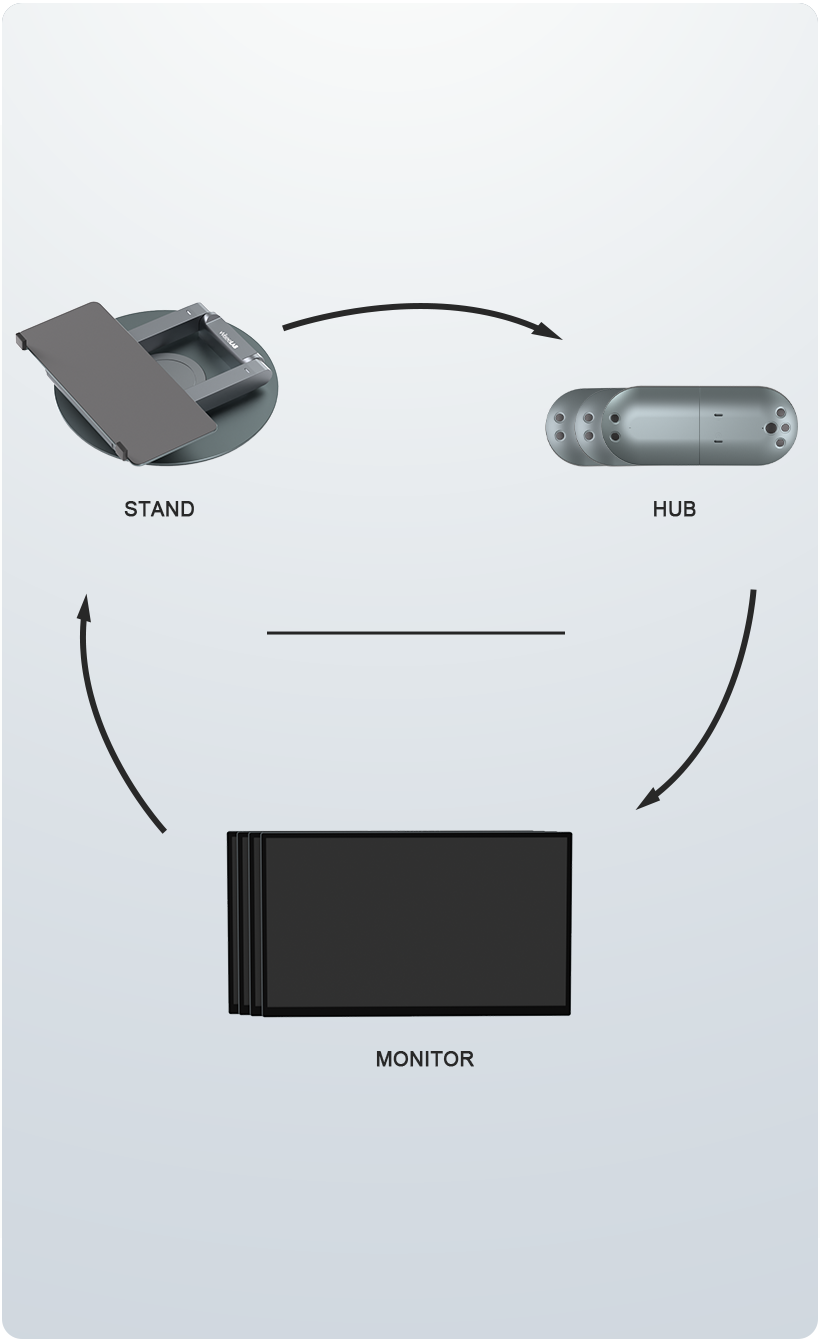
From the role of each part to mounting on the stand, connecting hubs and cables, and adjusting the screen's placement and angle.

You can follow the actual steps, reducing anxiety before installation and allowing for a worry-free introduction.

It works on both Mac and Windows.

macOS

In a macOS environment, it is necessary to install the dedicated driver "UsbDisplay."
Only during the first use, permission settings for screen recording are required, but screen data will not be sent externally.
By following the steps, you can set up a multi-screen environment.

*The Mac mini can be used after initial setup with an existing monitor.
*It is compatible with macOS 10.15 and later.

Windows

By using the driver, you can build a stable multi-monitor environment.
No special settings are required, and it can be used immediately after installation.

*Compatible with Windows 10 / 11 (Intel / AMD / ARM)

Try It First!

For those who want to try it first

For those who are unsure if it suits their actual work content or desk environment, we also offer a rental service that allows you to try it for a certain period.

You can check the usability at home or in the office, tailored to your usual work.
FAQ
Regarding connection and compatible environments
Can I connect two additional monitors to the Mac mini M4 Pro, in addition to the Wisee Cockpit Monitor (4 screens)?​

Yes, you can use it without any problems.

In addition to two external monitors (HDMI / Thunderbolt / DisplayPort connection), you can connect Wisee Cockpit Monitor (4 screens), allowing for a total configuration of 6 screens.
The Wisee Cockpit Monitor functions as an extended display via USB connection, allowing you to add screen space in a way that is separate from the standard video output of the Mac mini itself.
However, the behavior may vary depending on the usage environment, OS version, and the configuration of the connected devices. If you have any concerns, please inquire in advance about the Mac model you plan to use and the monitor configuration you wish to connect.

*The Mac mini can be used after initial setup with your existing monitor.

Can I connect a Wisee Cockpit Monitor (4 screens) to a MacBook Air and use another monitor at the same time?

Yes, it is possible. It has been tested on MacBook Air models M1 through M4.
With the following combinations, you can output to up to 6 screens simultaneously.

· MacBook Air main unit display
• One external monitor connected via HDMI port or adapter.
· Wisee Cockpit Monitor (4 screens)

Wisee Cockpit Monitor functions as an extended display via USB connection, allowing you to add additional workspace screen space alongside your existing external monitors.
Please note that when using it on macOS, you need to install the dedicated driver and grant screen recording permissions.

Can it be used with Windows 10/11 PCs?

Yes, it is possible.
Depending on the type of PC and the number of video output ports equipped on the main unit, simultaneous display of up to 5 to 6 screens is possible.

For laptops
• Built-in display of laptop + Wisee Cockpit Monitor (up to 4 screens) → Total: up to 5 screens
· Built-in display of the notebook PC + one existing external monitor with HDMI / DisplayPort connection + Wisee Cockpit Monitor (up to 4 screens) → Total: up to 6 screens

For desktop PCs
· One existing external monitor with HDMI / DisplayPort connection + Wisee Cockpit Monitor (up to 4 screens) → Total: up to 5 screens
· Existing HDMI / DisplayPort connected external monitors 2 units + Wisee Cockpit Monitor (up to 4 screens) → Total: up to 6 screens

For optimal performance, we recommend installing the dedicated driver even on Windows.

Can I connect it using HDMI, DisplayPort, or a conversion adapter?

The Wisee Cockpit Monitor is an extended display system that uses USB connection and dedicated drivers, rather than a standard HDMI/DisplayPort direct connection monitor.
Therefore, it is not possible to directly connect the Wisee Cockpit Monitor main unit using HDMI cables, DisplayPort cables, or HDMI conversion adapters.
Please use the included USB cable and dedicated driver when using the device.

Can it be used via a USB hub or docking station?

Depending on your usage environment, it may work, but to ensure stable operation, we recommend connecting the PC unit directly to the Wisee Cockpit Monitor.
Please connect directly to the PC body (Windows laptop, MacBook, Mac mini, Mini PC, desktop PC, etc.) using the included USB-C to C or USB-A to C signal cable.
When using a USB hub, docking station, or conversion adapter, there may be instability in screen recognition and screen layout retention.

*This product requires a power connection via the included power adapter to function.

Software and Settings
Is driver installation required?

Yes. To ensure stable usage, we recommend installing the dedicated driver.

Especially when using macOS, in addition to installing the UsbDisplay driver, permission for screen recording is required.
On Windows, it may be automatically recognized, but for stable display, please use the latest driver from the official website.

👉 You can download the driver here.

Why do I need screen recording permissions on my Mac?

On macOS, permission for "Screen Recording" is required in the system to display the screen as a USB-connected external display.
This is due to macOS security specifications and is a necessary setting to operate Wisee Cockpit Monitor as a display device.
If screen recording permission is not granted, the screen may not display correctly even if the driver is installed.

Specifications and accessories
Are there any differences in specifications depending on the shipping date?

Wisee Cockpit Monitor is gradually improving its specifications based on feedback from customers to enhance usability.
Therefore, some specifications may differ depending on the shipping period.

Examples of main specification differences:
· Cable specifications: In some batches, a 90-degree USB-C cable is used instead of the conventional "USB-C to C L-shaped adapter."
· Appearance design: There may be differences in appearance specifications, such as the presence or absence of the logo display on the front of the monitor.

However, there are no differences in the basic performance, functionality, or quality of the product across any specifications.
Additionally, all monitors within a single set are unified with the same specifications, so you can use them with confidence.

Is there a dedicated carrying case available?

We are currently developing a dedicated bag that can store the monitor and stand together.
It is planned to be available as an option once completed, so please stay tuned for further updates.

Please note that this product is designed to be used with multiple monitors, hubs, and stands, so be careful not to apply strong impacts or pressure on the monitor surface or magnetic connection points during transport.
When moving or storing, we recommend protecting the screen and storing the components in a way that prevents them from colliding with each other.

Warranty and after-sales service
How are repairs and replacements handled within the warranty period?

The Wisee Cockpit Monitor comes with a standard one-year manufacturer warranty.
Additionally, by contacting the official LINE account within 30 days of your purchase date, you can extend the warranty period by an additional 6 months, for a maximum of 18 months.

Regarding initial defect exchanges
If an initial defect is confirmed within 8 days of product arrival, we will accept exchanges if the following conditions are met:
· There is a functional abnormality or quality issue
· There is no human-induced damage

※ If the order number is not provided, issues such as missing accessories, human-induced damage, incorrect usage, modifications or unauthorized repairs, foreign matter contamination, water damage, damages due to force majeure, or purchases of counterfeit products will not be covered. For details, please check the after-sales service terms page .

Regarding malfunction handling during the warranty period​
The Wisee Cockpit Monitor is based on the policy of exchanging the relevant unit rather than repair.
If a malfunction occurs during the warranty period under correct usage conditions as per the instruction manual, and no human-induced damage is confirmed, we will exchange only the problematic unit free of charge after confirming the symptoms.

When making inquiries, it is helpful to provide the following information for a smoother confirmation process.

· Order number
· Purchase store
· Name of the purchaser
· PC model used
· OS version
· Photos or videos showing the symptoms

For details on warranty content and eligibility conditions, please check the after-sales service terms .

What happens if the product breaks down after the warranty period expires?

The Wisee Cockpit Monitor adopts a unit structure, allowing for continued use even after the warranty period by purchasing only the necessary units.

Advantages of the unit exchange method
· It is easier to limit the scope of failure to the relevant unit
· Normal units can continue to be used
· There is no need to remove the entire desk environment or installation structure
· Even in a multi-screen configuration, it is easier to minimize the impact on the workspace

No tools are required for the exchange process, and the attachment and detachment of units can be done easily.
Currently, replacement units are provided individually as part of after-sales support. If you wish to purchase, please contact support for assistance.
Please ensure that the power is turned OFF when attaching or detaching the monitor or hub, changing orientation, or adjusting angles.