[Announcement] Wisee Cockpit Monitor rental service now available.
[Announcement] Wisee Cockpit Monitor rental service now available.
Wisee Cockpit Monitor Live Unit Demonstration Information
Free shipping on orders over ¥3,500 (tax included).
Free shipping on orders of ¥3,500 (tax included) or more.
8-day return guarantee after product arrival.

Added to your cart:

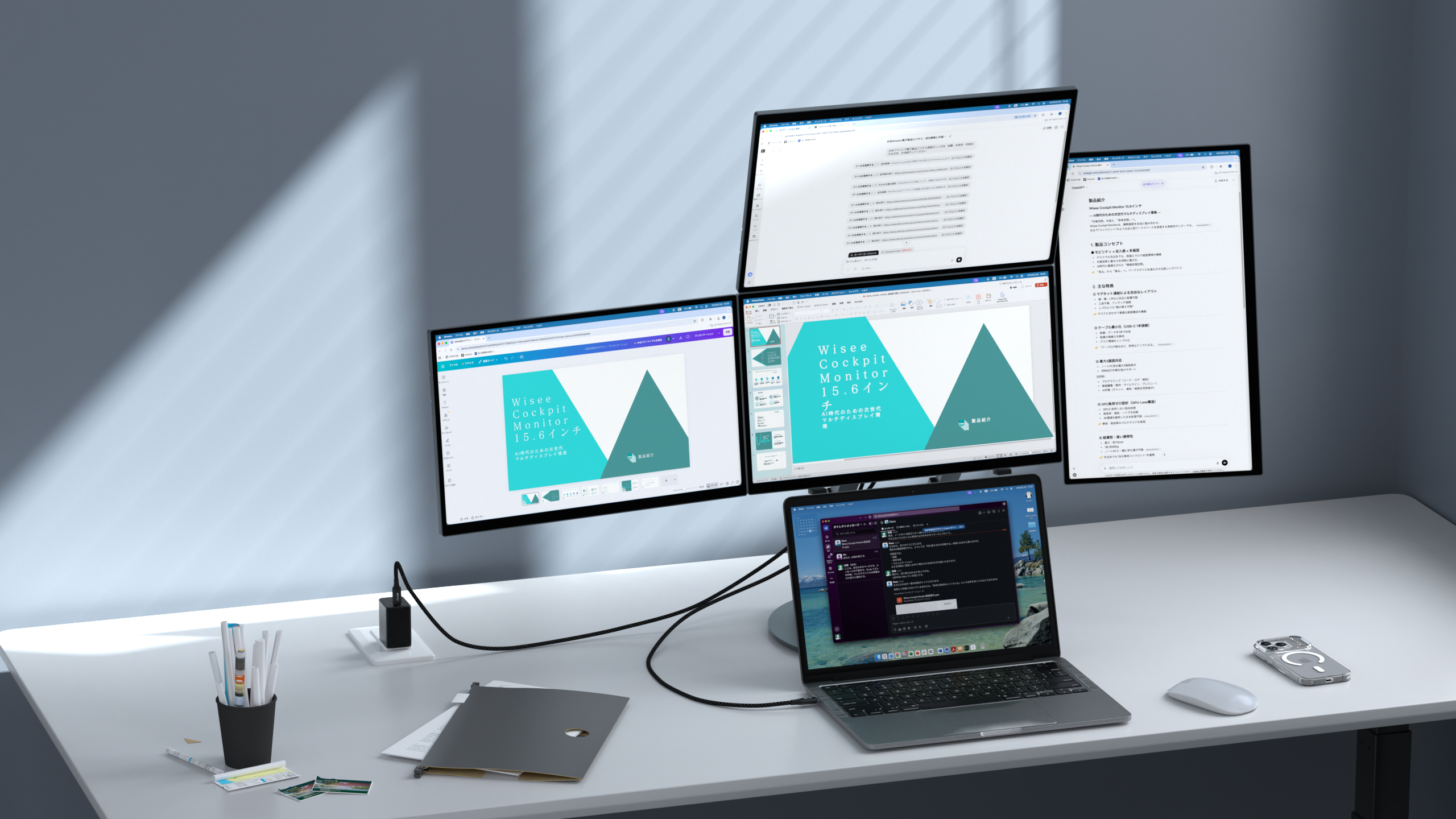
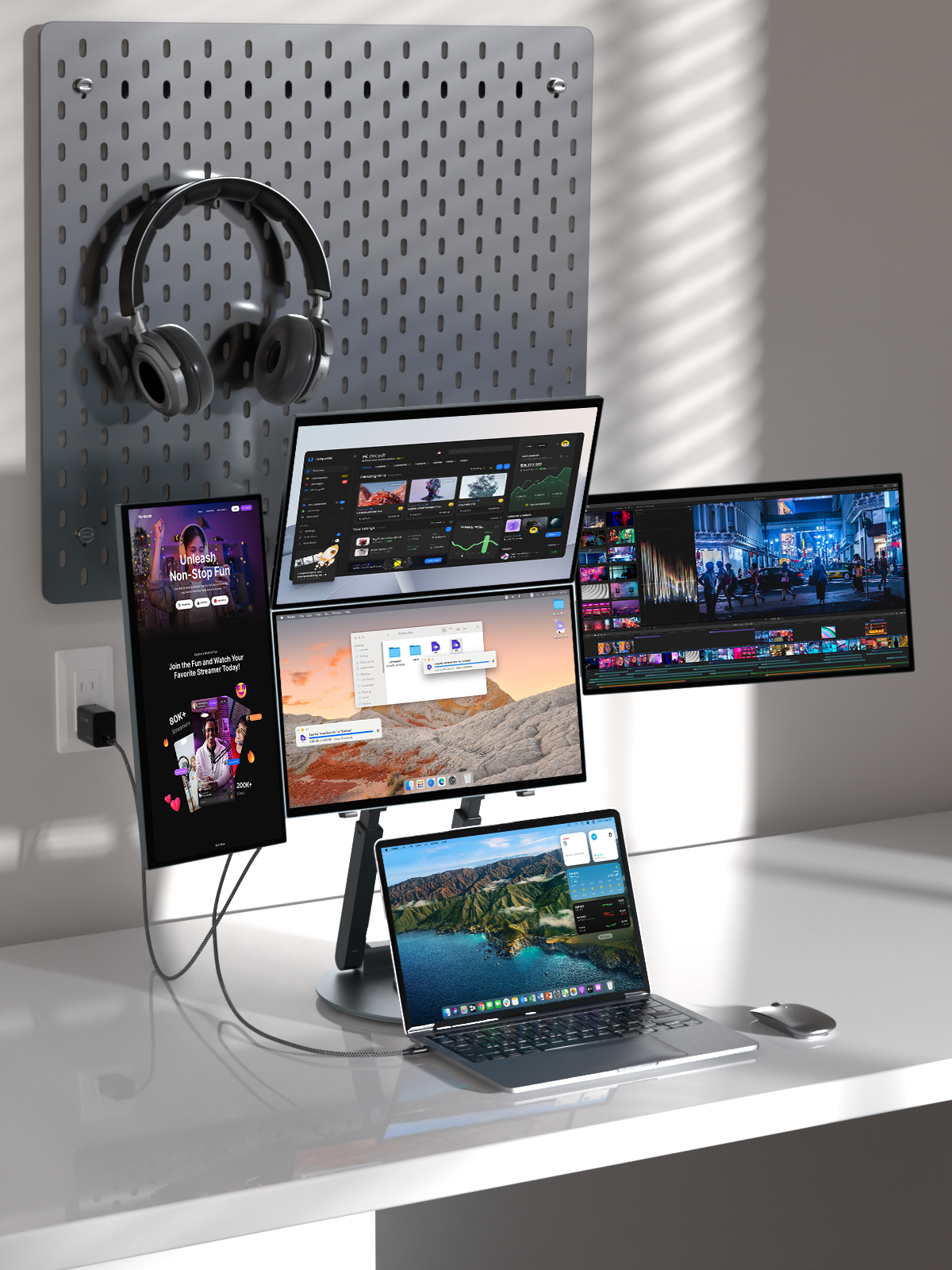
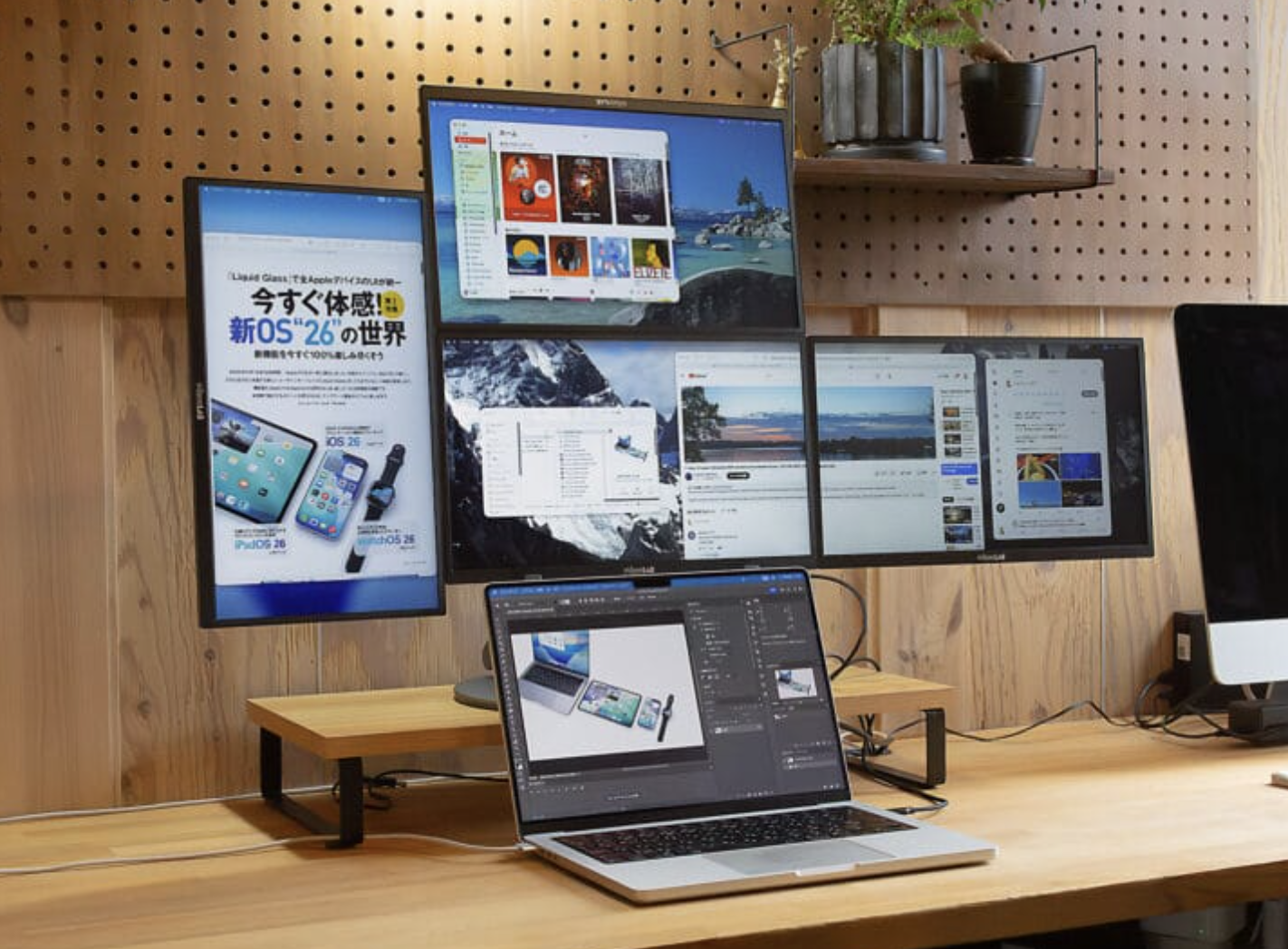
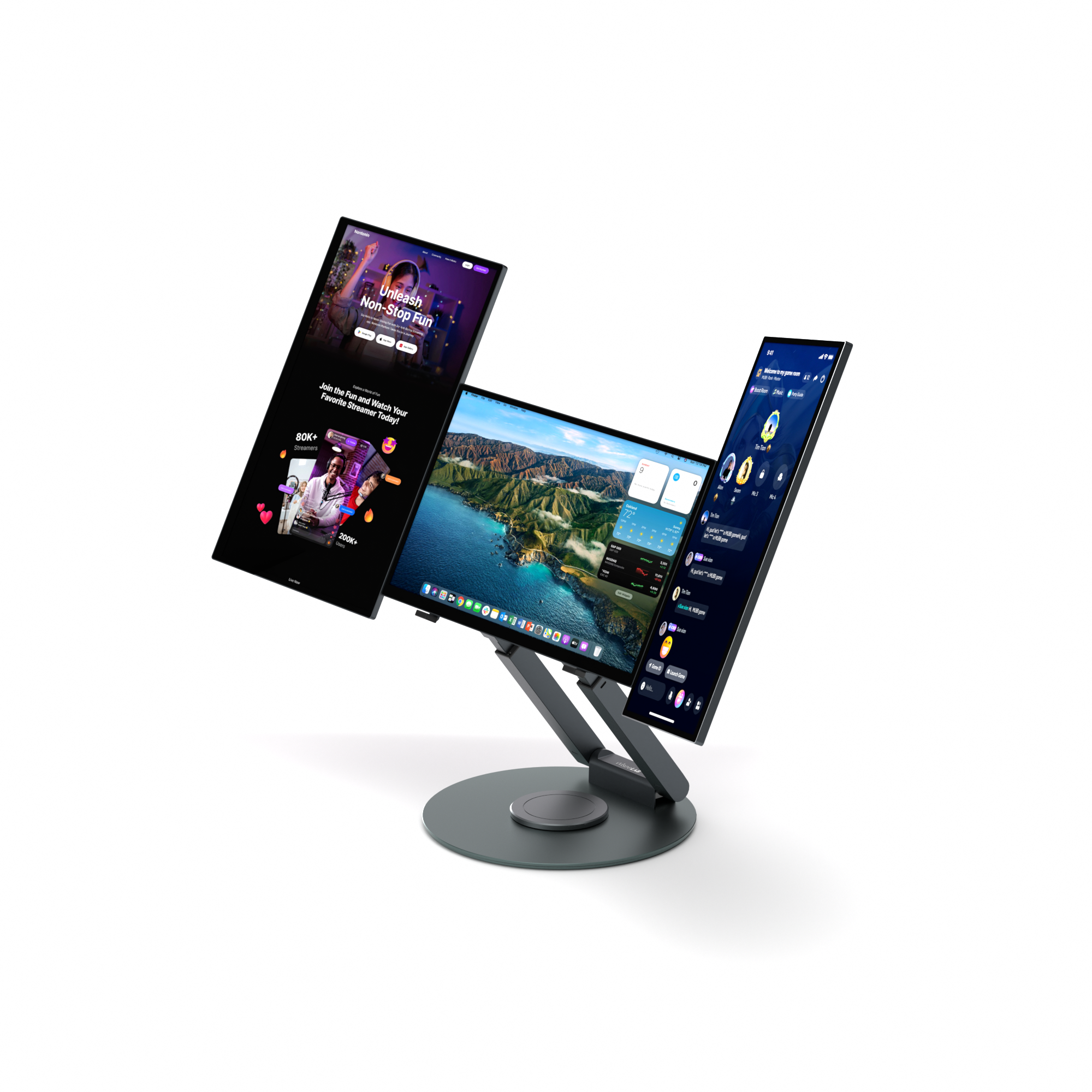
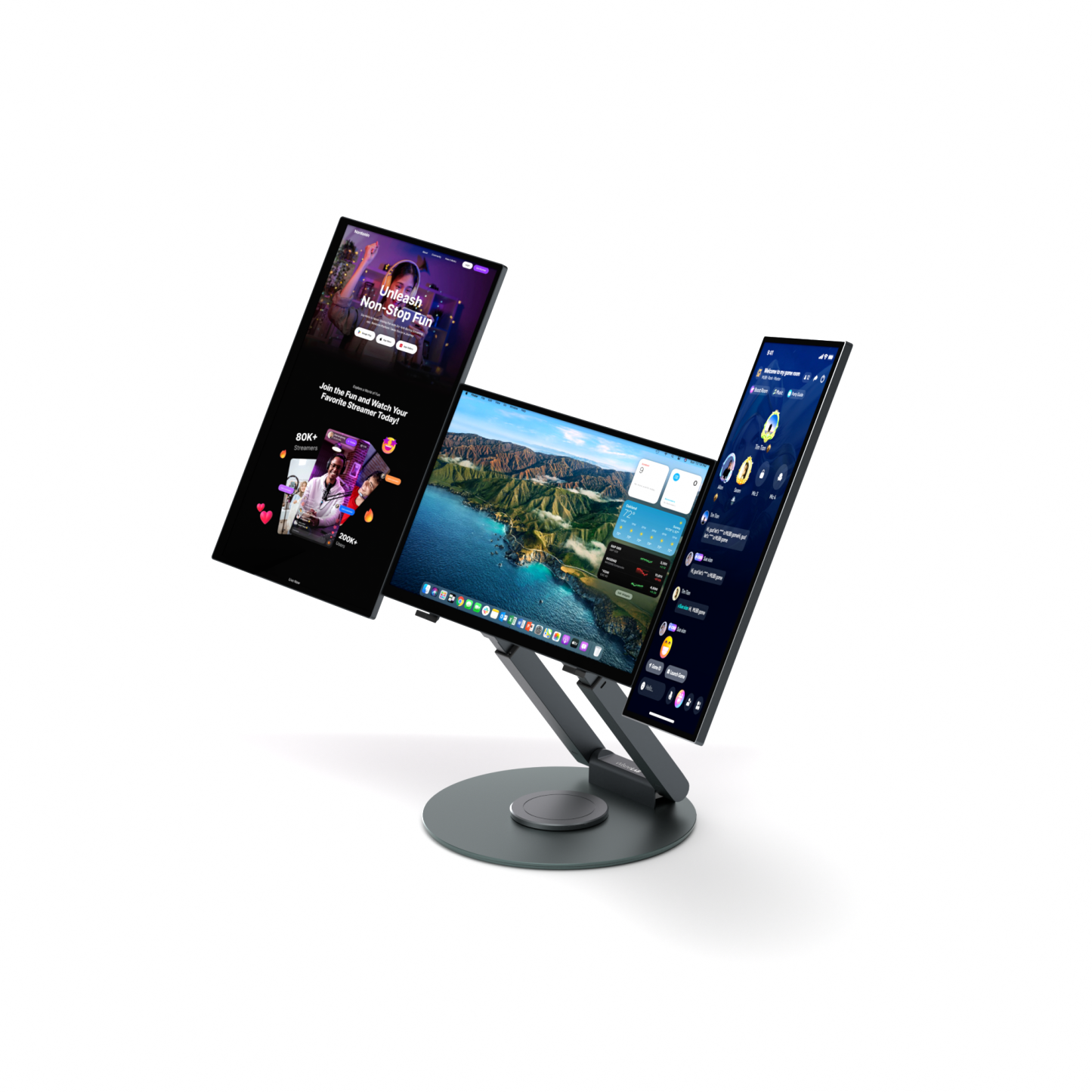
Building a multi-monitor environment from a single PC

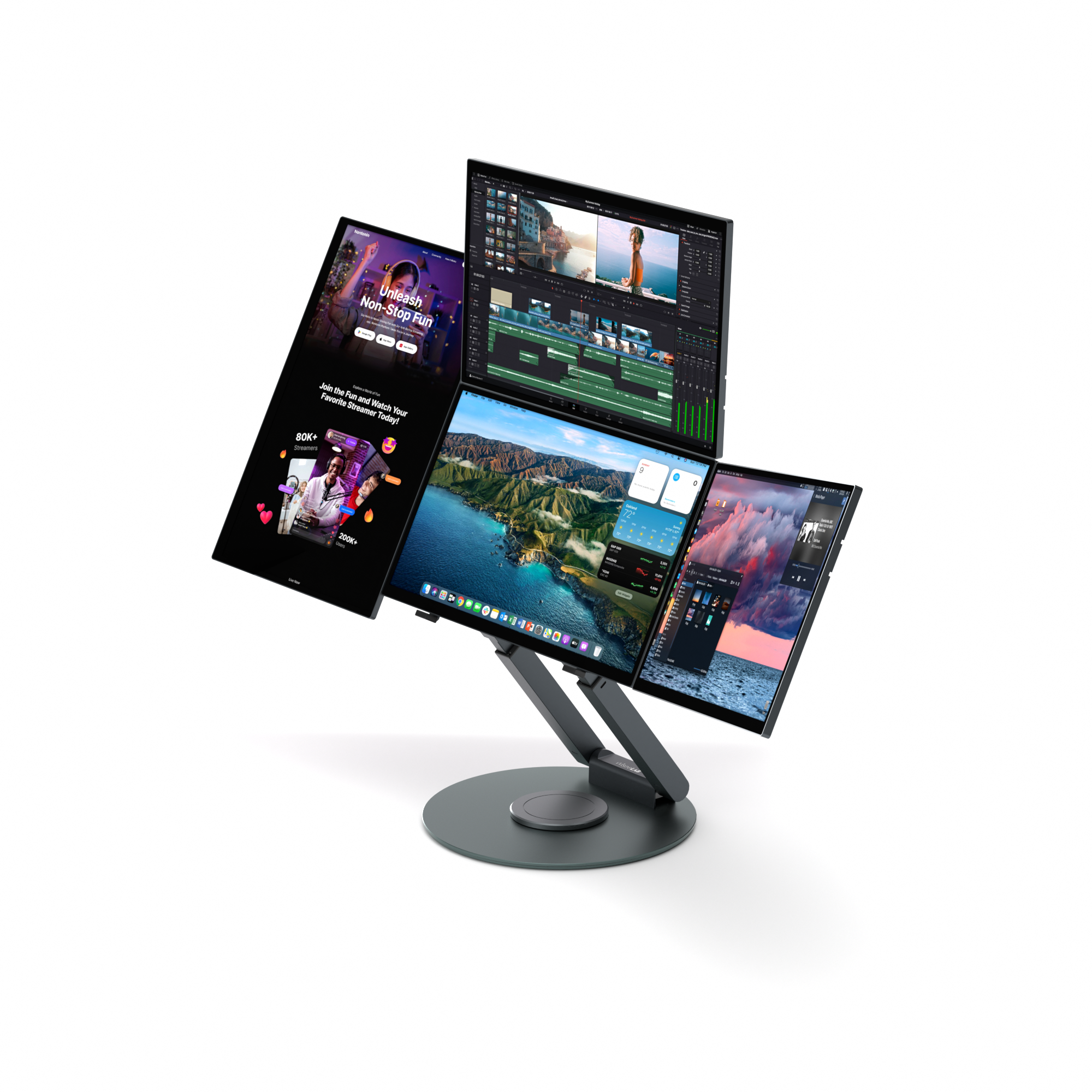
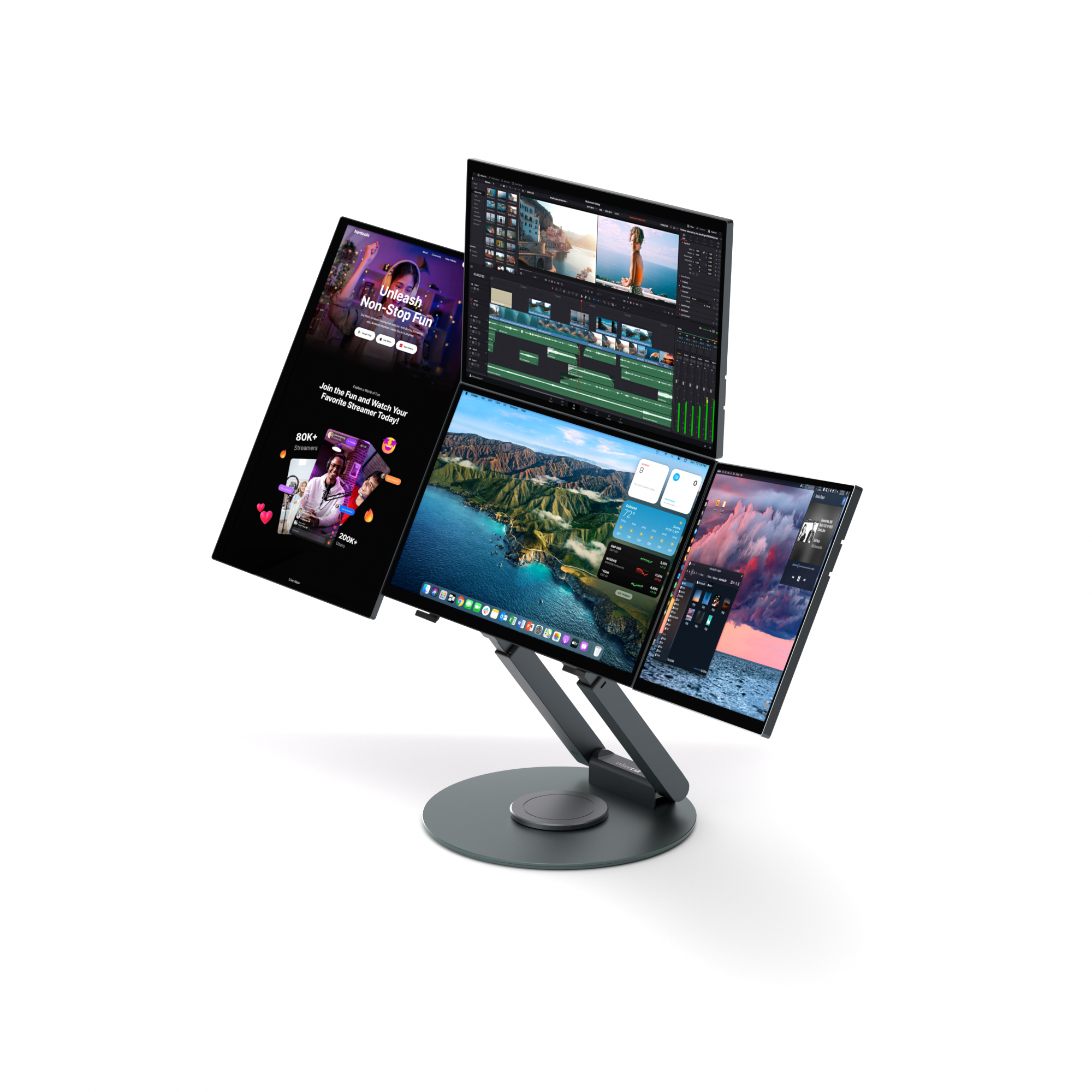
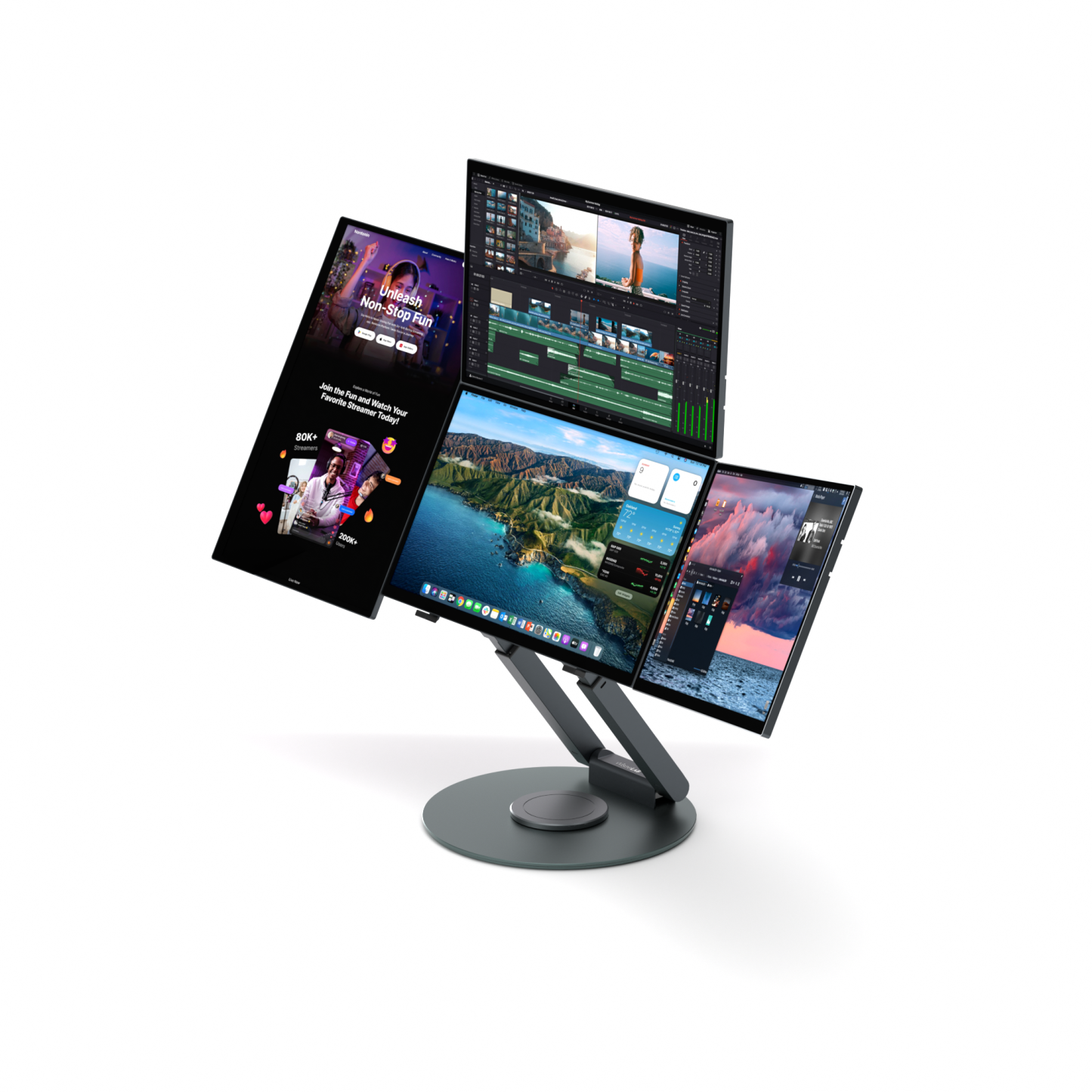
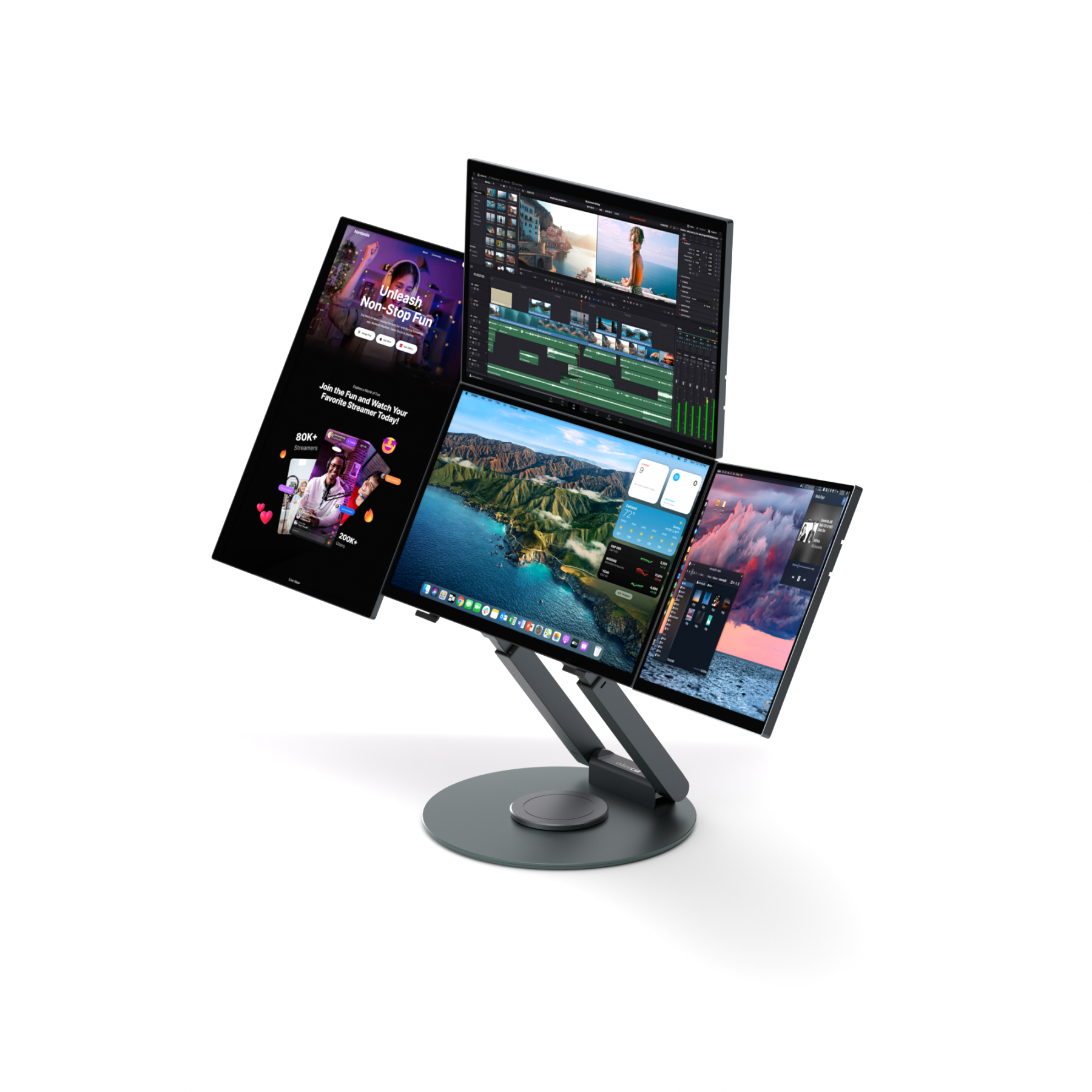
Up to 5 screens in your AI-era workspace
Switch instantly to suit your needs.

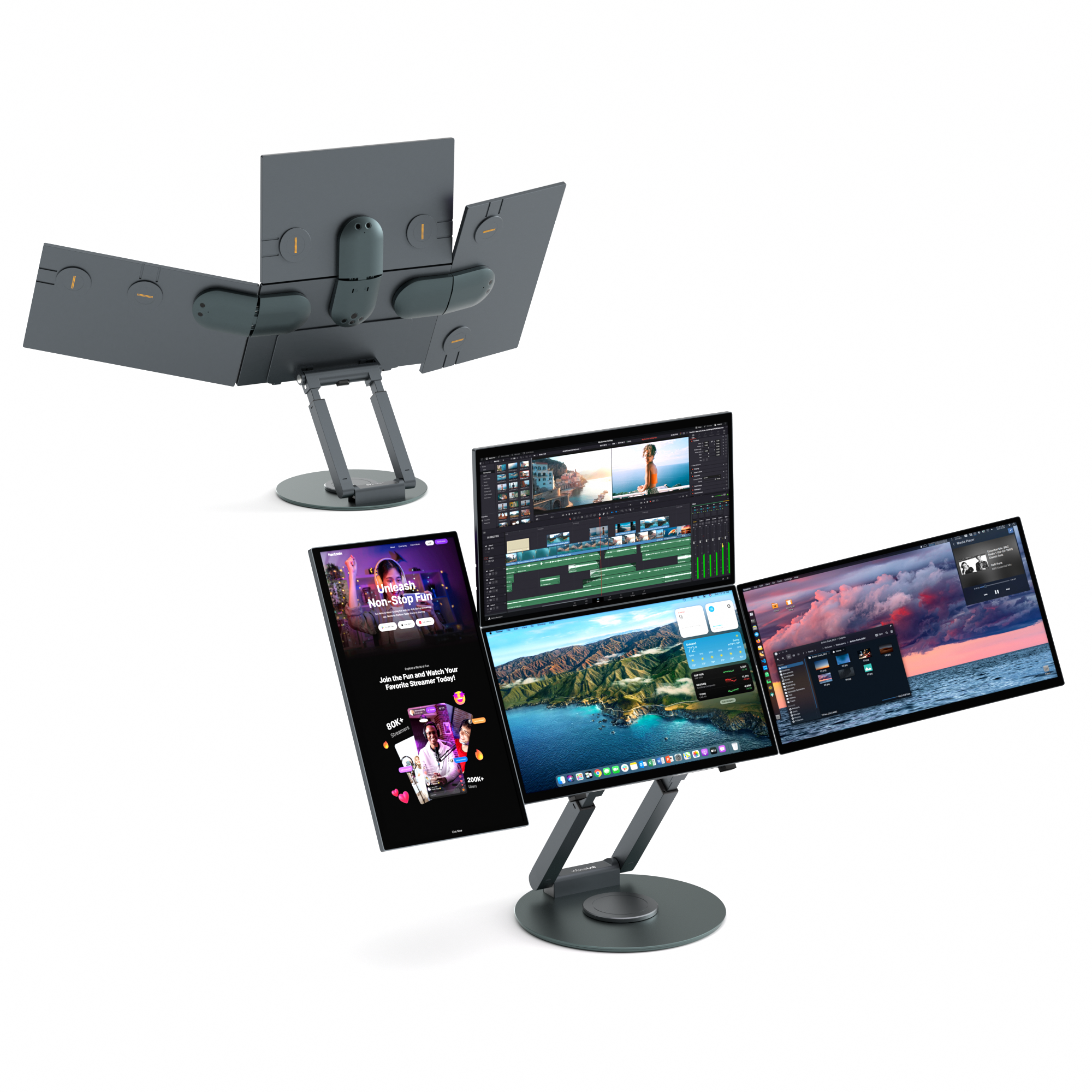
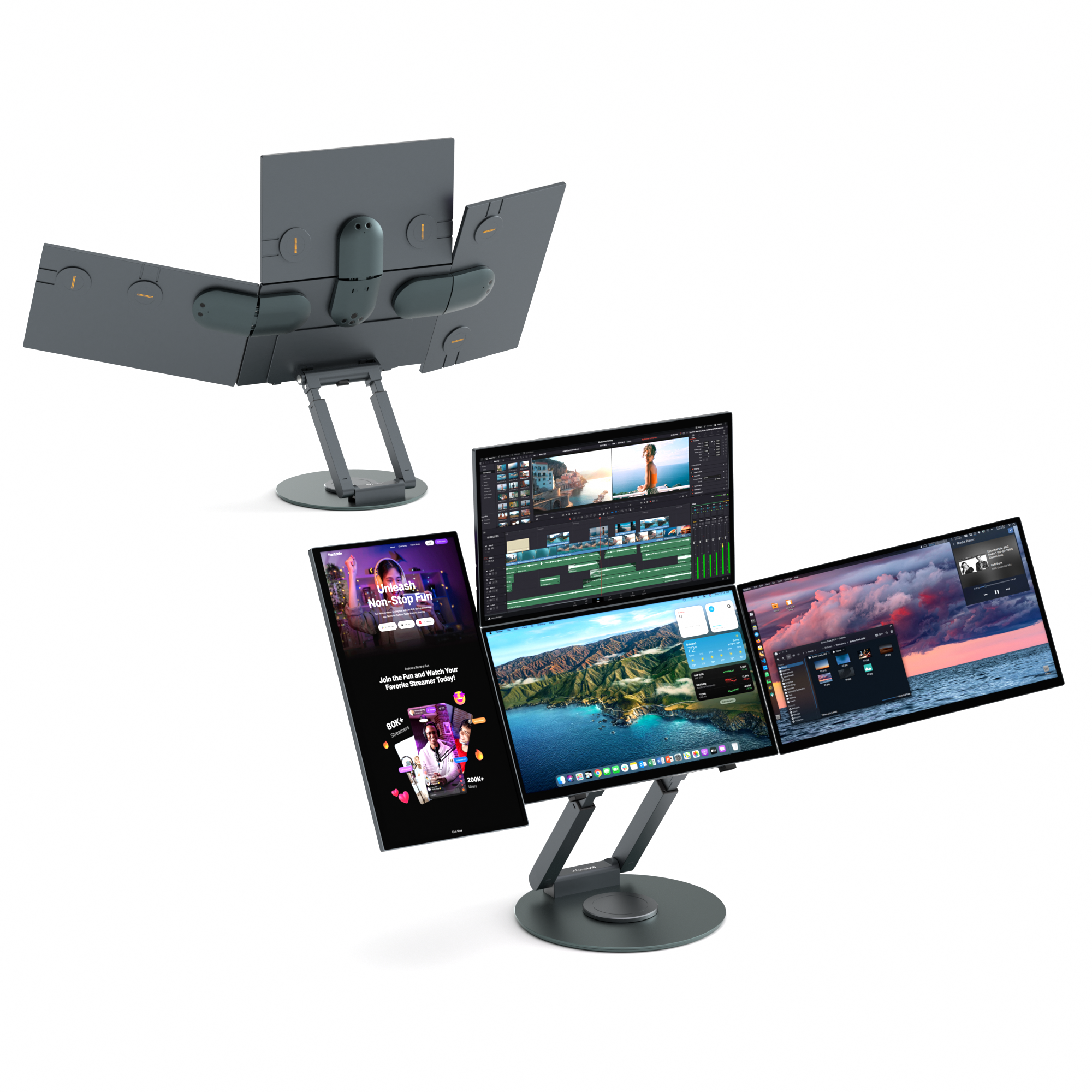
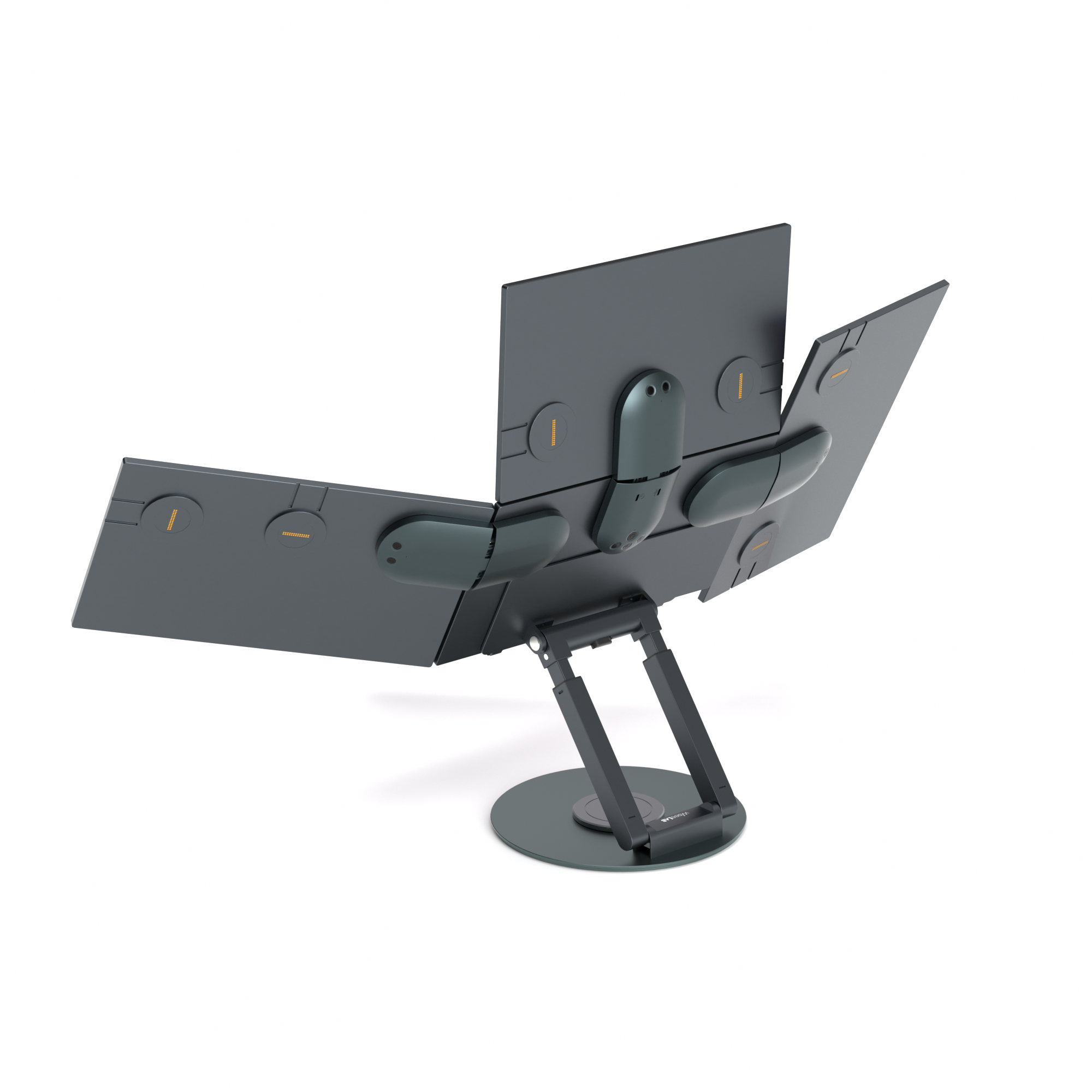
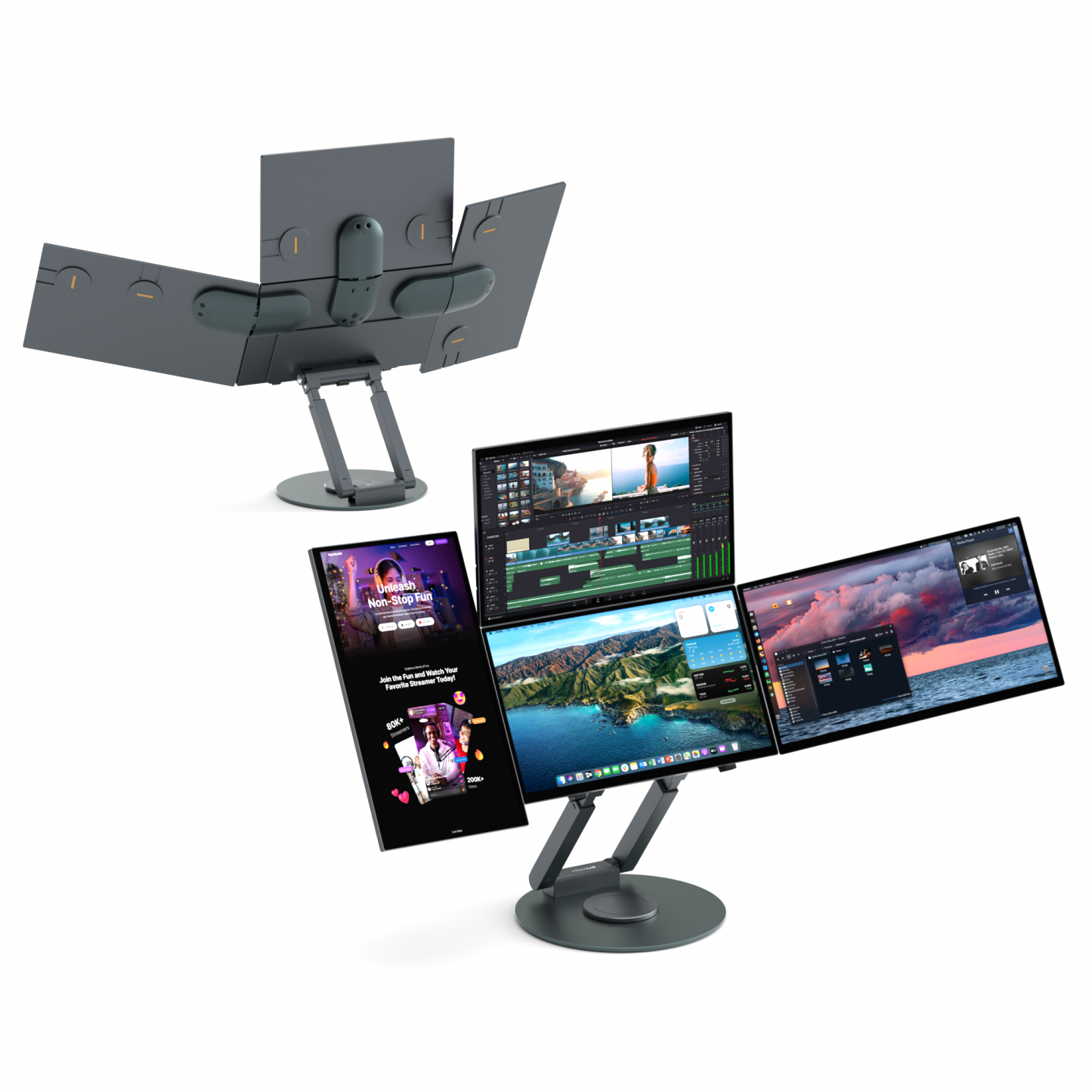
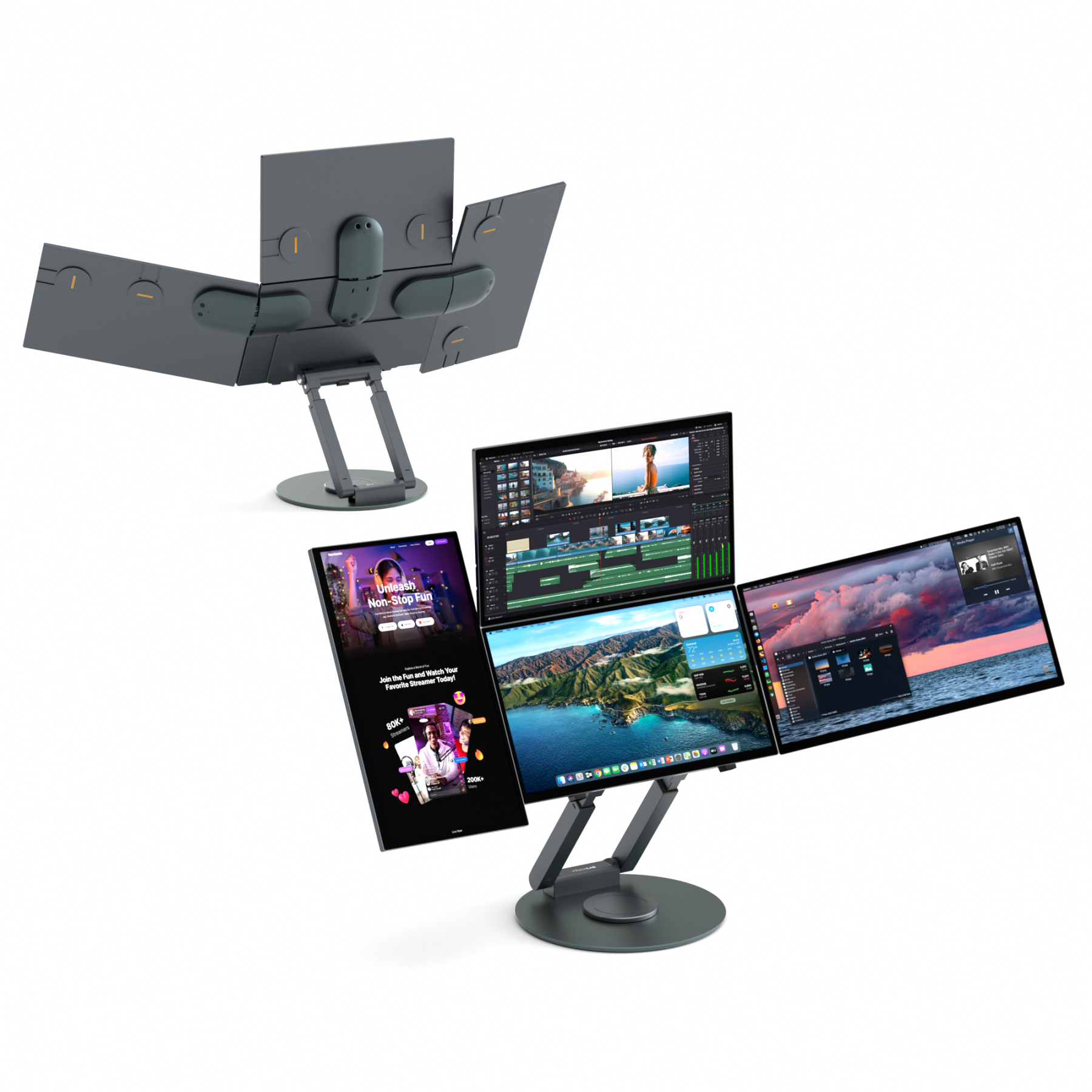
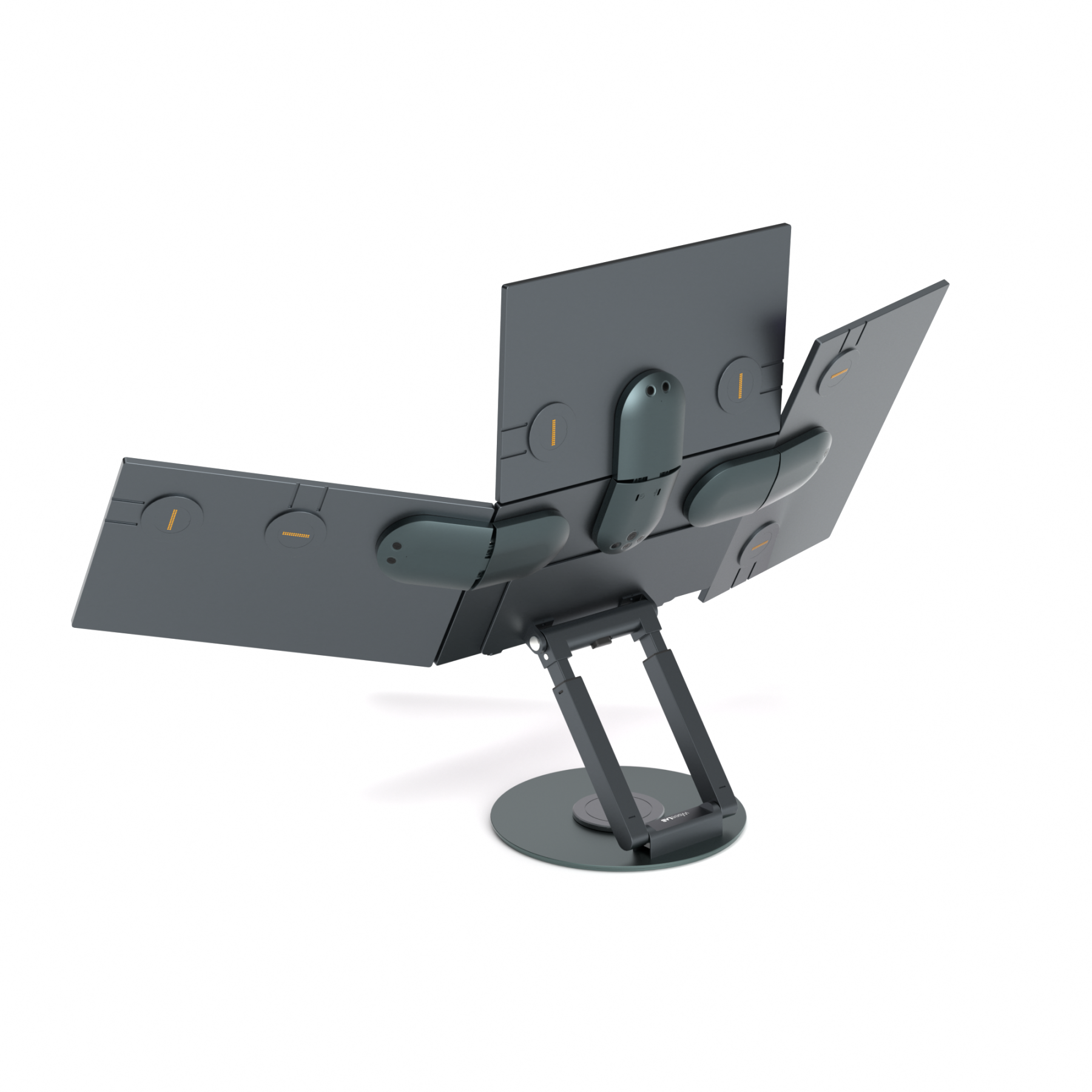
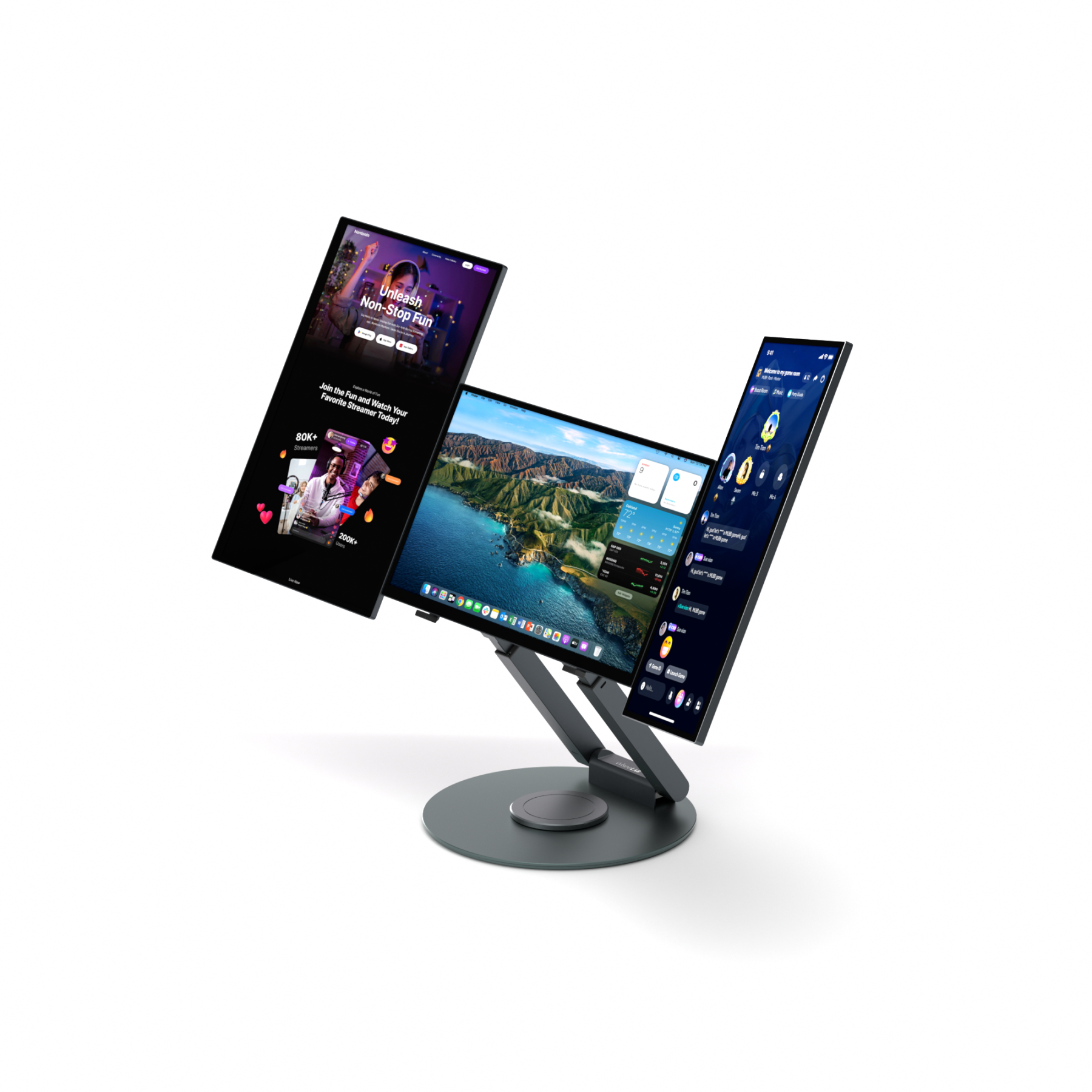
It expands with a click using magnets.

A stand that allows you to freely adjust the height and angle.

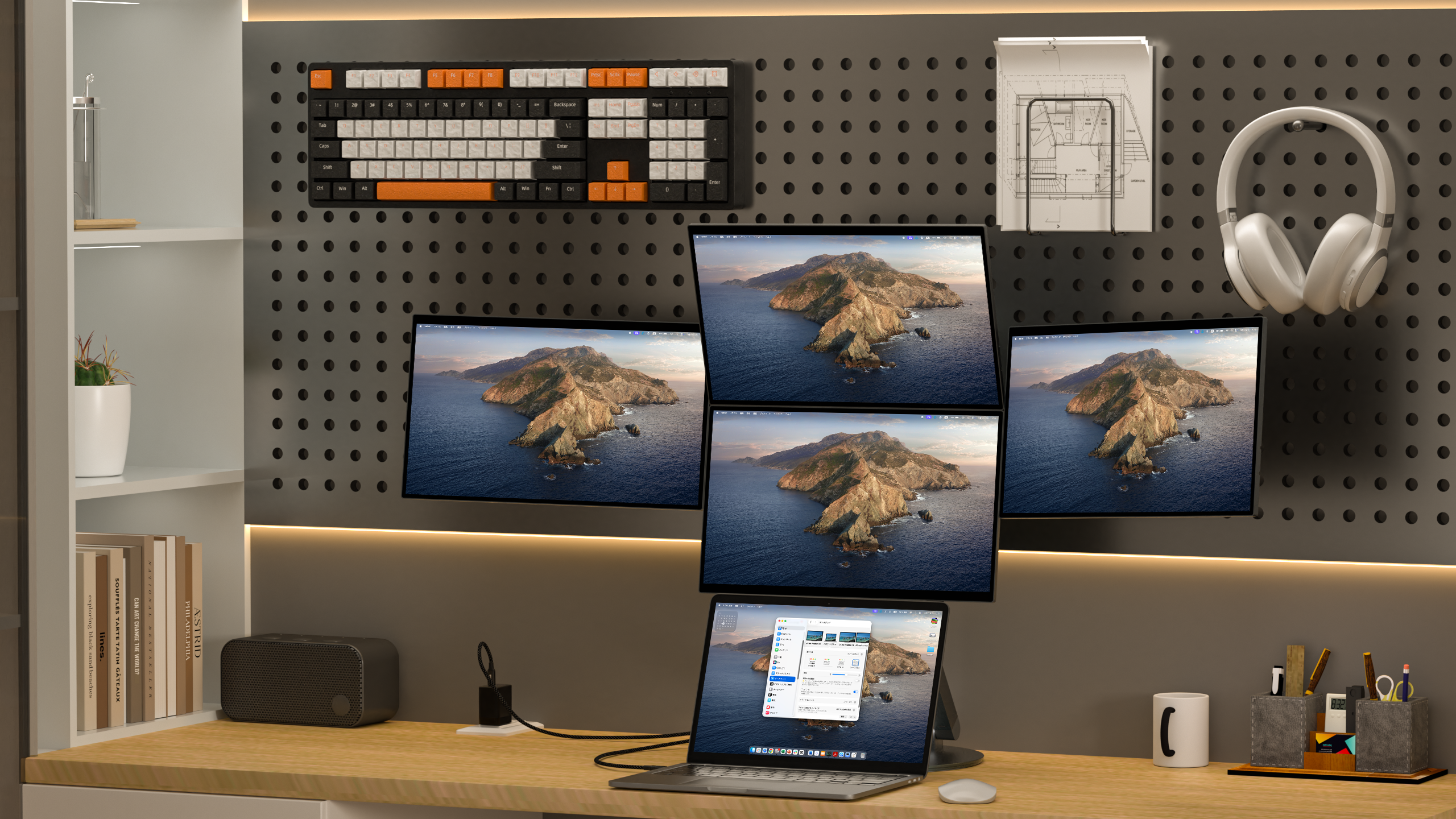
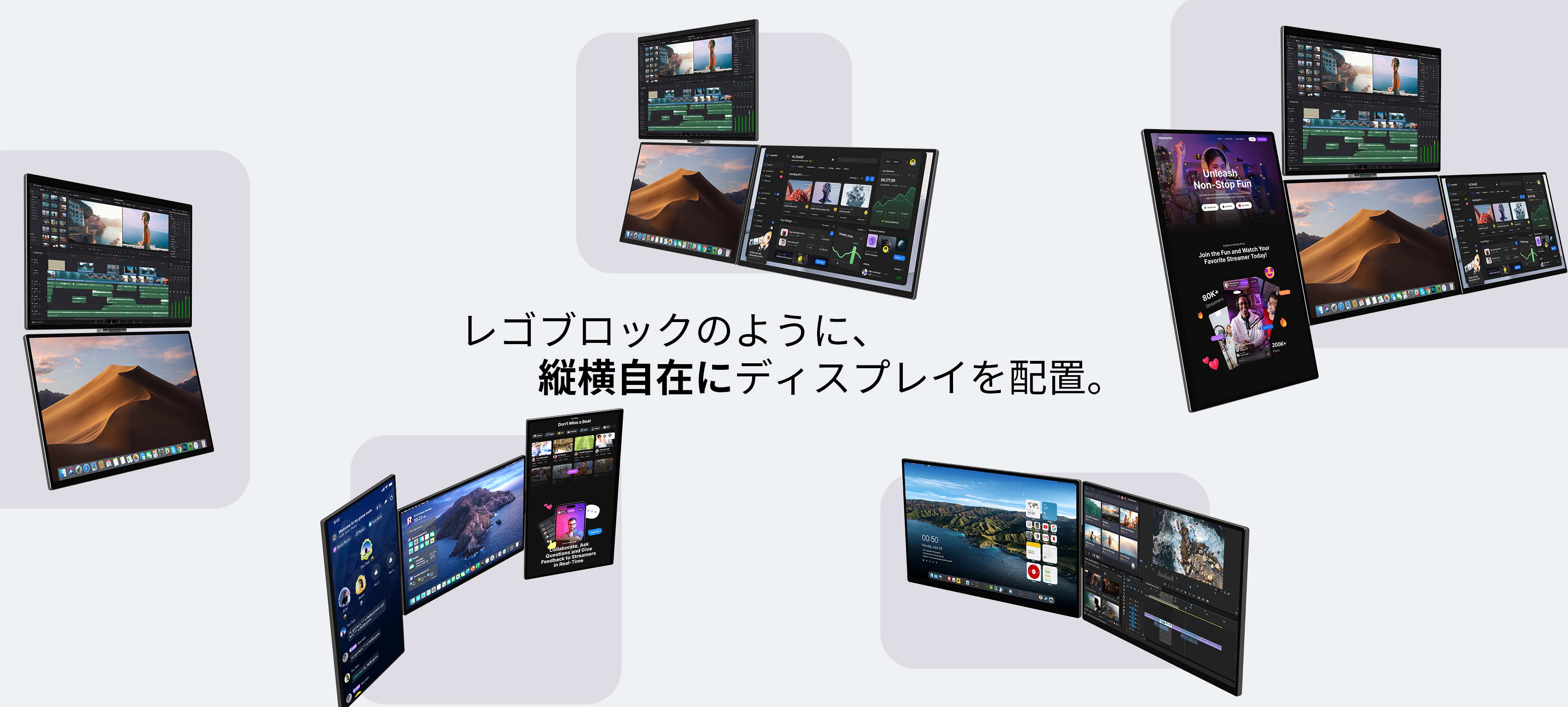
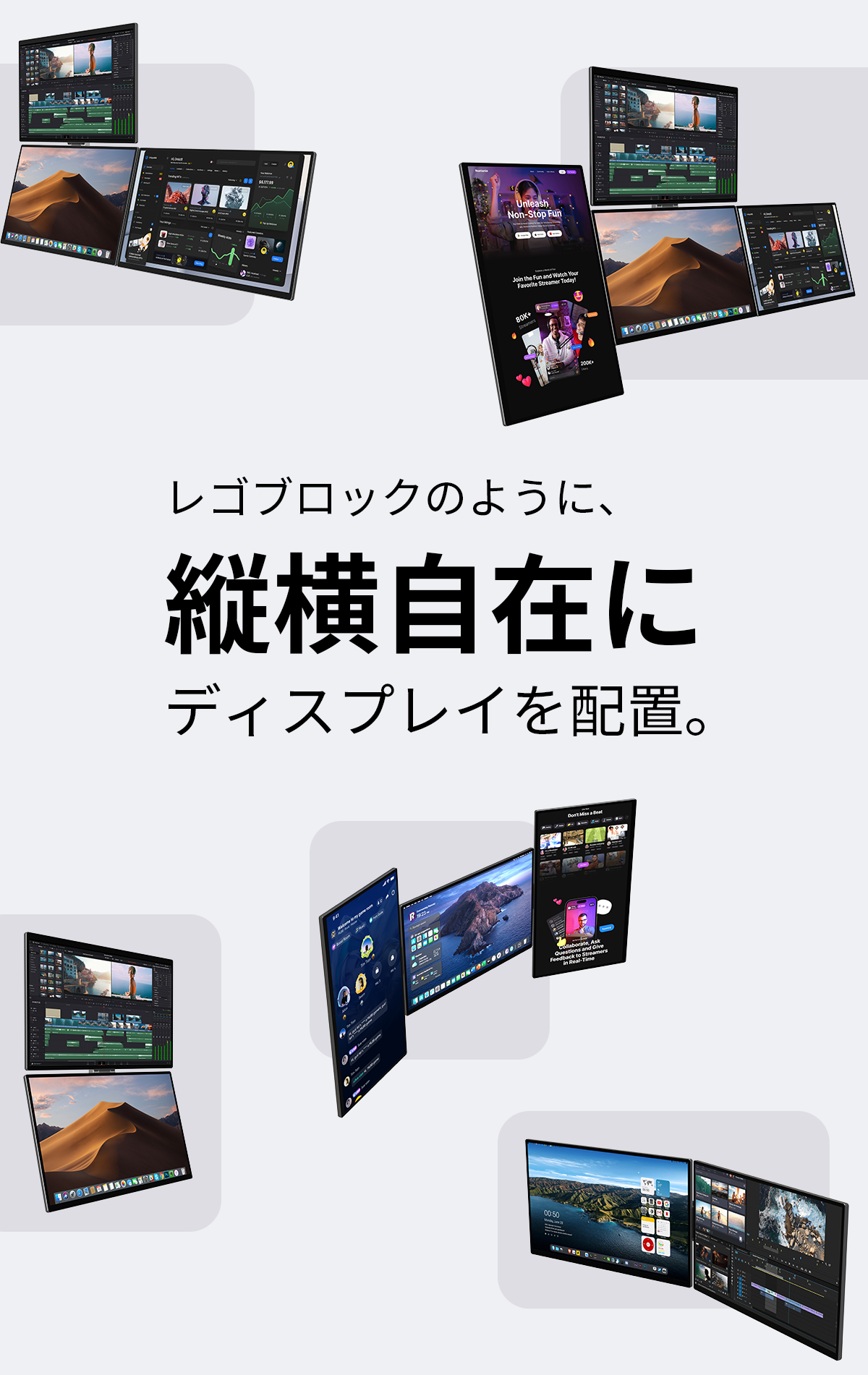
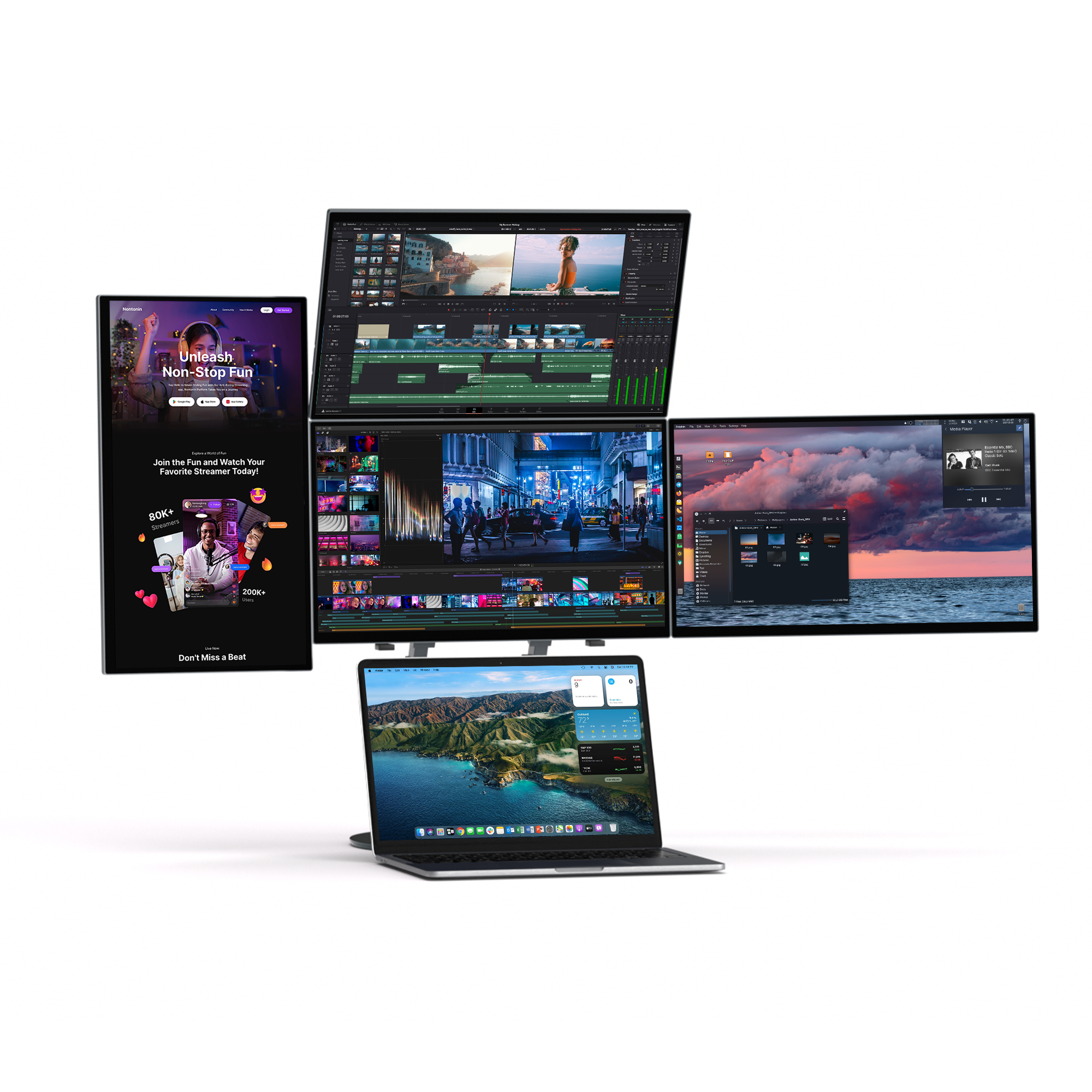
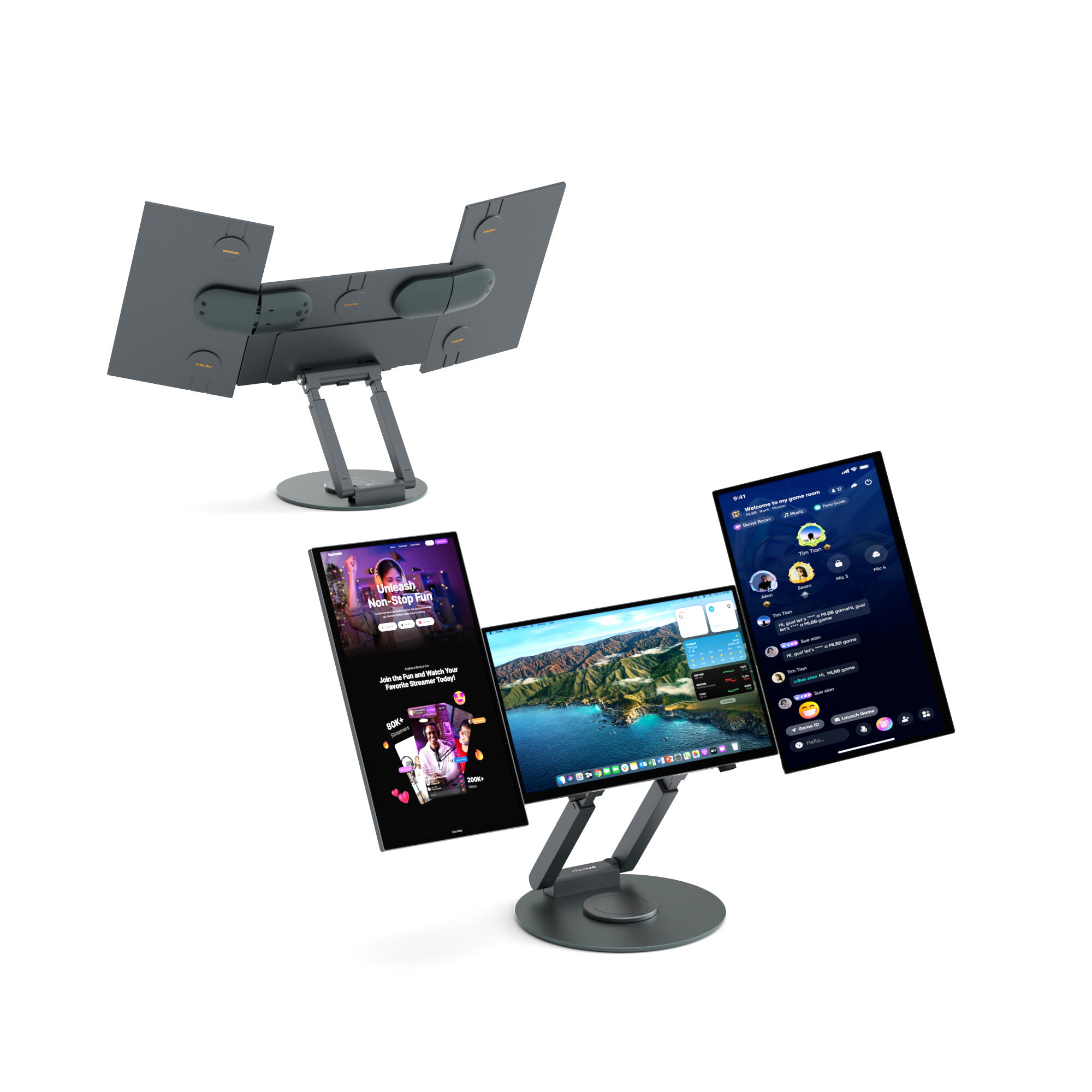
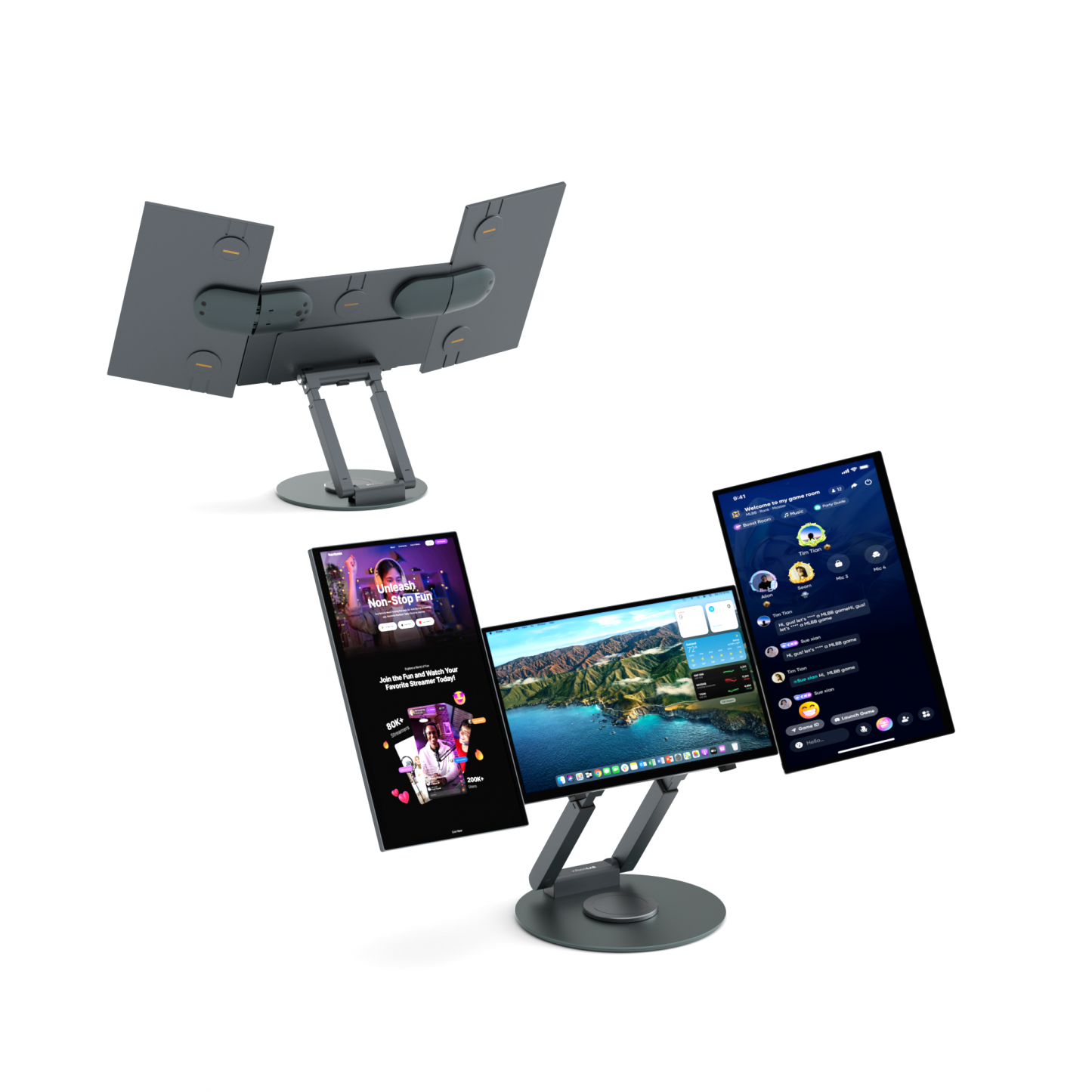
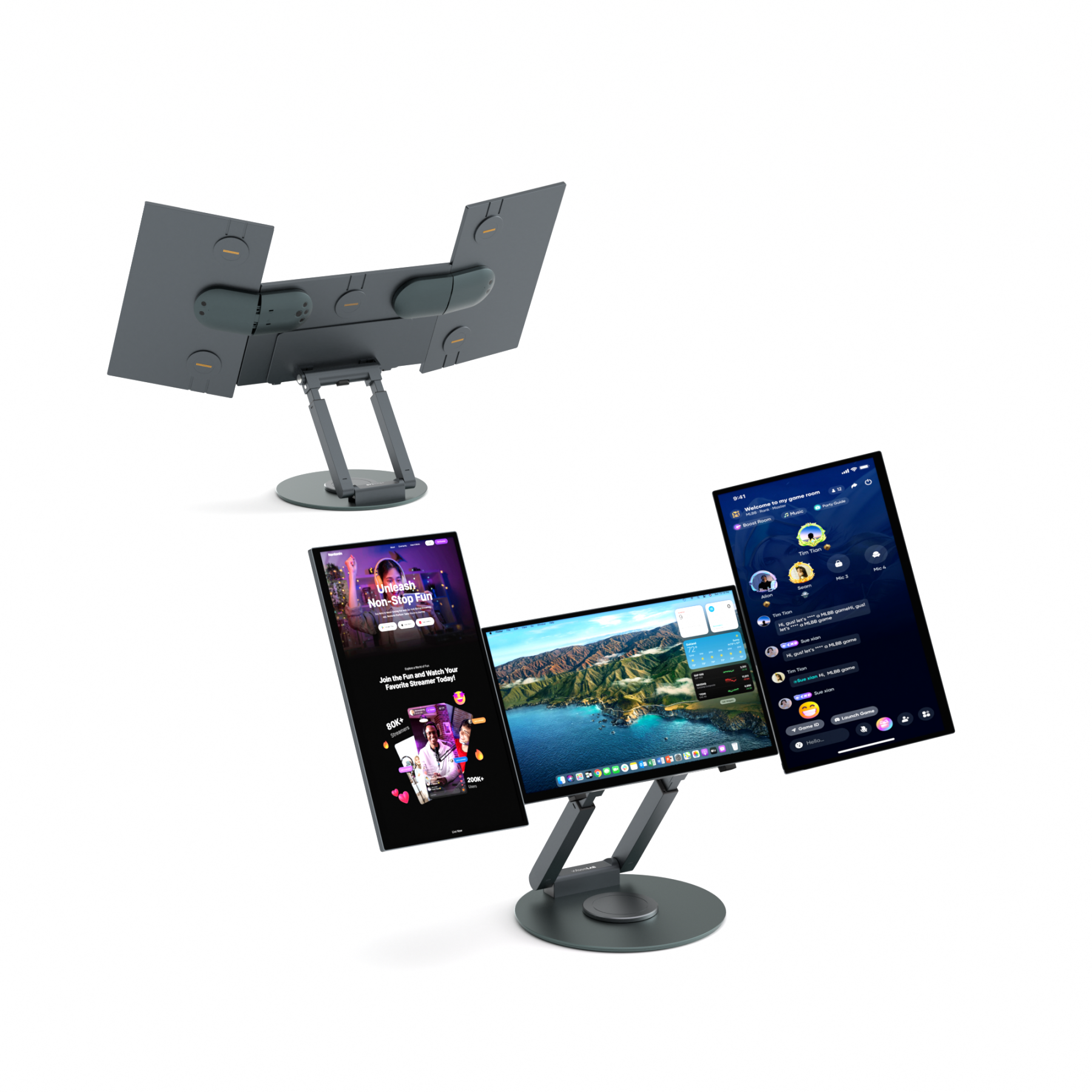
Freely arrange vertically and horizontally.

Building a multi-monitor environment from a single PC

Up to 5 screens in your AI-era workspace
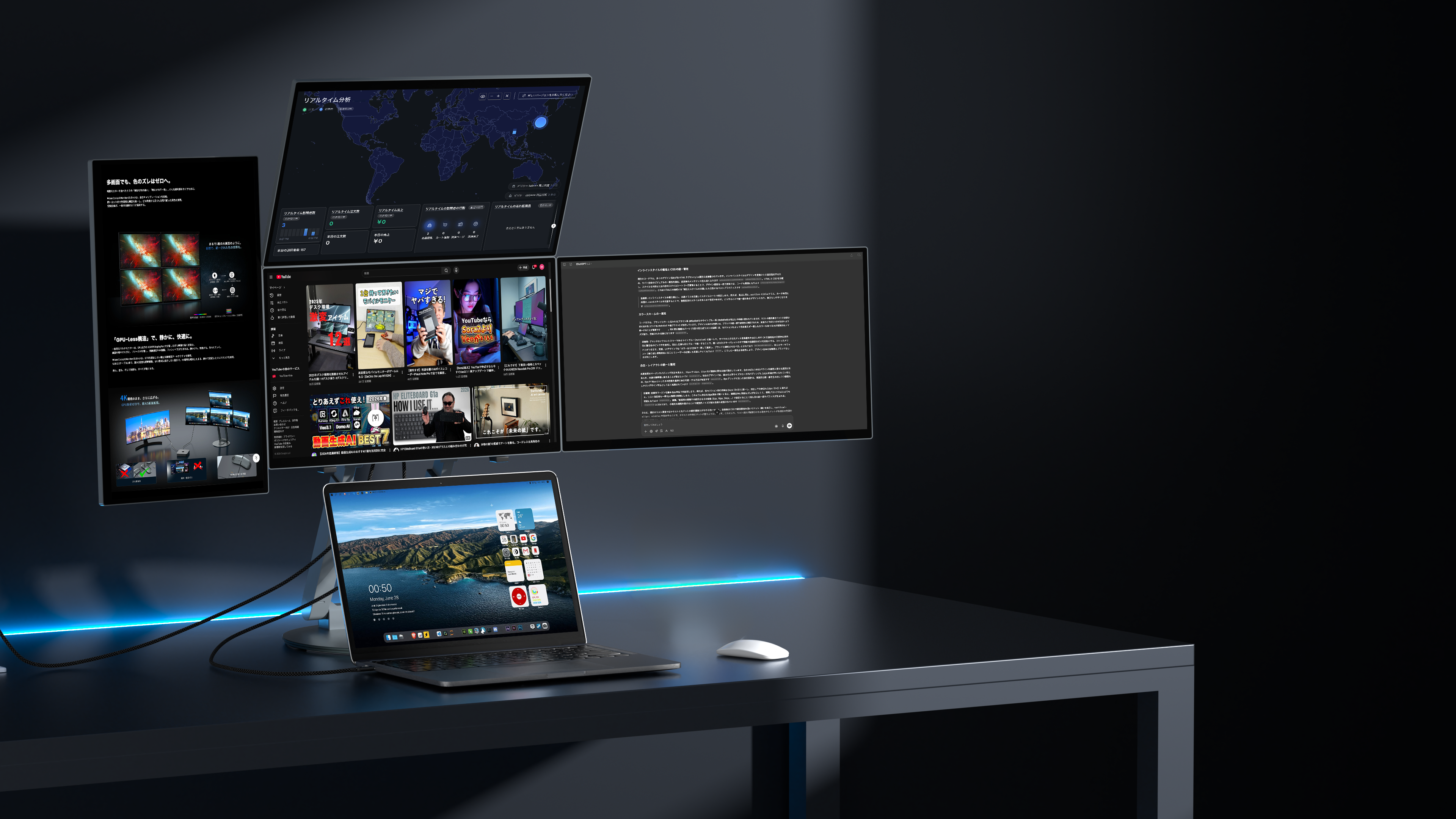
Switch instantly to suit your needs.

It expands with a click using magnets.

A stand that allows you to freely adjust the height and angle.

Freely arrange vertically and horizontally.

A cockpit-style workspace where you can move forward while looking around.

Are you still switching over to that process?

"Alt+Tab and switching windows, the time spent searching for necessary information"
All of these are interruptions in thought.

In the AI era, work is based on handling multiple pieces of information simultaneously.
However, as long as you continue to work on a single screen, your thoughts are interrupted repeatedly.

80%
The number of screens represents the range of thought.
Humans obtain about 80% of information visually.
An environment where necessary information is always in sight.
It is not just a convenience, but the very freedom of thought.

Source: Sawamura Madoka

Work in the age of AI will require multiple screens.

In the era of working with AI, work has changed.

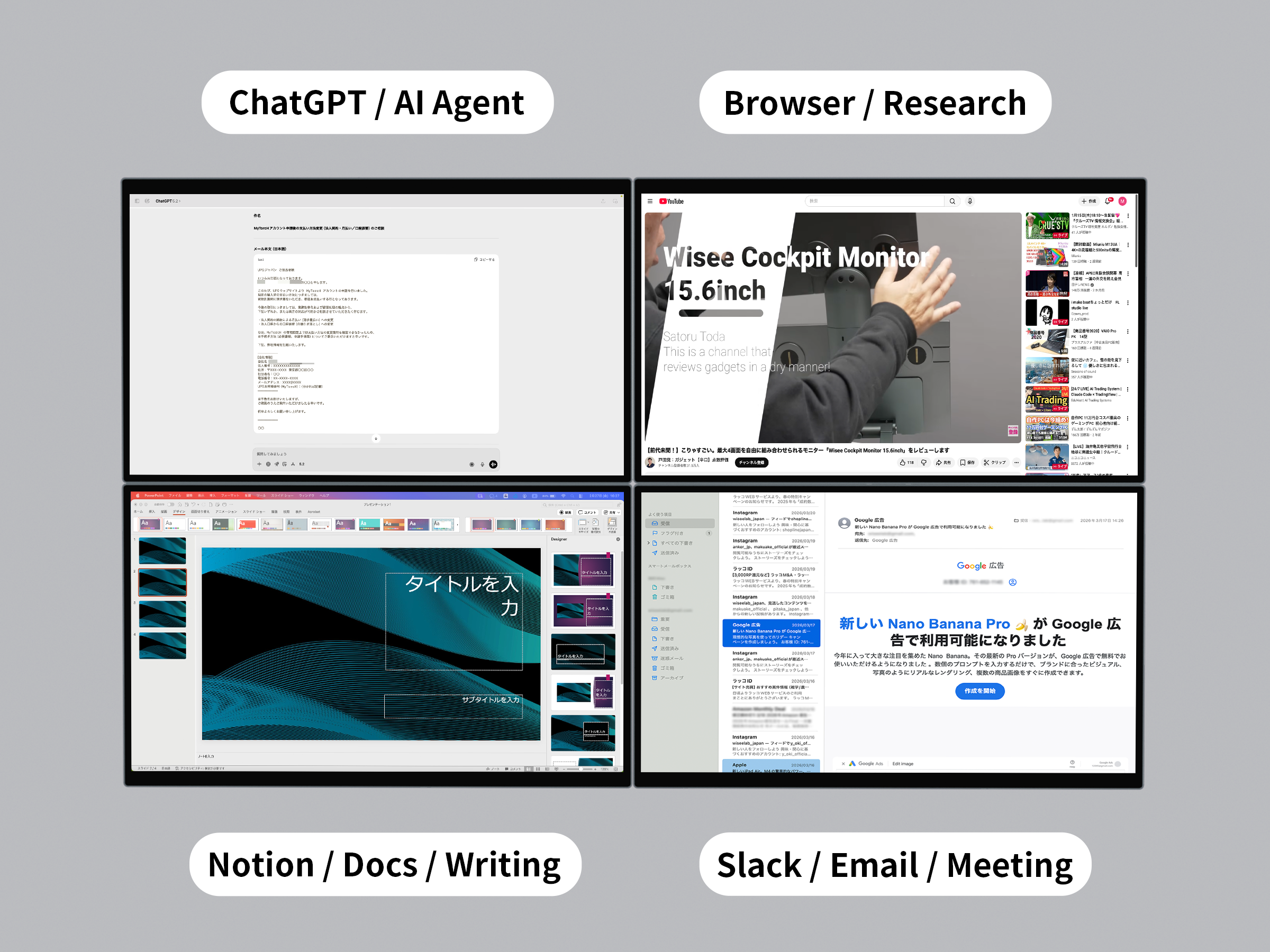
Research, thinking, writing, communication.
Instead of moving back and forth between each task, we are now in an age where we advance them simultaneously.

"One monitor = one AI agent."

Facing multiple pieces of information at the same time has become a prerequisite for new tasks.

Those who can process in parallel will achieve results.
That is the way of working in the AI era.

Convert the workspace into a cockpit.

Instead of switching between different views, you can survey everything simultaneously. That's what a cockpit-style workspace is all about.

WORKSPACE SETUP

Workstyles in the AI Era

AI Work
Use AI "without switching"
ChatGPT, documents, browser, notes
in an environment where you can see everything at the same time.
Entrepreneur Work
All decisions simultaneously in a work environment that doesn't
disrupt email, data, AI, and communication
.
trade
Delays in decision-making result in lost opportunities
Charts, news, order screen
All at a glance
Desk setup
Your workspace becomes content
A work environment you want to show off
A setup that gets shared

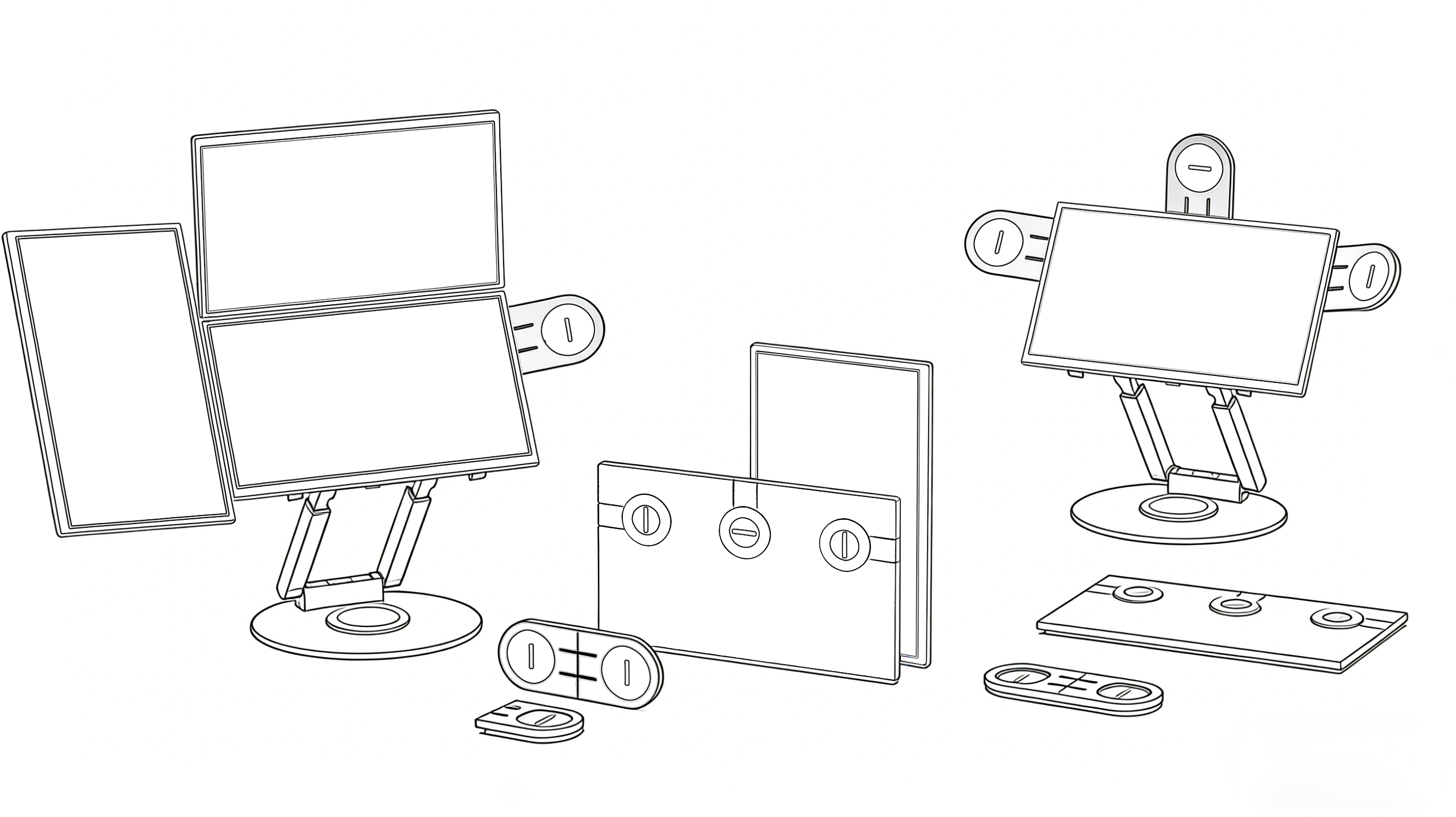
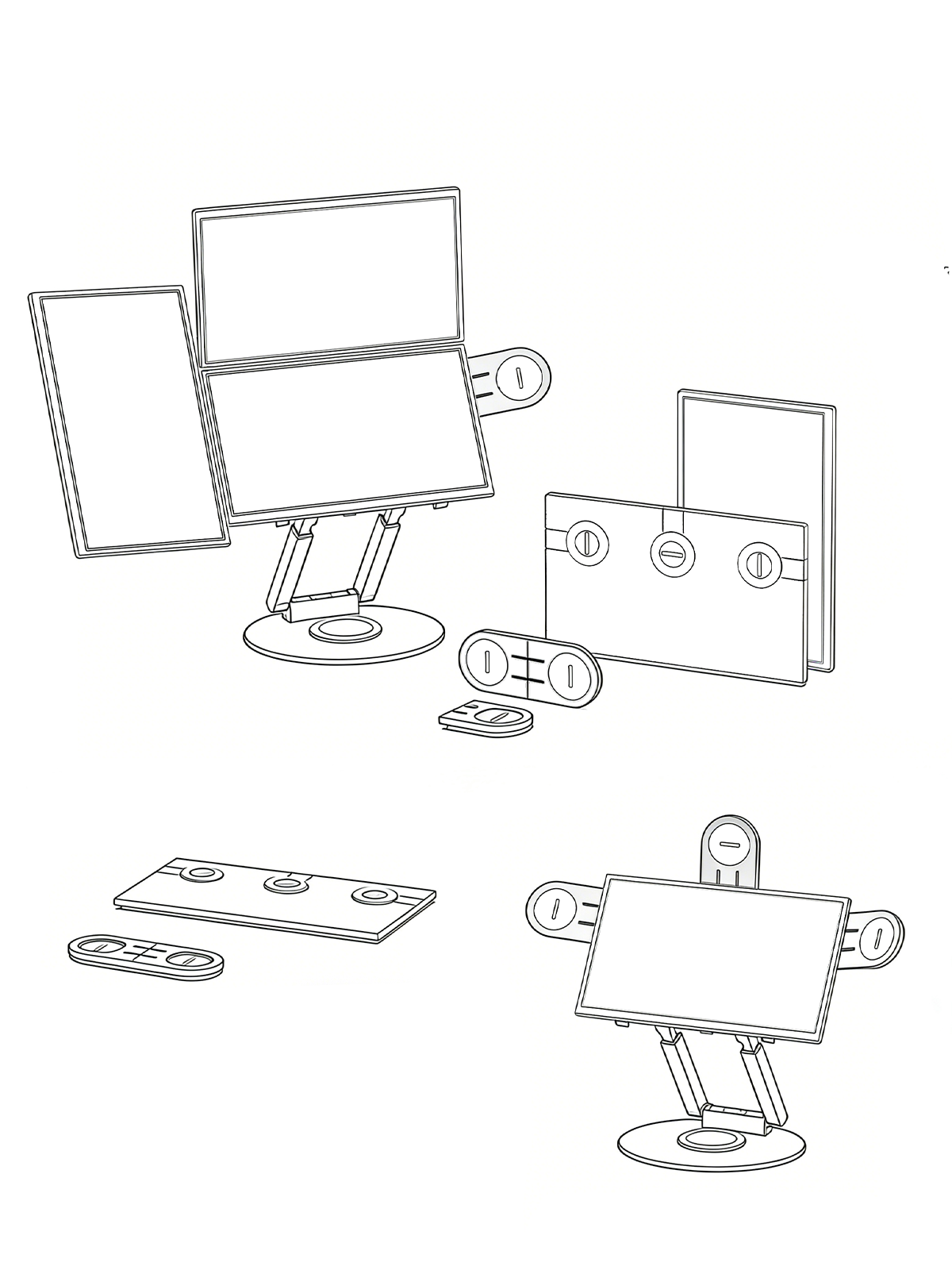
The layout can be changed to suit the work.

  • Flexible layout

    Arrange them vertically, horizontally, in an L-shape, etc., according to your needs.

  • Magnetic connection

    No tools required. Simply bring them close together to connect.

Minimize both wiring and load.

Everything connects with just one cable.

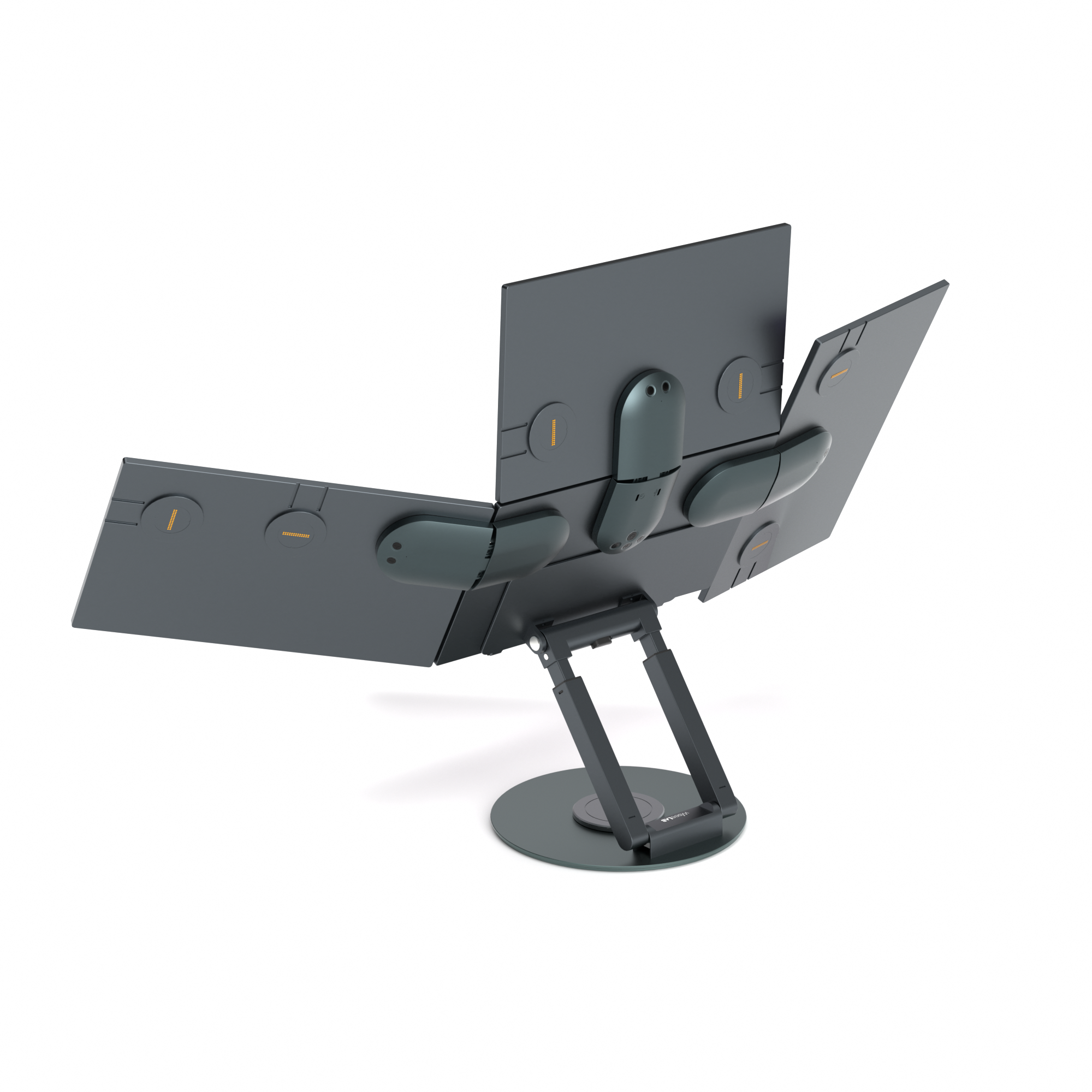
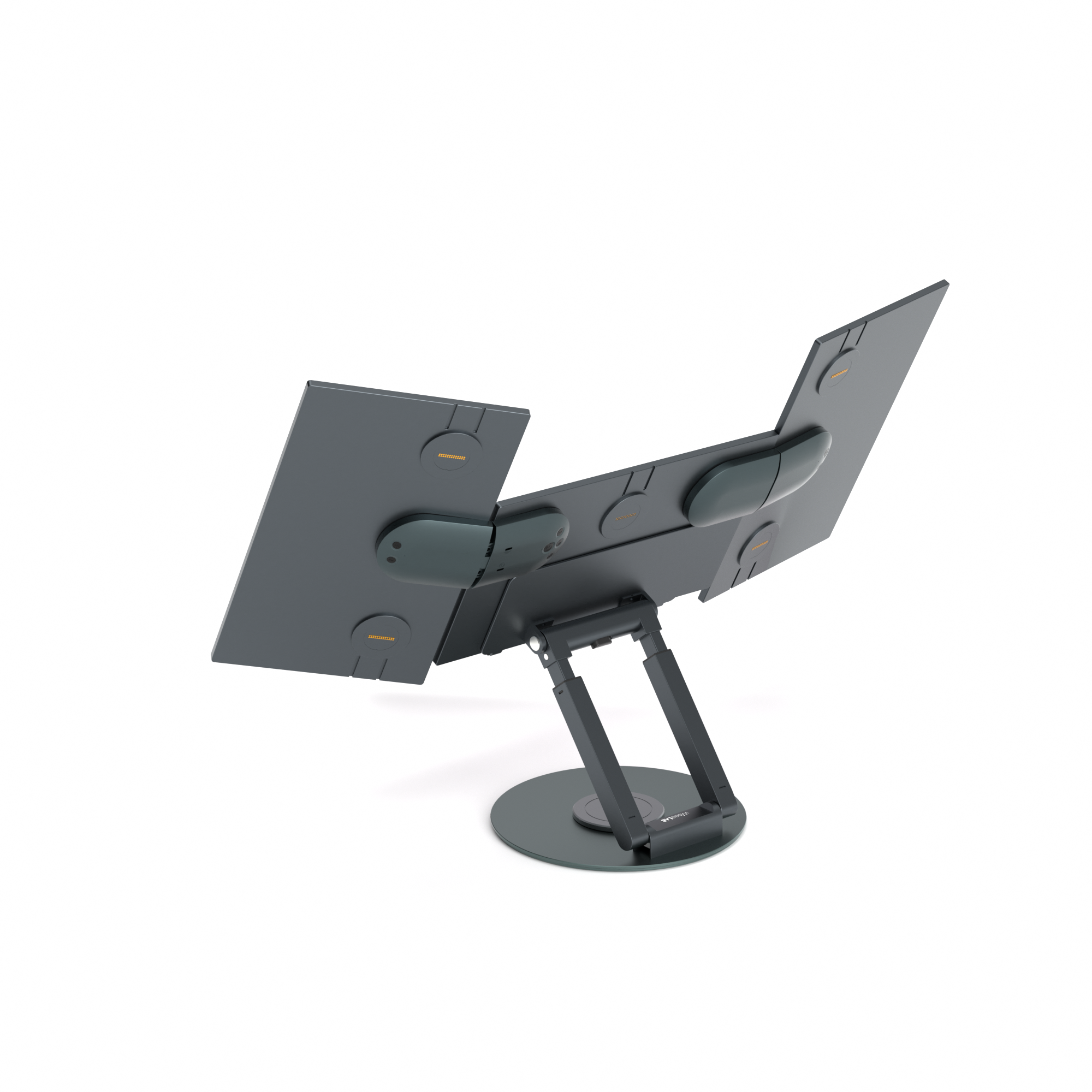
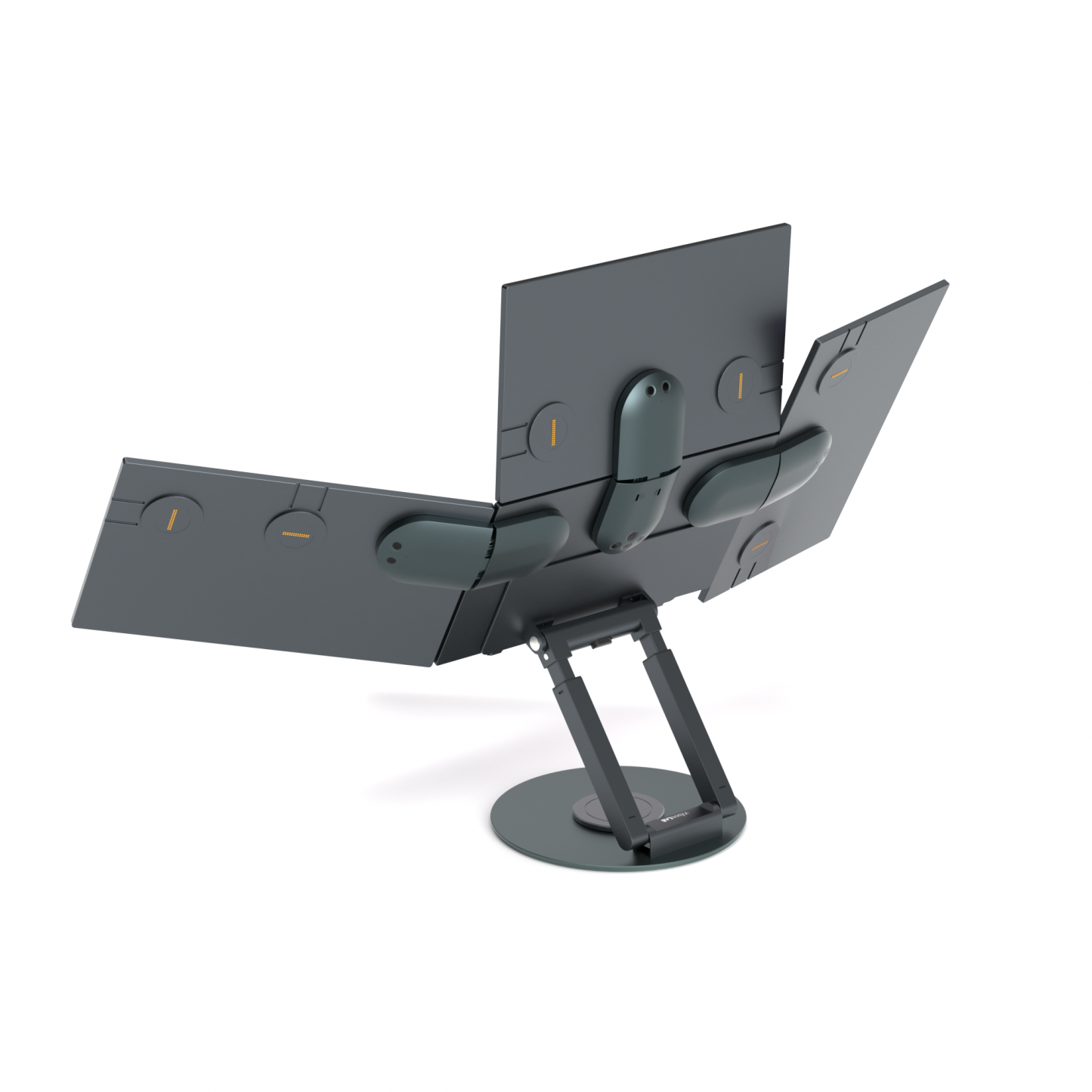
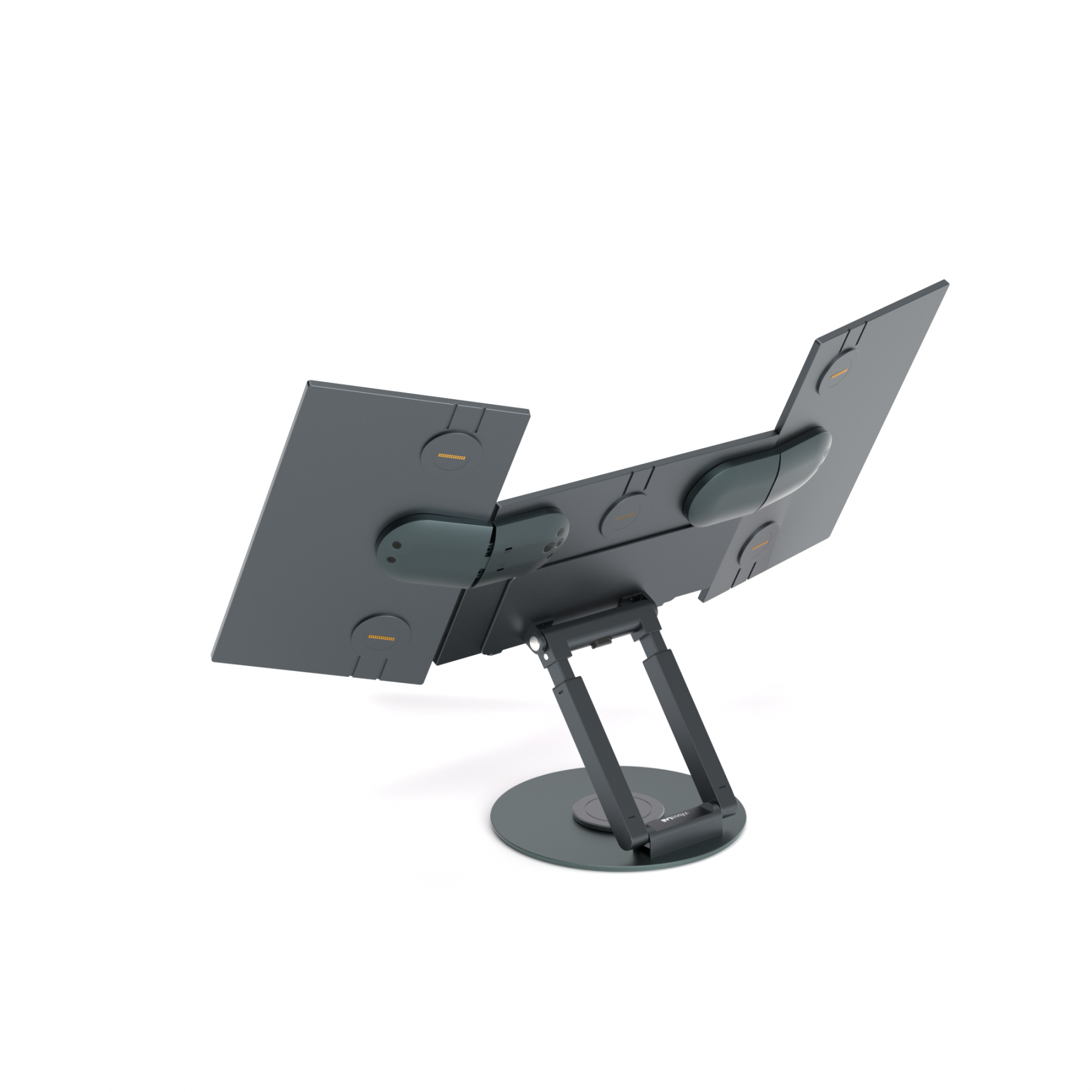
The monitors connect automatically using magnets.
Simply bringing them close together integrates the signal and power supply, significantly reducing wiring stress.

*Signal transmission via a single USB-C cable
*Supports power supply via a separate cable.

Designed to not put a strain on your PC.

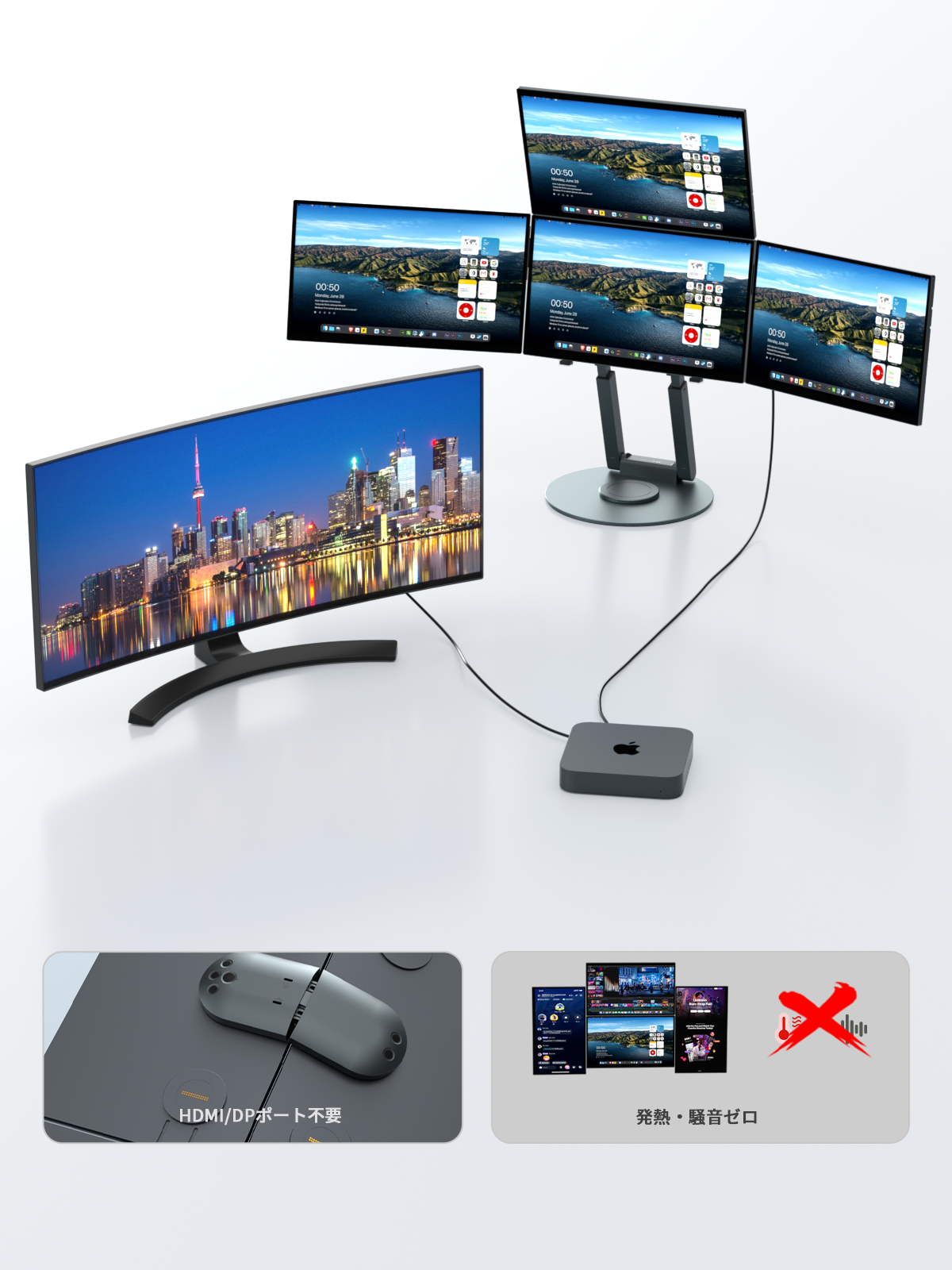
It employs a proprietary design that does not depend on the GPU.
Quiet and stable operation even with multiple displays.

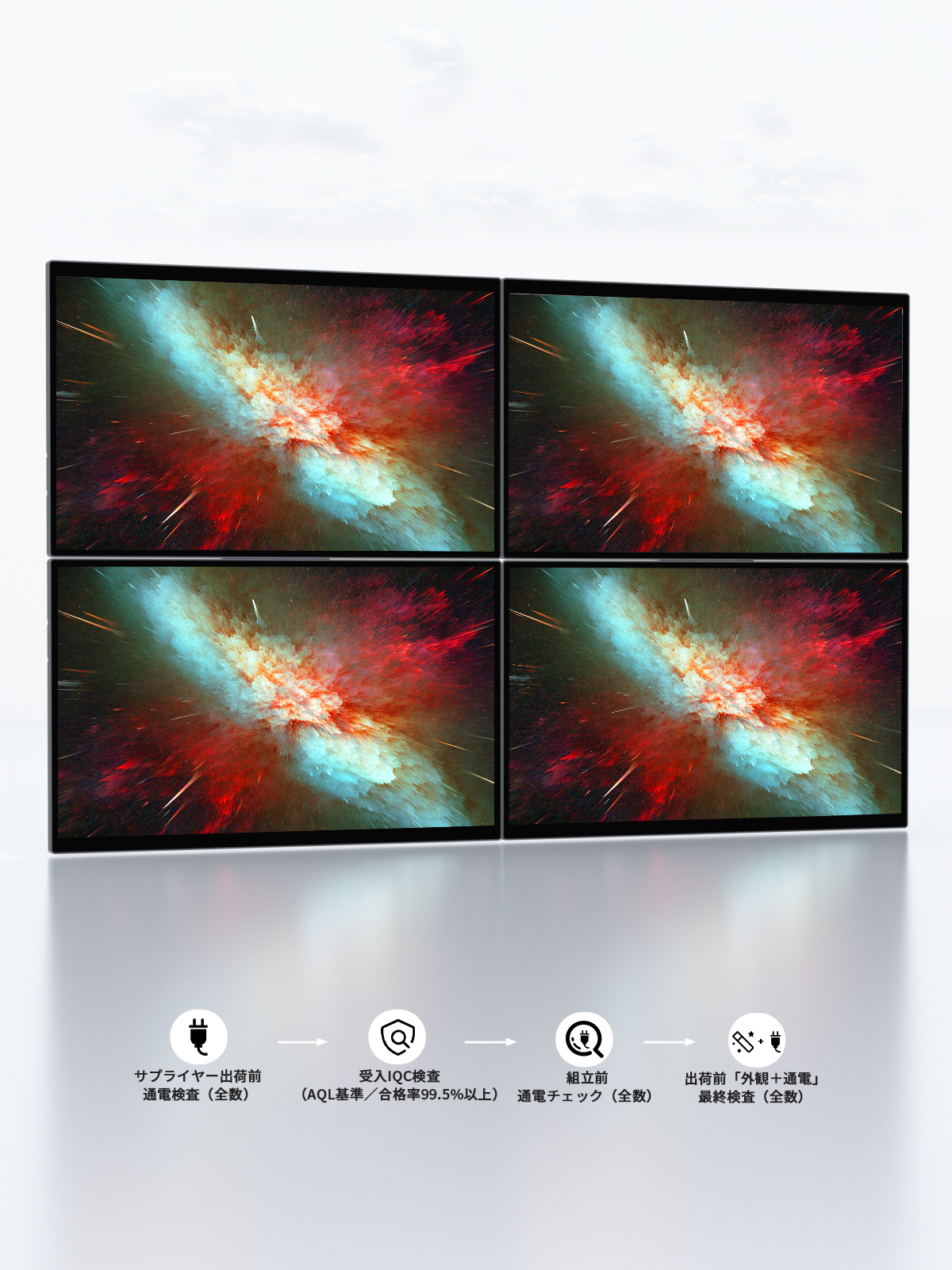
No color misalignment even across multiple screens.

Calibration was performed on the same batch.
Natural and consistent display on any screen.

Everything connects with just one cable.

The monitors connect automatically using magnets.
Simply bringing them close together integrates the signal and power supply, significantly reducing wiring stress.

*Signal transmission via a single USB-C cable
*Supports power supply via a separate cable.

Designed to not put a strain on your PC.

It employs a proprietary design that does not depend on the GPU.
Quiet and stable operation even with multiple displays.

No color misalignment even across multiple screens.

Calibration was performed on the same batch.
Natural and consistent display on any screen.

Expert Review

The God of Presentations
Mr. Madoka Sawa

"A monitor is not just a gadget."
It's the most important tool for keeping your thinking going.

"It's best to think of one monitor as equivalent to one AI agent."

Wisee Cockpit Monitor visualizes multiple pieces of information simultaneously, creating a work environment that does not interrupt the flow of thought.

Source: Engineertype

View the full article

Portable and suitable for long-term use.

SUSTAINABLE

Slim design

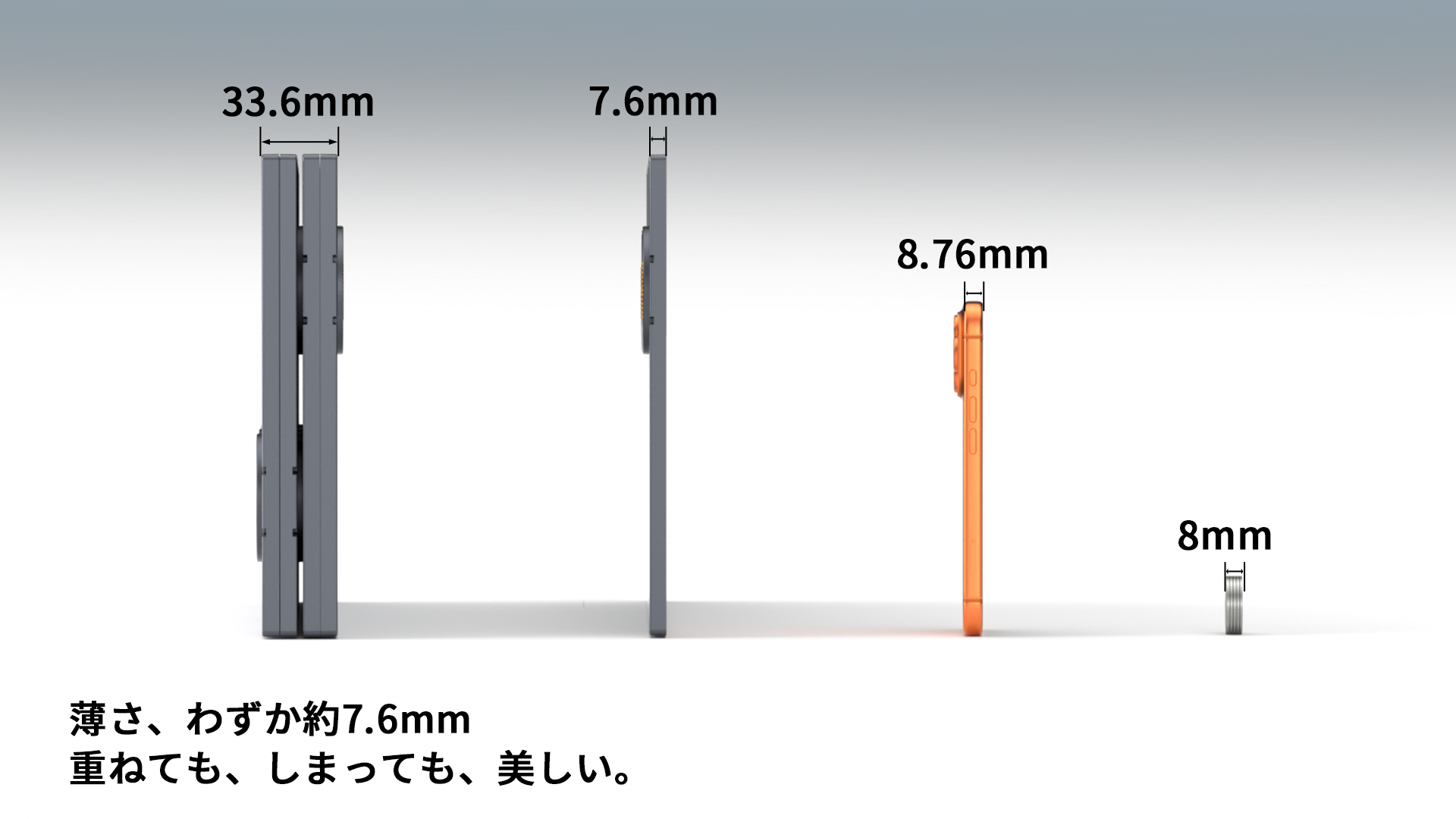
Ultra Slim
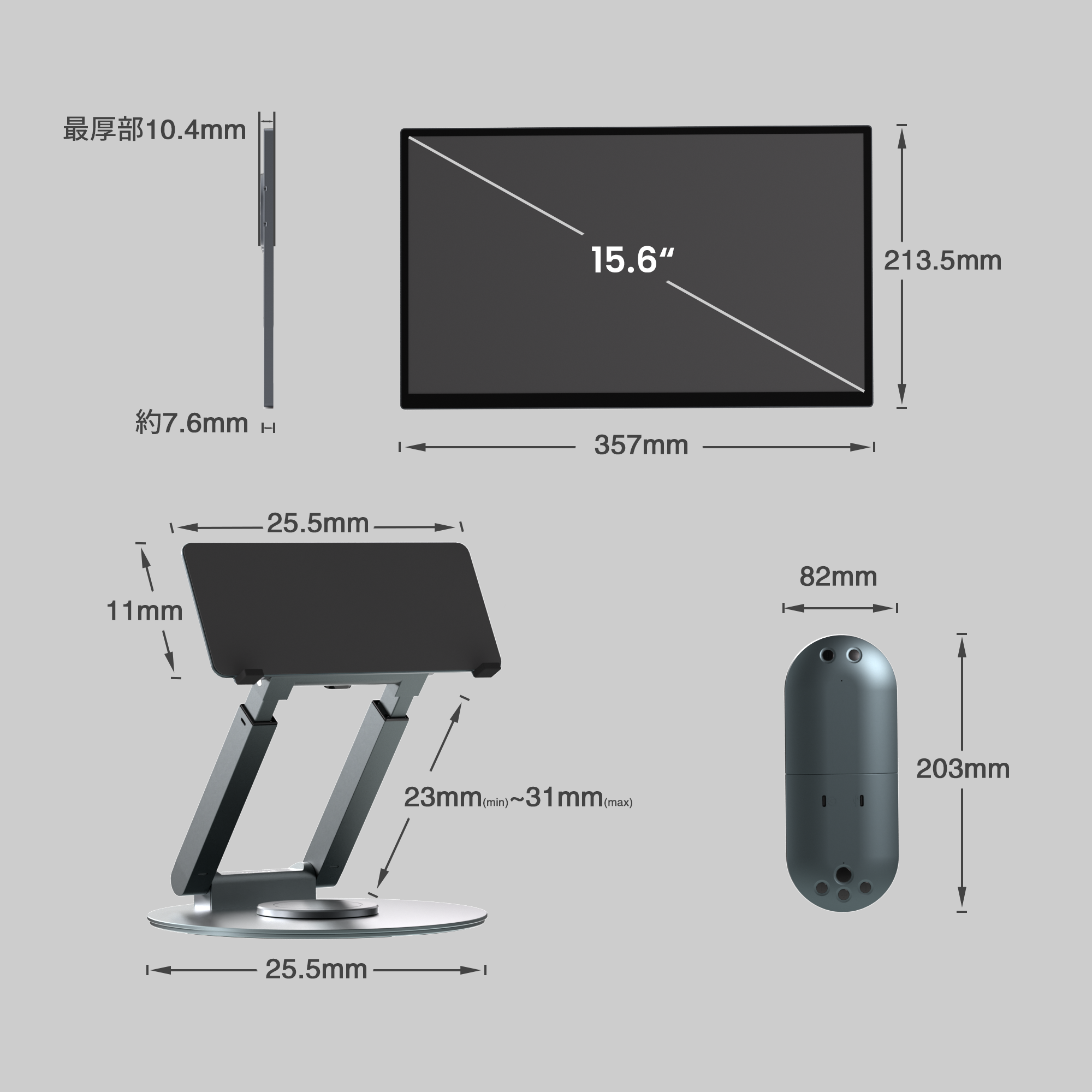
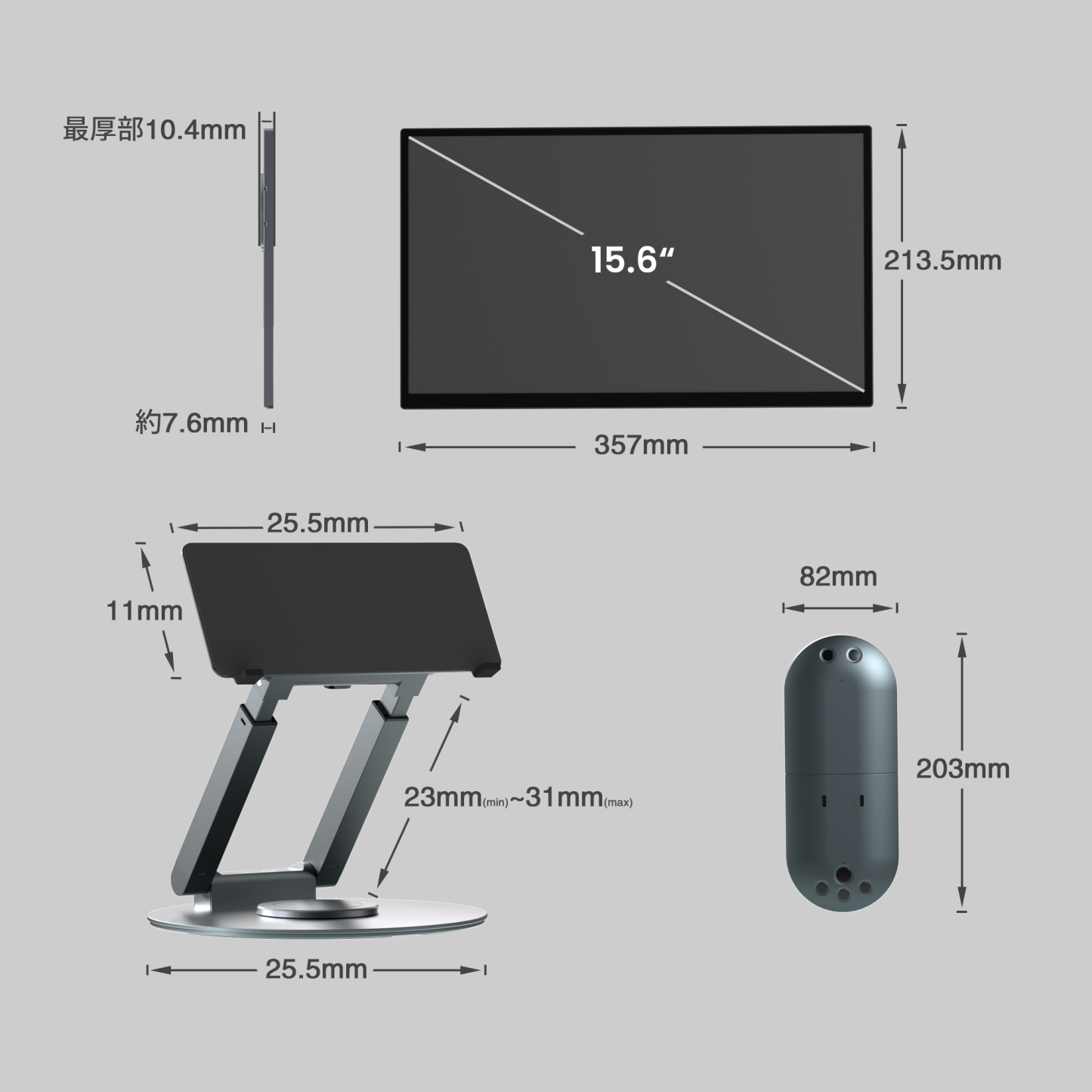
Slim body of approximately 7.6mm

It fits easily into a bag even when stacked with a laptop, allowing you to quickly set up a multi-screen environment on business trips or while out and about.

Unit structure

Easy Replace
Designed for long-term use through unit replacement.

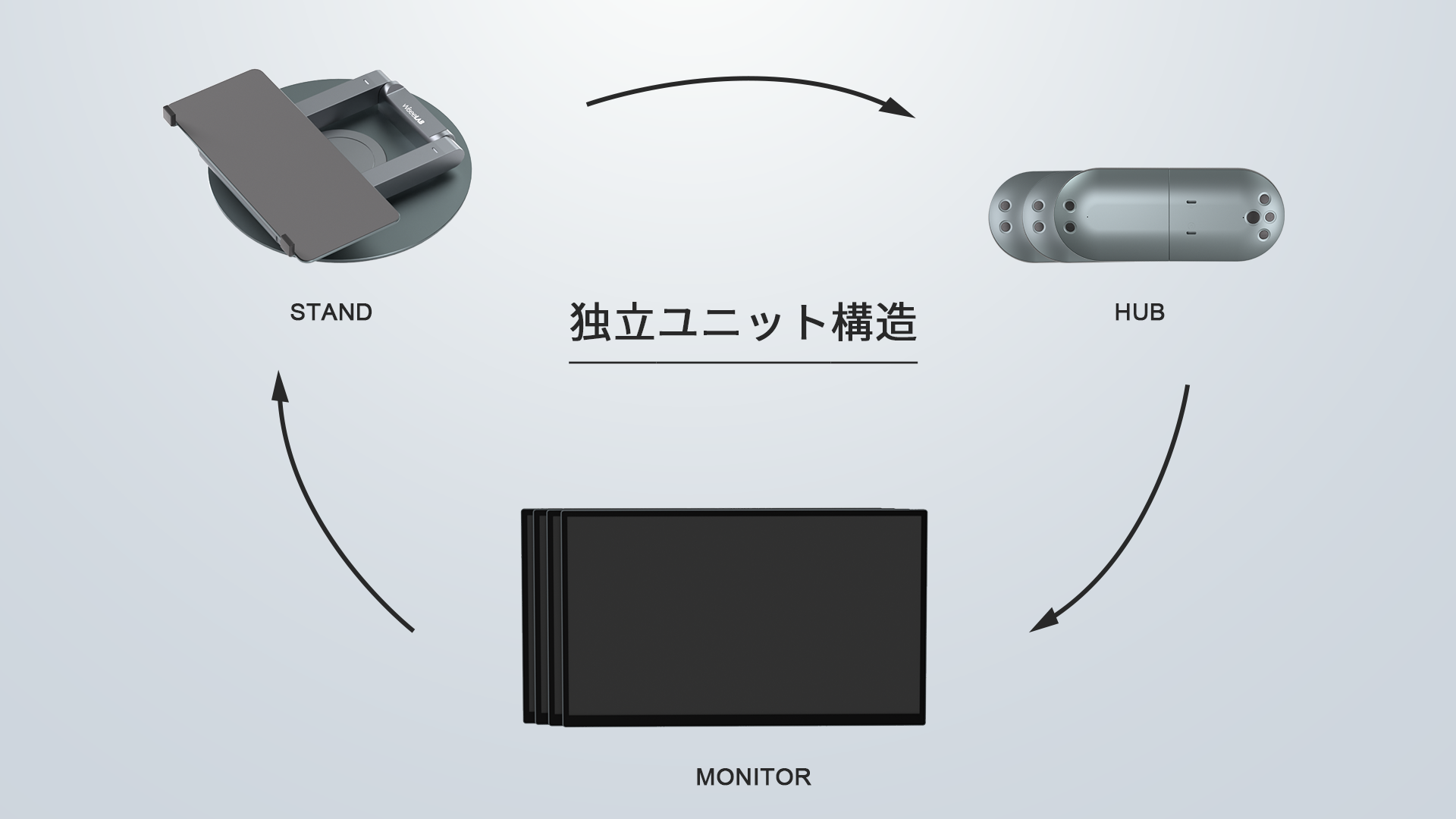
This product employs a modular design.
In the event of a malfunction, only the affected unit can be replaced.
You can continue using it for a long time without having to replace the entire system.

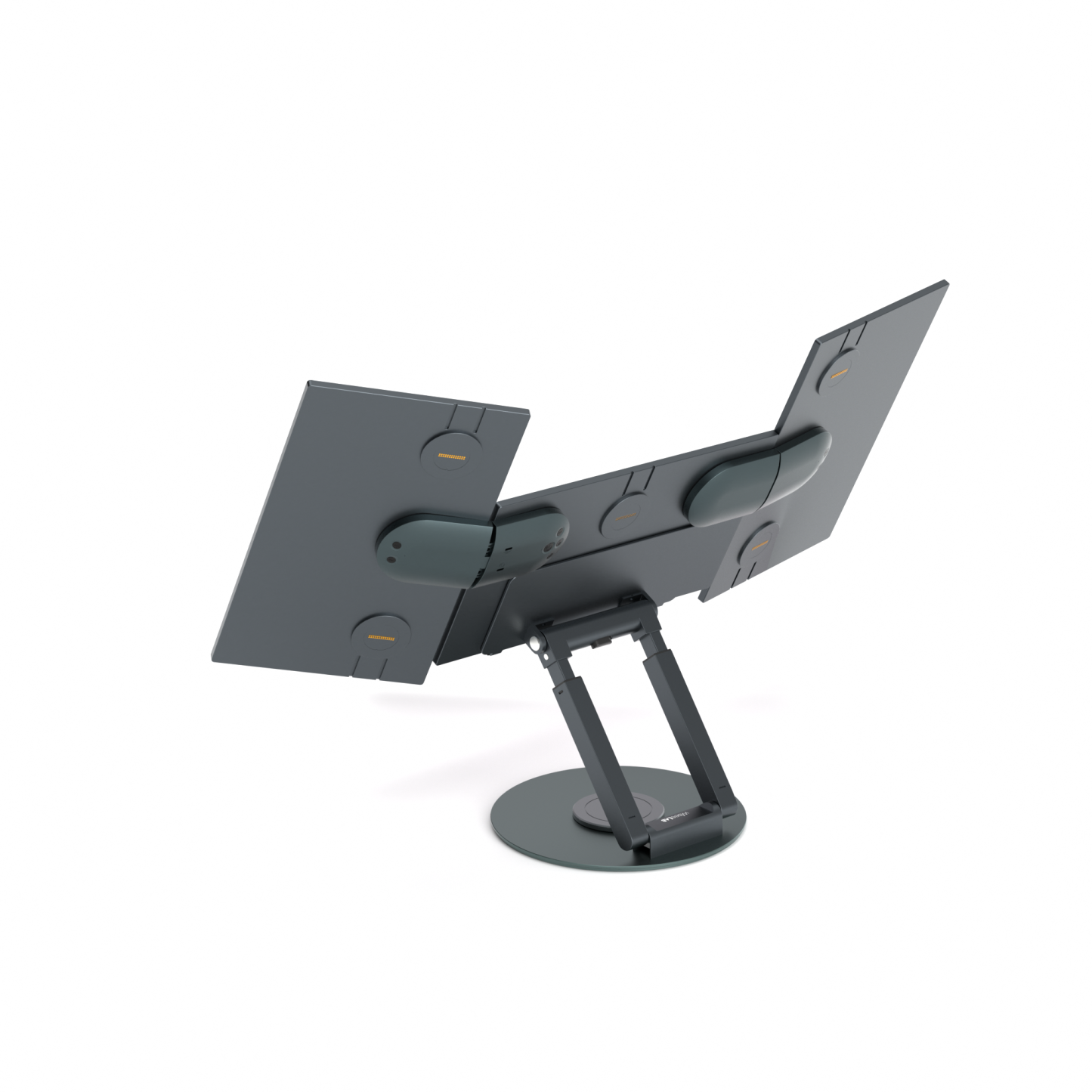
Dedicated metal stand

Free adjustment with a multi-axis stand

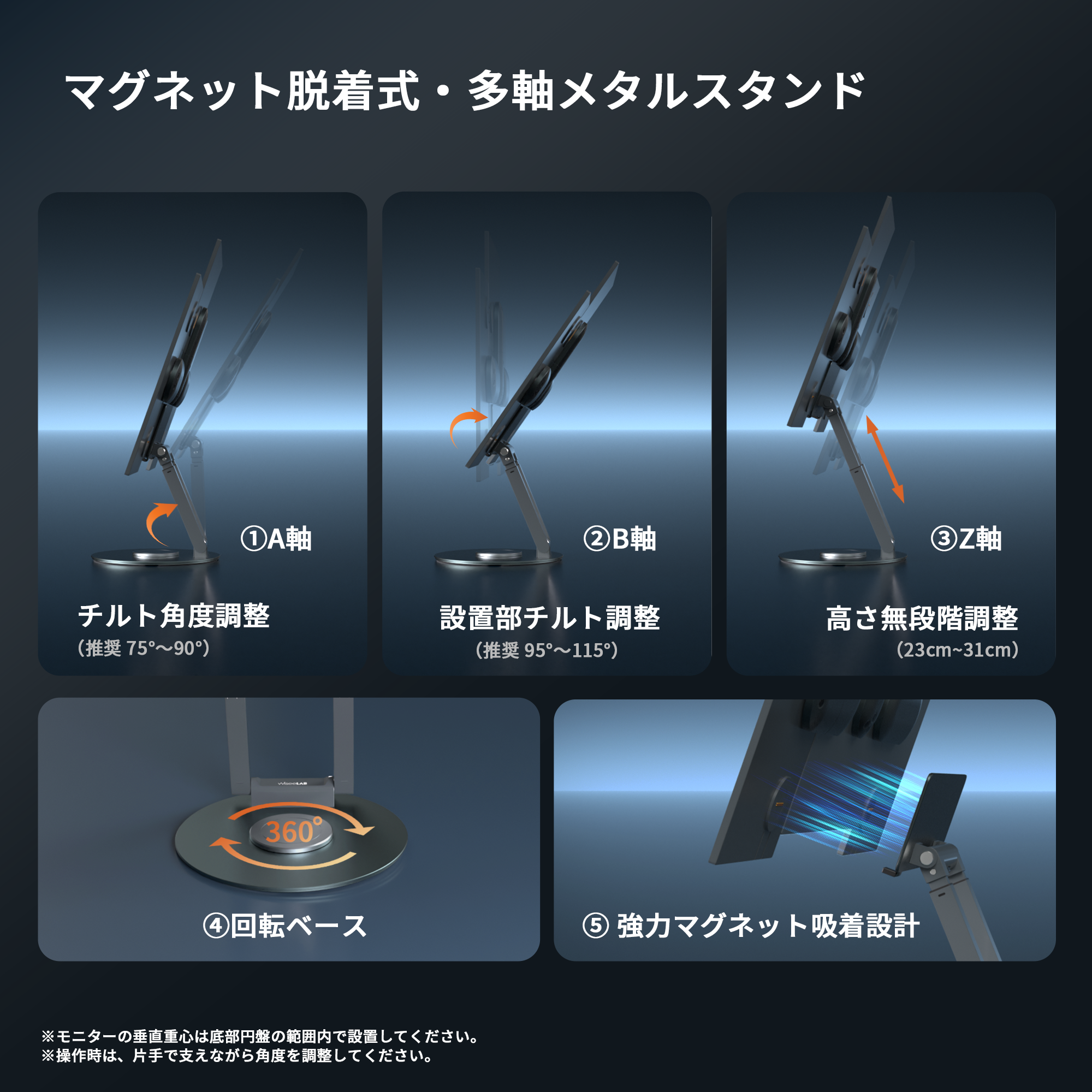
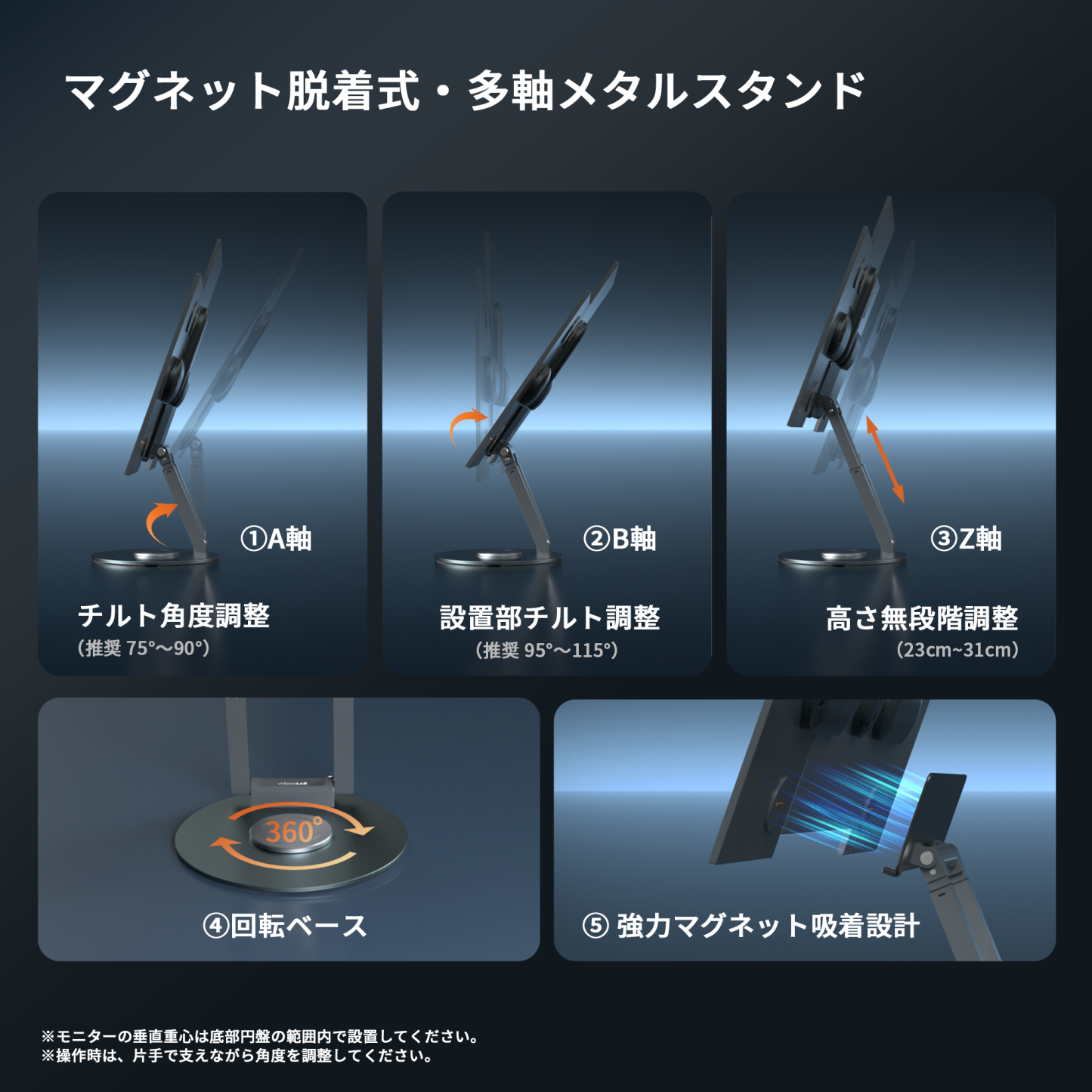
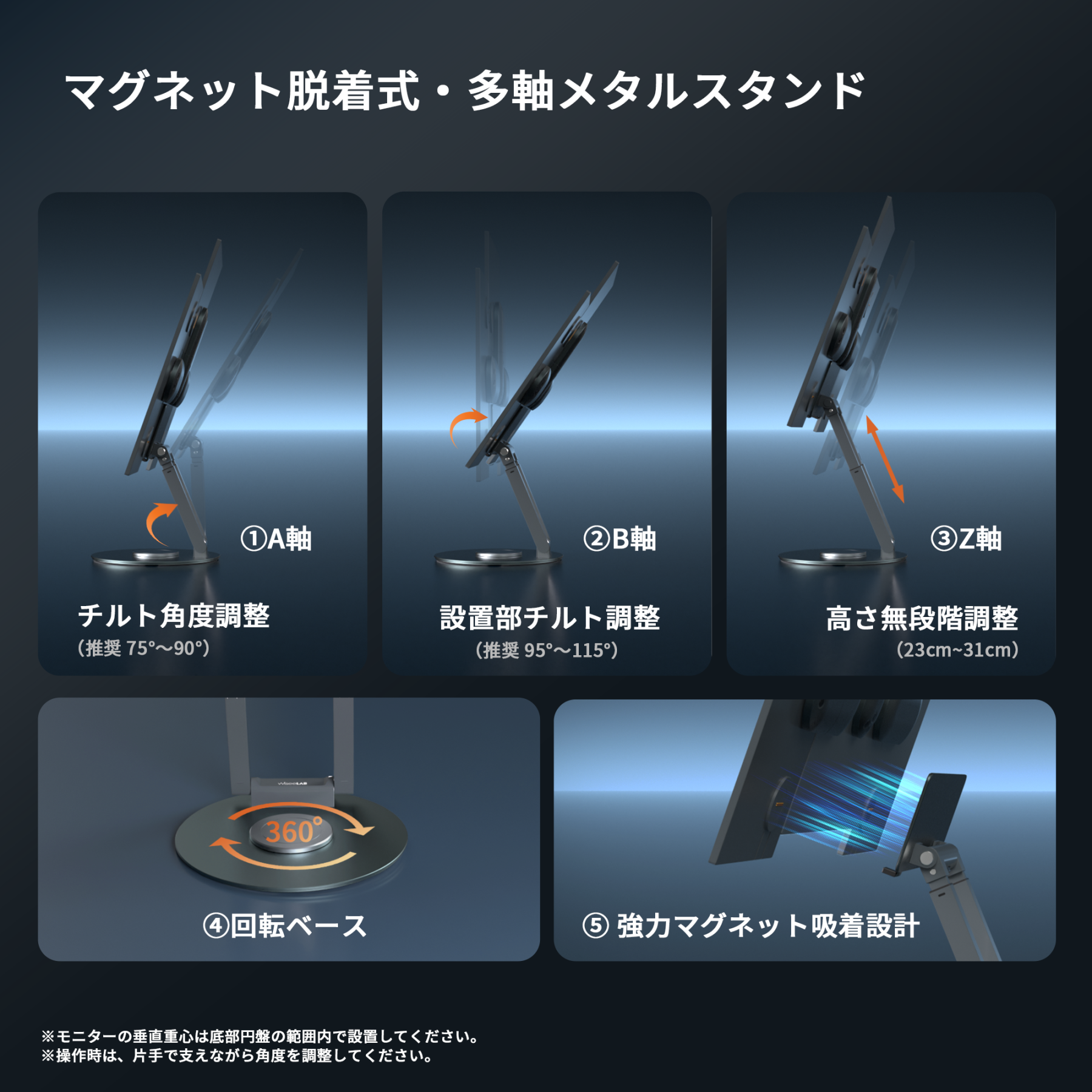
The dedicated metal stand adopts a multi-axis structure.
It allows for free adjustment of height, angle, and rotation, enabling work with a natural line of sight and comfortable posture.

First time watching a guide video

Easy even for beginners | Watch the assembly and adjustment process in the video.
  • Slim design

  • Unit structure

  • Dedicated metal stand

  • First time watching a guide video

Ultra Slim
Slim body of approximately 7.6mm

It fits easily into a bag even when stacked with a laptop, allowing you to quickly set up a multi-screen environment on business trips or while out and about.

Easy Replace
Designed for long-term use through unit replacement.

This product employs a modular design.
In the event of a malfunction, only the affected unit can be replaced.
You can continue using it for a long time without having to replace the entire system.

Free adjustment with a multi-axis stand

The dedicated metal stand adopts a multi-axis structure.
It allows for free adjustment of height, angle, and rotation, enabling work with a natural line of sight and comfortable posture.

Easy even for beginners | Watch the assembly and adjustment process in the video.

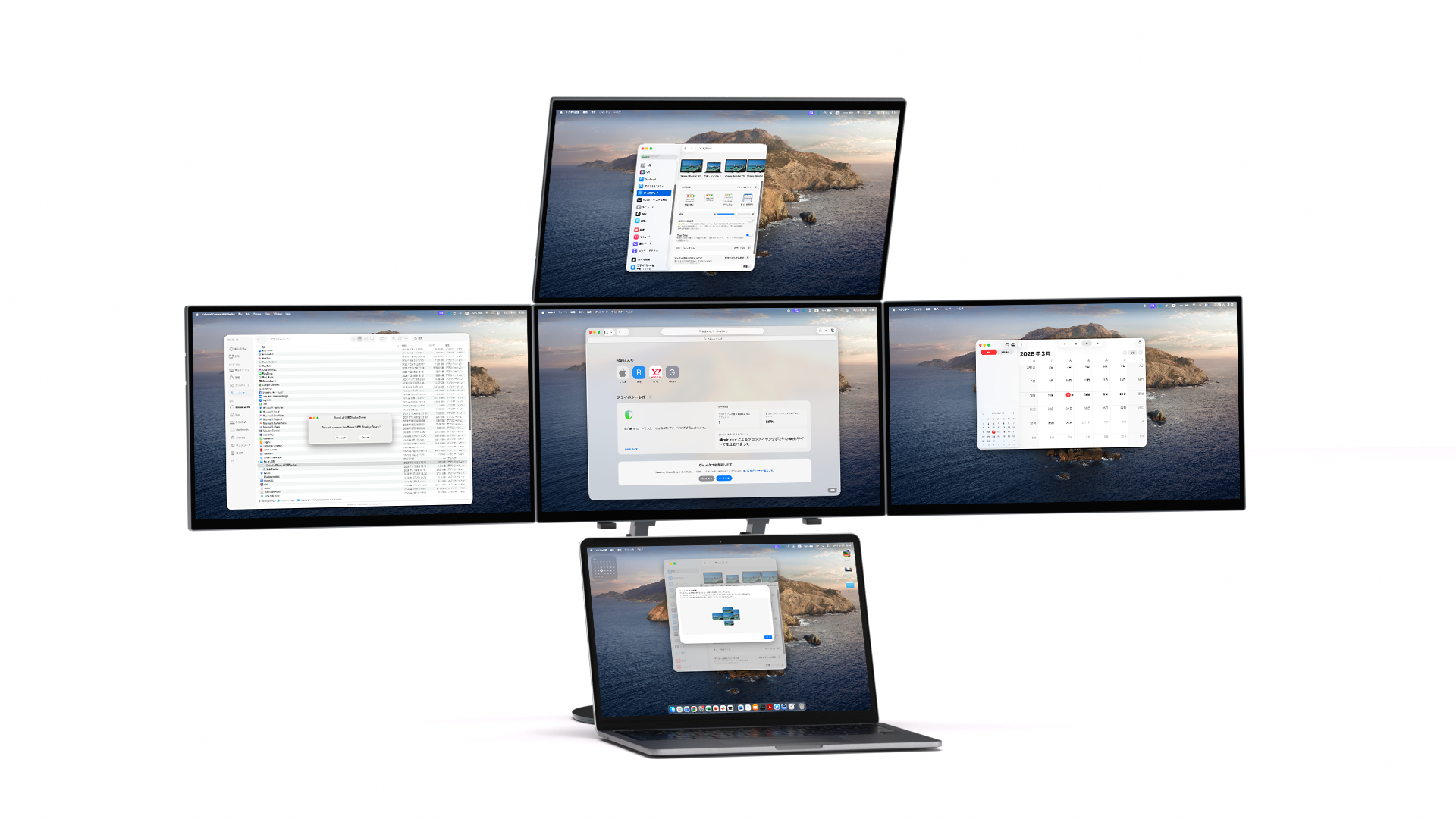
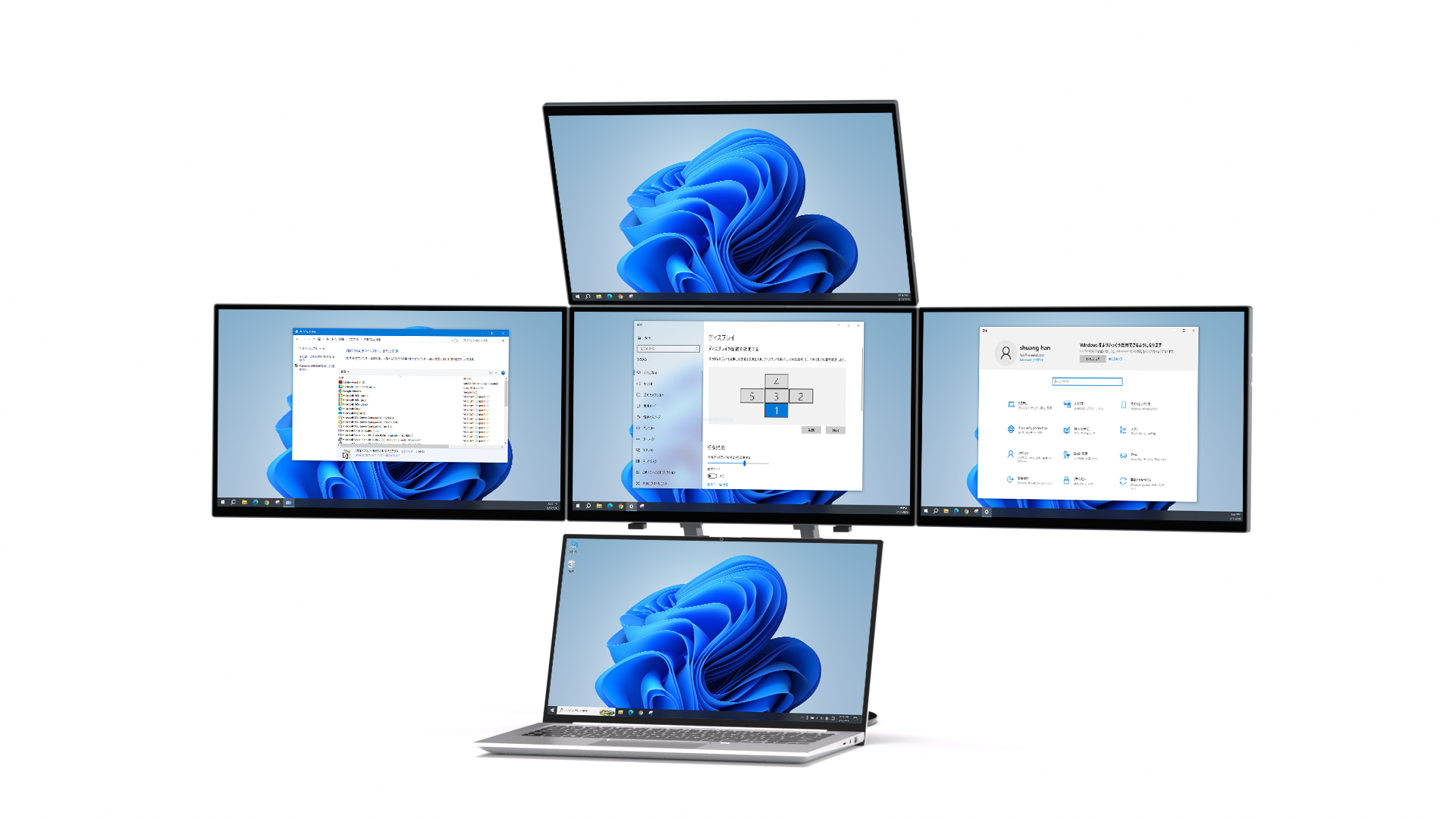
Compatible with both Mac and Windows.

Mac

On Mac, the dedicated driver "UsbDisplay" is used.
During the initial setup, permission for "screen recording" is required, but screen data will not be collected or transmitted.

*If you are using a Mac mini, you can use it after the initial setup with an existing monitor.

Windows

It is also available in the Windows environment. For more stable operation than
, we recommend using the latest drivers available on the official website.

Comparison

他の選択肢と比べて、何が違うのか。

一般的なポータブルモニター、ウルトラワイドモニター、従来のマルチモニター環境。それぞれに強みがあります。
大切なのは、どれが一番優れているかではなく、自分の作業スタイルに合っているかどうか。

比較項目 Wisee Cockpit Monitor 一般的なポータブルモニター ウルトラワイドモニター 従来のマルチモニター環境
イメージ画像
Wisee Cockpit Monitor イメージ

コックピット型ワークスペース

一般的なポータブルモニター イメージ

手軽に追加できる拡張モニター

ウルトラワイドモニター イメージ

横長大画面で作業領域を広げる

一般的な2〜3画面のマルチモニター環境 イメージ

複数台モニターを並べる

初期費用の抑えやすさ
複数情報の同時把握
レイアウトの自由度 ×
持ち運びやすさ × ×
設置の手軽さ
ワークスペースの拡張性
AIマルチタスクとの相性
据え置きの大画面作業
配線・機材構成のシンプルさ

※ 比較は一般的な製品カテゴリーをもとにした目安です。価格帯・サイズ・構成・使用環境によって異なる場合があります。

Wisee Cockpit Monitorは、単に画面を増やすための製品ではなく、複数の情報を同時に見渡しながら思考できるワークスペースをつくるための選択肢です。

Review video

  • ▶ Explanation of product configuration and usage

    A hands-on review by Toda Satoru Channel.
    This section clearly explains the product configuration, connection methods, and the mechanism of the magnetic structure.
    This video is recommended for beginners.

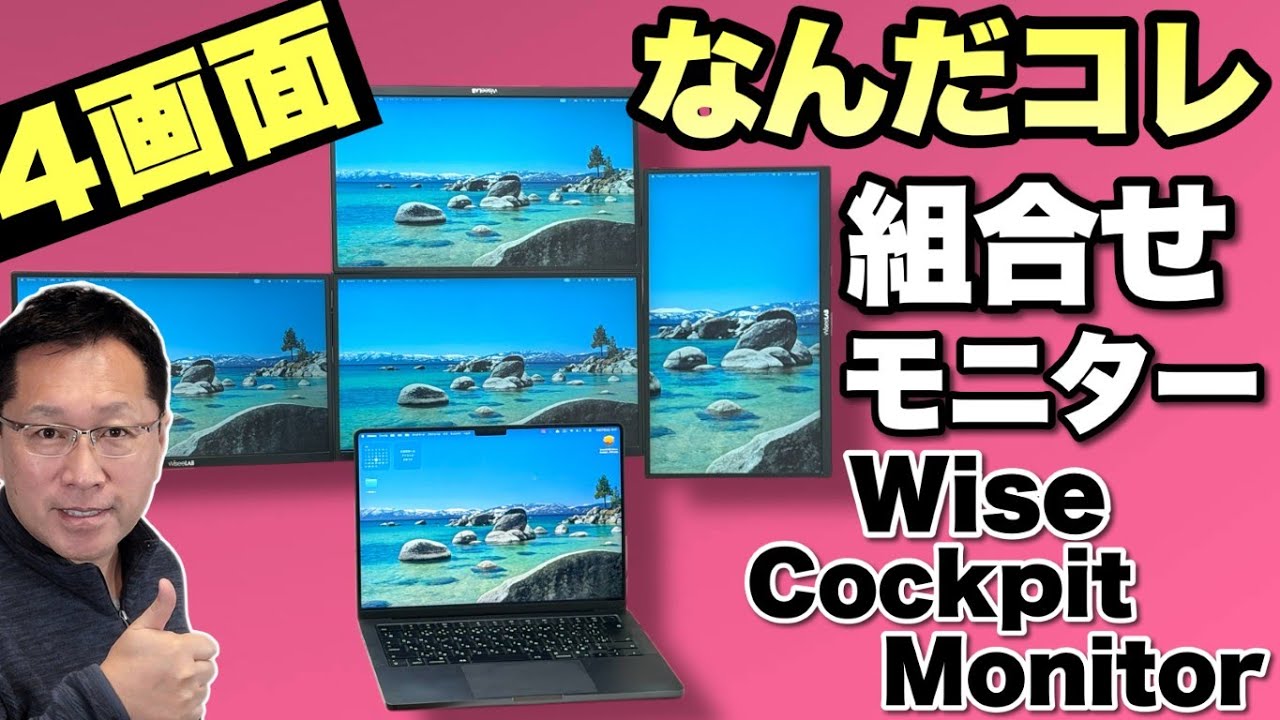
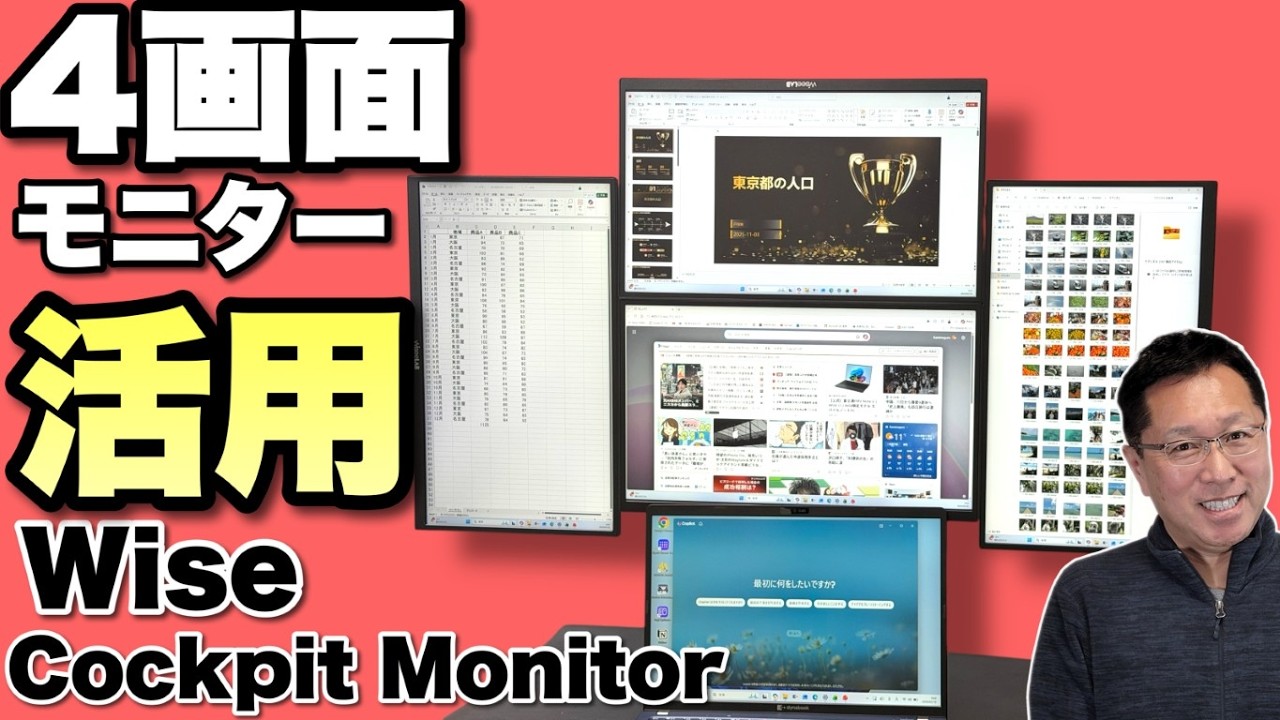
  • ▶ How to utilize a 4-screen workspace

    Following on from the previous review, this article compares the two-screen setup to the four-screen setup and provides tips on how to make the most of it.
    This content explains the actual usability of the system while showing how it can be configured.

Media outlets that published the article (partial list)

Engineer type
The number of PC screens is the same as the "range of motion of your brain"!? Madoka Sawa discusses the deep connection between vision and thought.
Mac Fan Portal
Magnetically connected, versatile 4-screen display. Super-expand your Mac regardless of the model! A hands-on review of the Wisee Cockpit Monitor. Who should buy it and recommended usage.
ASCII.jp
It's like a secret base! Using a customizable 4-screen monitor setup was incredibly convenient.
GIZMODO
This is the ultimate...pervert...! A 5-screen multi-monitor setup connected by magnets.
PC Watch
An external monitor that can extend your screen to up to four 15.6-inch Full HD displays without putting a load on the GPU.
ITmedia
Wise Innovation releases USB external display that allows you to add up to four 15.6-inch Full HD LCD screens.
Try It First!

実際のワークスペースで試したい方へ

一定期間試せるレンタルサービスもご用意しています。実際の作業内容に合わせて自宅やオフィスで試すことができます。
STORY

Why was this product created?

It was designed not to increase the number of screens, but to keep the thinking process going.
From "switching" to "overview." This product was born from that idea.

Read the development story

よくある質問

Mac mini M4 Proで、Wisee Cockpit Monitor(4画面)に加えて他のモニターを2台接続できますか?

はい、問題なくご利用いただけます。
他社モニター2台(HDMI/Thunderbolt/DP)+Wisee Cockpit Monitor(4画面)=合計6画面の構成で安定的に動作できます。

MacBook AirにWisee Cockpit Monitor(4画面)を接続し、さらに別モニターも同時に使うことはできますか?

はい、可能です。M1〜M4のMacBook Airにて検証済みです。
以下の組み合わせで最大6画面(本体+外部1台+Cockpit Monitor 4画面)の同時出力が可能です。

  • HDMIポート(またはアダプタ経由)で外部モニター1台
  • Wisee Cockpit Monitor(4画面セット)を追加接続
Windows 10/11 搭載PCにWisee Cockpit Monitor(4画面)を接続し、さらに別モニターも同時に使うことはできますか?

はい、可能です。
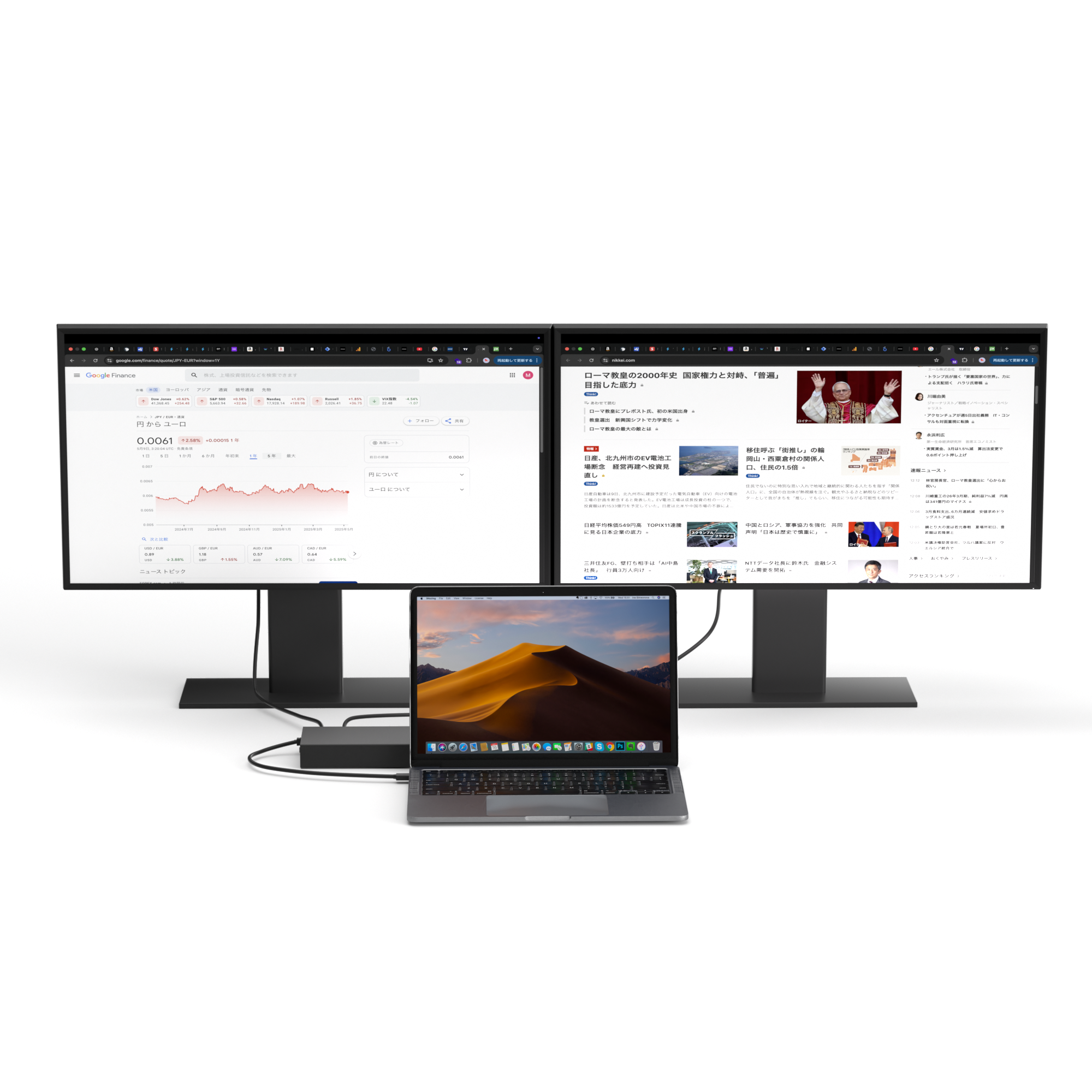
PCの種類(ノートPC/デスクトップPC)や、PC本体に搭載されている映像出力ポート数に応じて、最大5~6画面までの同時表示が可能です。

■ ノートPCの場合

  • ノートPC内蔵ディスプレイ + Wisee Cockpit Monitor(最大4画面)→ 合計:最大5画面
  • ノートPC内蔵ディスプレイ + 既存のHDMI/DisplayPort接続の外部モニター1台+ Wisee Cockpit Monitor(最大4画面)→ 合計:最大6画面

■ デスクトップPCの場合

  • 既存のHDMI/DisplayPort接続の外部モニター1台+ Wisee Cockpit Monitor(最大4画面)→ 合計:最大5画面
  • 既存のHDMI/DisplayPort接続の外部モニター2台+ Wisee Cockpit Monitor(最大4画面)→ 合計:最大6画面
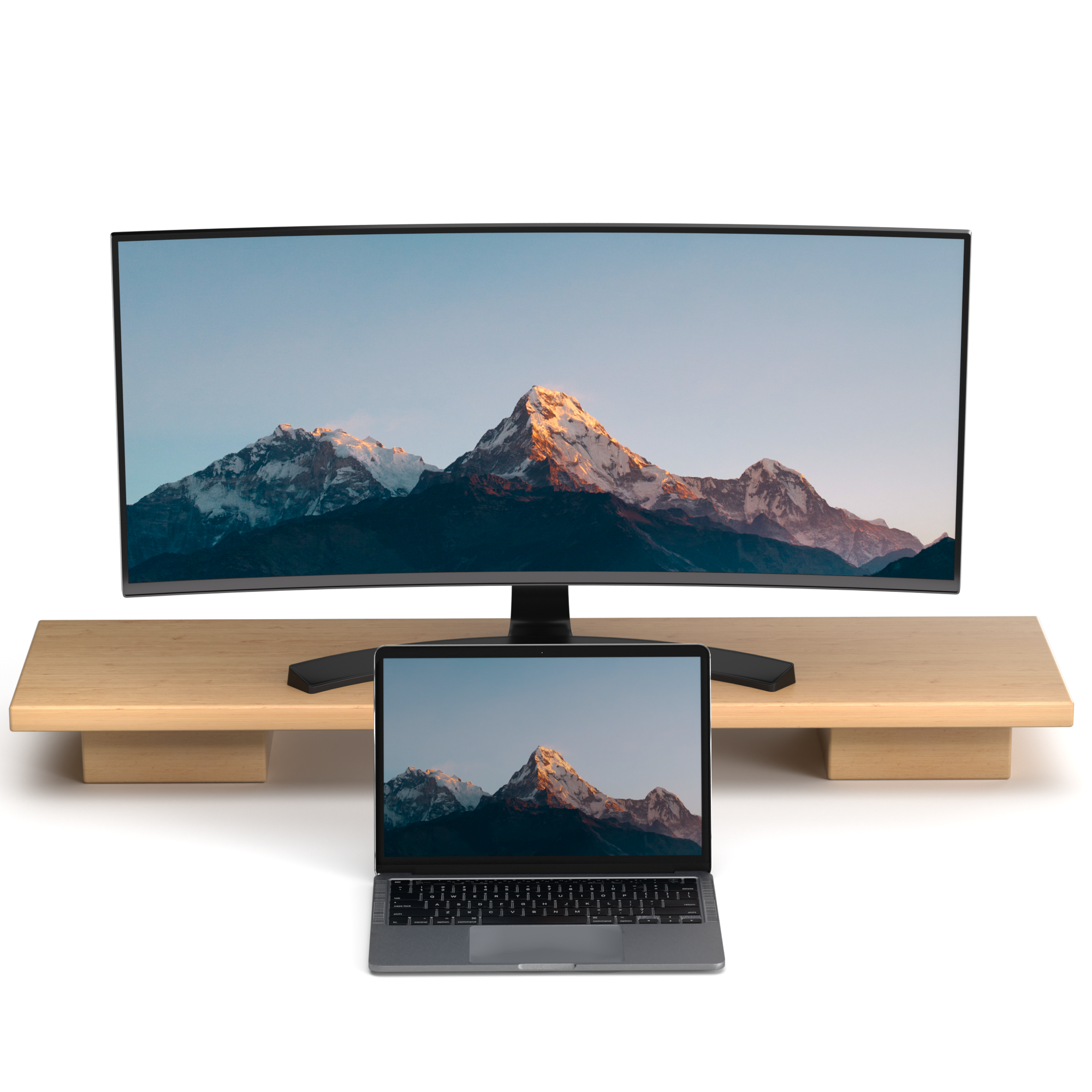
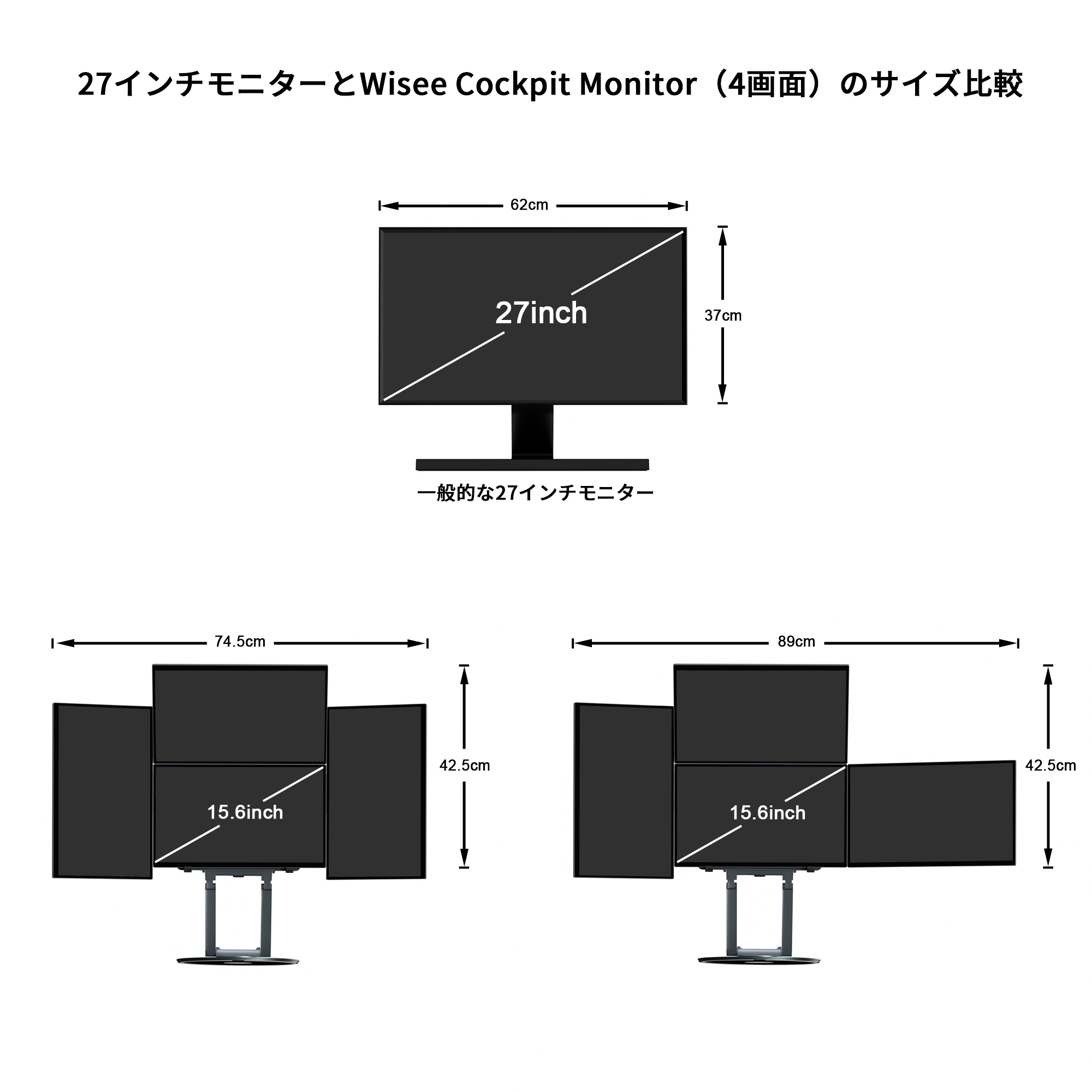
27インチモニターと比較して、どのようなサイズ感になりますか?また併用は可能ですか?

Wisee Cockpit Monitor(4画面)は、複数の独立画面を組み合わせて構築するワークスペースです。
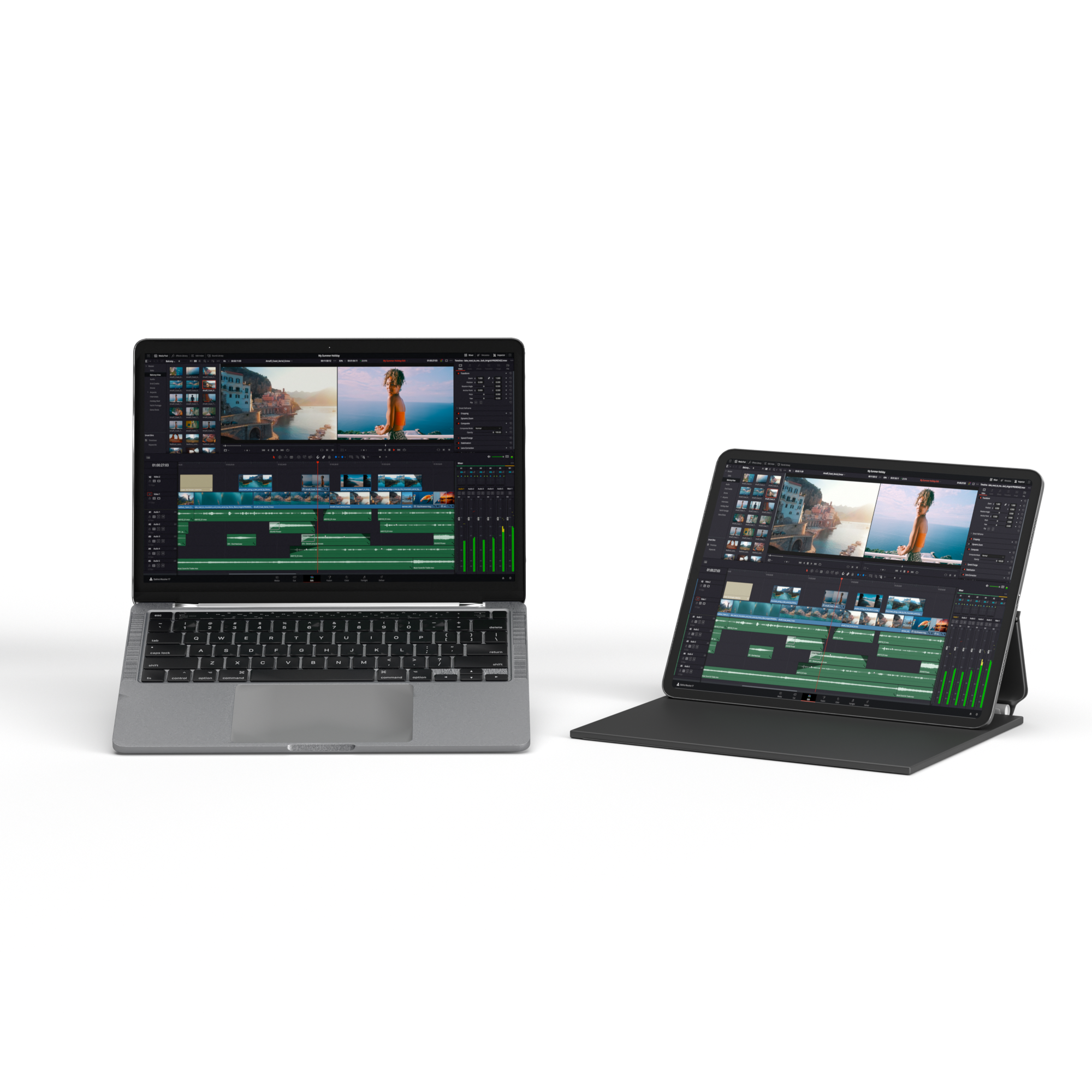
一般的な27インチモニターは「1枚の大画面」ですが、Wisee Cockpit Monitorは「4枚の画面を自由に配置できる構成」となるため、表示領域の広がり方や作業時の自然移動の感覚が大きく異なります。
各モニターは横向き・縦向きの切り替えが可能で、用途に応じてレイアウトを柔軟に組み替えることができます。


また、すでに27インチモニターをご使用の場合でも、併用が可能です。

27インチとのサイズ比較

27インチとのサイズ比較

27インチ+4画面構成のイメージ

27インチ+4画面のイメージ

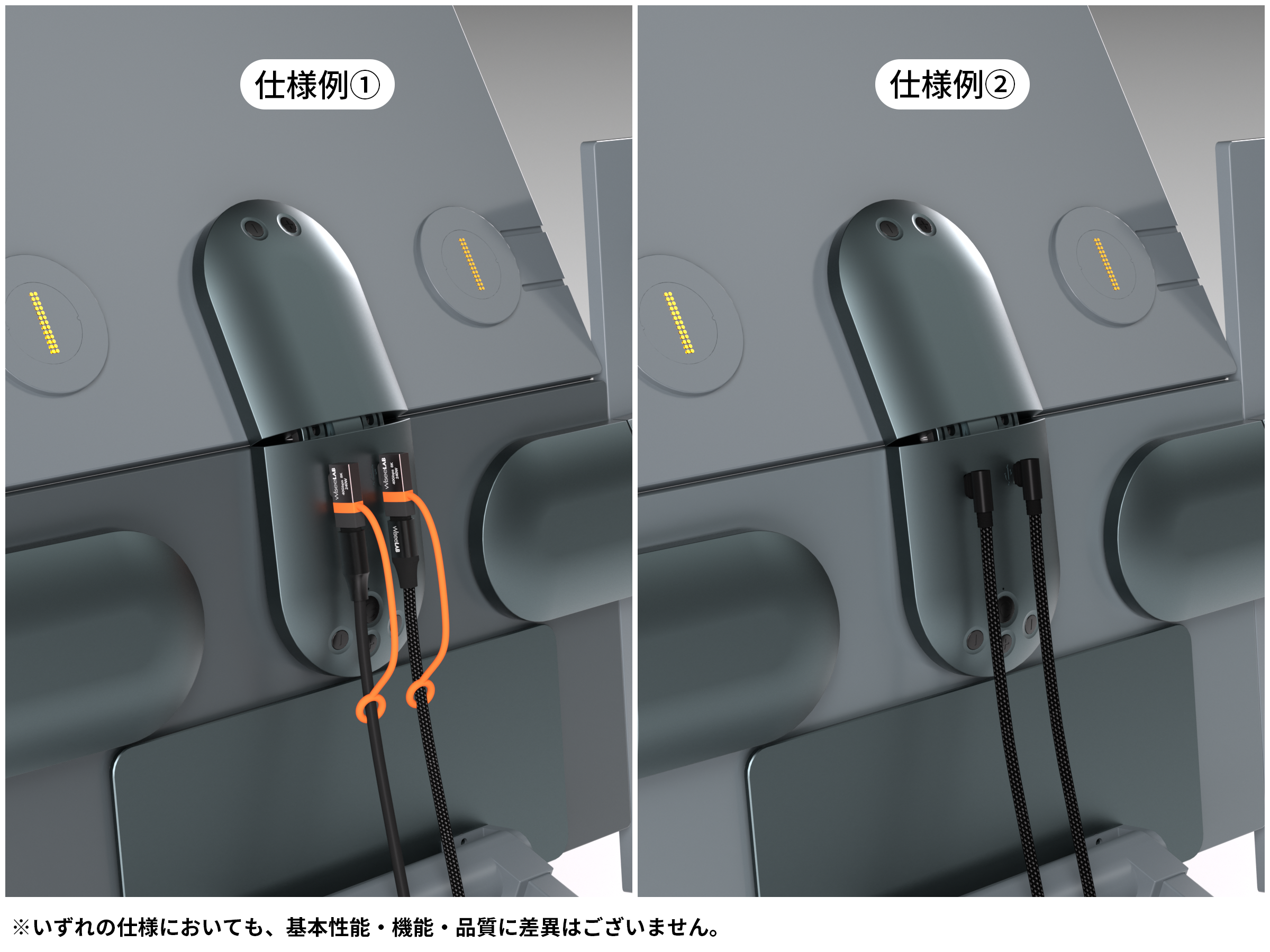
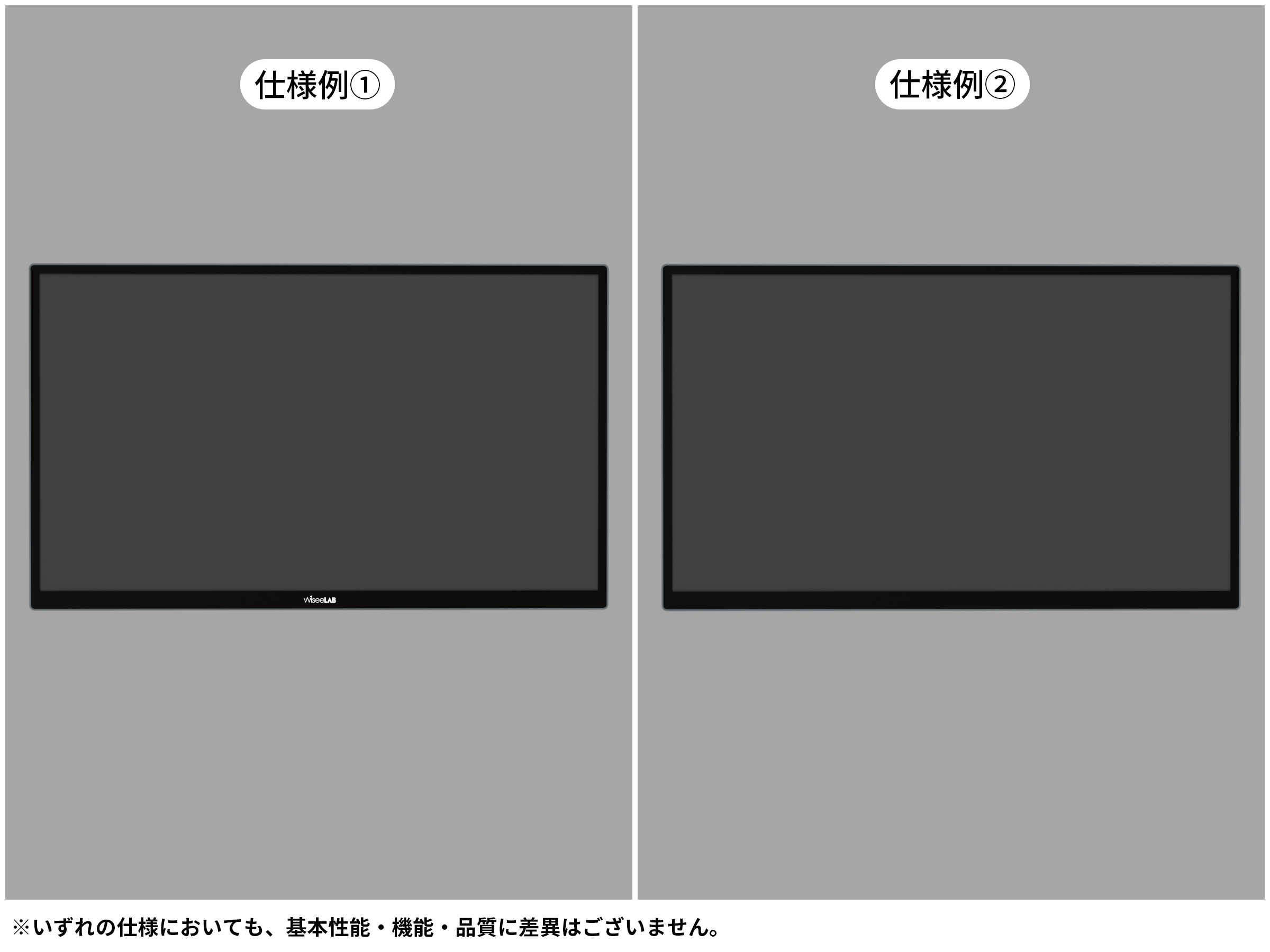
出荷時期による仕様の違いはありますか?

Wisee Cockpit Monitorは、お客様からいただいたご意見をもとに、より使いやすさを高めるための仕様改善を段階的に行っております。
出荷時期により、一部仕様が異なる場合がございます。


主な違いは以下の点です:

  • ケーブルの仕様:一部ロットでは、従来の「USB-C to C L字変換アダプター」に代わり、90度形状のUSB-Cケーブルを採用しております。
  • 外観デザイン:モニター正面のロゴ表示の有無など、外観仕様が異なる場合がございます。

なお、いずれの仕様においても、製品の基本性能・機能・品質に差異はございません。
また、1セット内のモニターはすべて同一仕様で統一されております。安心してご利用ください。

ケーブル仕様

ケーブル仕様

外観デザイン

外観デザイン

持ち運び用の専用ケースはありますか?

現在、モニターとスタンドをまとめて収納できる専用バッグを開発中です。完成次第、オプションとして展開予定ですので、続報をお待ちください。

保証期間内の修理・交換はどのように対応されますか?

Wisee Cockpit Monitorは通常1年間のメーカー保証が適用されます。
また、ご購入日から30日以内にLINE@へご連絡いただくことで、保証期間を+6ヶ月延長(最長18ヶ月)することが可能です。

■ 初期不良交換について

商品到着後8日以内に初期不良が確認された場合、以下の条件を満たしていれば交換対応を承ります。

  • 機能異常または品質上の問題がある
  • 人為的な破損がない

※注文番号の提出がない場合、付属品の不足、人為的破損、誤った使用方法、改造・非正規修理、異物混入、水濡れ、不可抗力による損害、非正規品購入などは対象外となります。(詳細はアフターサービス規約ページをご確認ください。

■ 保証期間内の故障対応について

Wisee Cockpit Monitorは修理対応ではなく、該当ユニットの交換対応を基本方針としております。
本製品は「ハブ、モニター、スタンド、各種アクセサリー」をユニット化した構成を採用しています。

保証期間内に、取扱説明書に沿った正しい使用状況で発生した不具合であり、人為的な破損が確認されない場合、症状を確認のうえ問題のあるユニットのみを無償交換いたします。
製品全体の回収修理は行っておりません。

保証期間終了後に故障した場合はどうなりますか?

Wisee Cockpit Monitorはユニット構造を採用しているため、保証期間終了後でも必要なユニットのみをご購入いただくことで継続使用が可能です。

■ ユニット交換方式のメリット

  • 故障範囲を該当ユニットのみに限定
  • 正常なユニットは継続使用可能
  • デスク環境や設置構造をすべて取り外す必要がありません

多画面構成でも、作業環境への影響を最小限に抑えられます。交換作業に工具は不要で、着脱は数秒で完了します。

現在、交換用ユニットはアフターサポート対応として個別にご案内しております。
ご購入をご希望の場合は、お手数ですがサポートまでお問い合わせください。

×
拡大画像
1 / 10

Wisee Cockpit Monitor 15.6inch|WiseeLAB Cockpit Monitor

$1,066.00 USD $1,218.00 USD Save $152.00 USD
style
Delivery Plan
Quantity
Please select your desired specifications and add them to your cart.
In stock

Information regarding delivery and reservations

Wisee Cockpit Monitor 15.6inch|WiseeLAB コックピットモニター Wisee Cockpit Monitor 15.6inch|WiseeLAB コックピットモニター -WiseeLAB公式オンラインショップ Wisee Cockpit Monitor 15.6inch|WiseeLAB コックピットモニター -WiseeLAB公式オンラインショップ Wisee Cockpit Monitor 15.6inch|WiseeLAB コックピットモニター -WiseeLAB公式オンラインショップ Wisee Cockpit Monitor 15.6inch|WiseeLAB コックピットモニター -WiseeLAB公式オンラインショップ Wisee Cockpit Monitor 15.6inch|WiseeLAB コックピットモニター -WiseeLAB公式オンラインショップ Wisee Cockpit Monitor 15.6inch|WiseeLAB コックピットモニター -WiseeLAB公式オンラインショップ Wisee Cockpit Monitor 15.6inch|WiseeLAB コックピットモニター Wisee Cockpit Monitor 15.6inch|WiseeLAB コックピットモニター Wisee Cockpit Monitor 15.6inch|WiseeLAB コックピットモニター Wisee Cockpit Monitor 15.6inch|WiseeLAB コックピットモニター Wisee Cockpit Monitor 15.6inch|WiseeLAB コックピットモニター

Product Information

Product Specifications


Basic specifications

Product Name: Wisee Cockpit Monitor 15.6inch
Model number: RS-4156A
Screen size: 15.6inch
color:
  • Monitor body: Space Gray
  • Magnetic Hub / Dedicated Magnetic Metal Stand: Jade Ink Green

Monitor performance

Panel type: IPS TFT
Surface treatment: Matte finish
resolution: 1920 × 1080 (FHD)
Aspect ratio: 16:9
Color temperature: 6500〜7000K
Contrast ratio: 1000:1
brightness: Maximum 350 nits
Refresh rate: 60Hz

Appearance and weight

Monitor unit (1 screen):
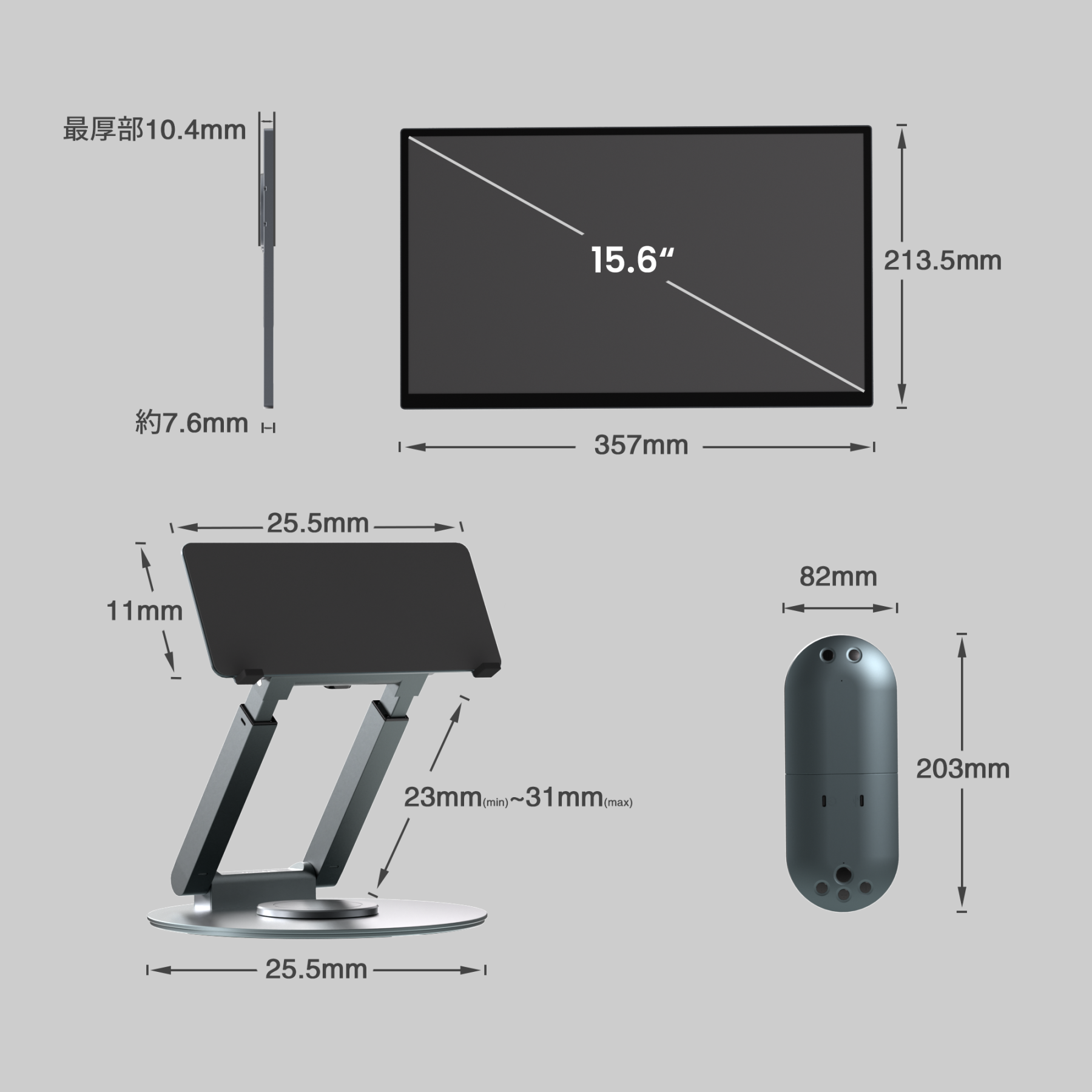
  • Dimensions: Width 357mm x Height 213.5mm x Depth 7.6mm-10.4mm (thickest part)
  • Weight: Approximately 890g
Installation size (reference value):
  • Maximum height: Approximately 530mm (when stacked in two layers)
  • Maximum width: Approximately 1430mm (when 4 screens are placed side by side)
  • Maximum depth: Approximately 260mm (stand base diameter)
*Size may vary depending on the configuration and angle.
Accessory size and weight:

Magnetic Hub

  • Weight: Approximately 190g

Dedicated magnetic metal stand

  • Weight: Approximately 1.4kg

Power adapter

  • Dimensions: Width 58.2mm x Depth 58.2mm x Height 29mm
  • Weight: Approximately 200g

Connectivity and expandability

Number of connected screens: Up to 5 screens (including laptop screen)
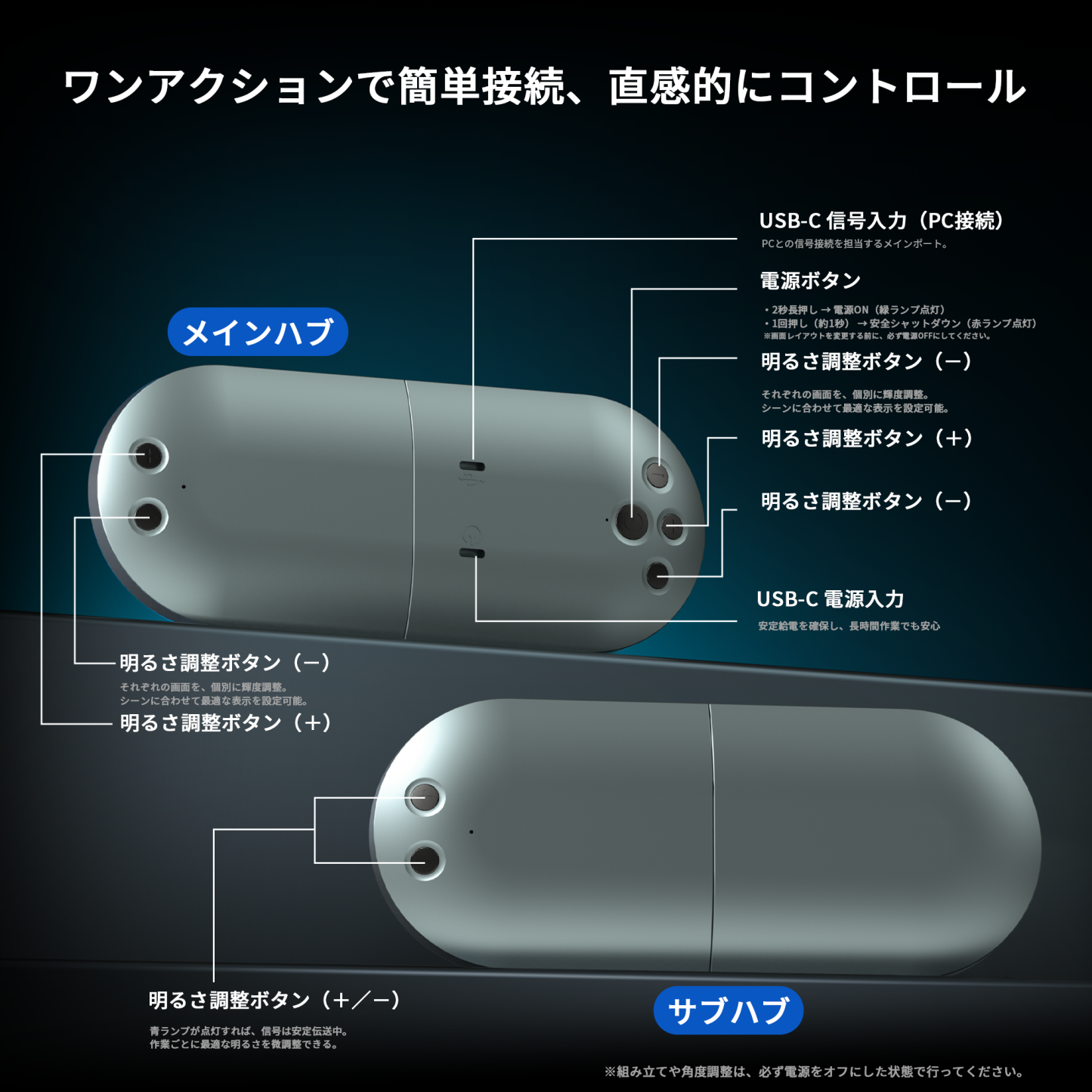
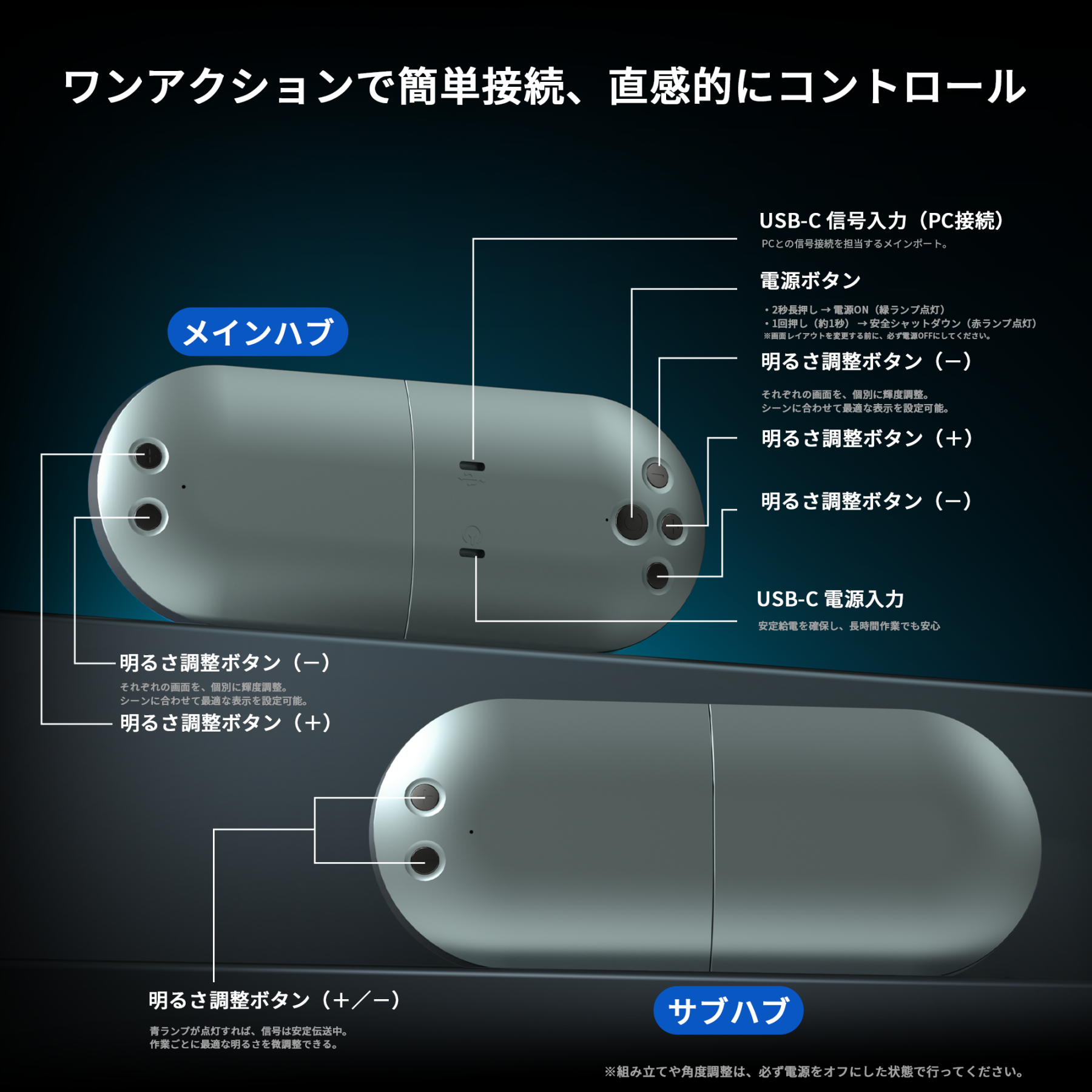
Interface (Main Magnetic Hub):
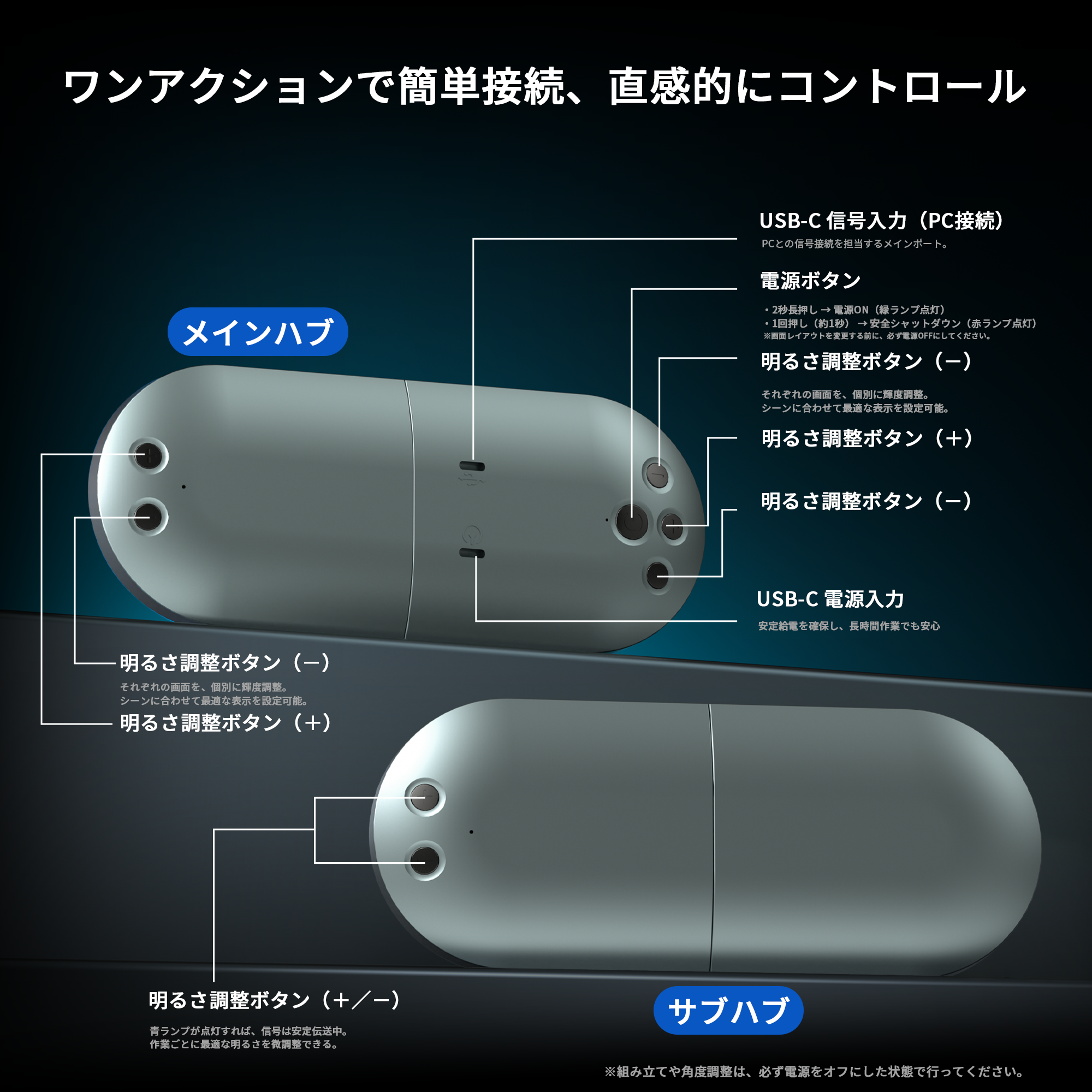
  • USB-C 2.0 ① (Signal Input)
  • USB-C 2.0 ② (Power Supply)
  • Power button
  • Brightness adjustment buttons (+/-)
Interface (sub-magnet hub):
  • Brightness adjustment buttons (+/-)

Power supply and environmental conditions

Input power: AC 100-240V (50/60Hz)
Electricity consumption: MAX 12V/5A
Operating temperature conditions: 0℃ ~ 50℃
Humidity conditions for use: 10% ~ 85%
Power indicator light:
  • Green: On
  • Red: Off / Standby
  • Blue: Signal transmission in progress

Features a dedicated magnetic metal stand.

A-axis (arm tilt angle): 75° to 90° (recommended)
B-axis (set tilt angle): 95° to 115° (recommended)
Z-axis (height adjustment range): 23cm~31cm (infinitely adjustable)
Rotating base: 360°

Supported OS

macOS & Windows Compatibility List (Standard Compatibility)
  • macOS V10.15 and below* M1/M2/M3/M4
  • macOS V10.15 or later; Intel (2019 or later)
  • Windows 10 Intel/AMD
  • Windows 11 Intel/AMD/ARM
In a macOS environment, it is necessary to install a dedicated driver. Especially on the Mac mini, it can be used with existing monitors after installation.
Customizable environment (available upon request)
  • Ubuntu 19.1 and later
  • Android 5.0 or later
  • iOS (iPhone 16 series and later)

If you wish to use the above OS versions, please feel free to contact us.

Manufacturer's warranty

Warranty period: Main unit 1 year + officialRegister with LINE@6-month extension (total 18 months)

Package contents


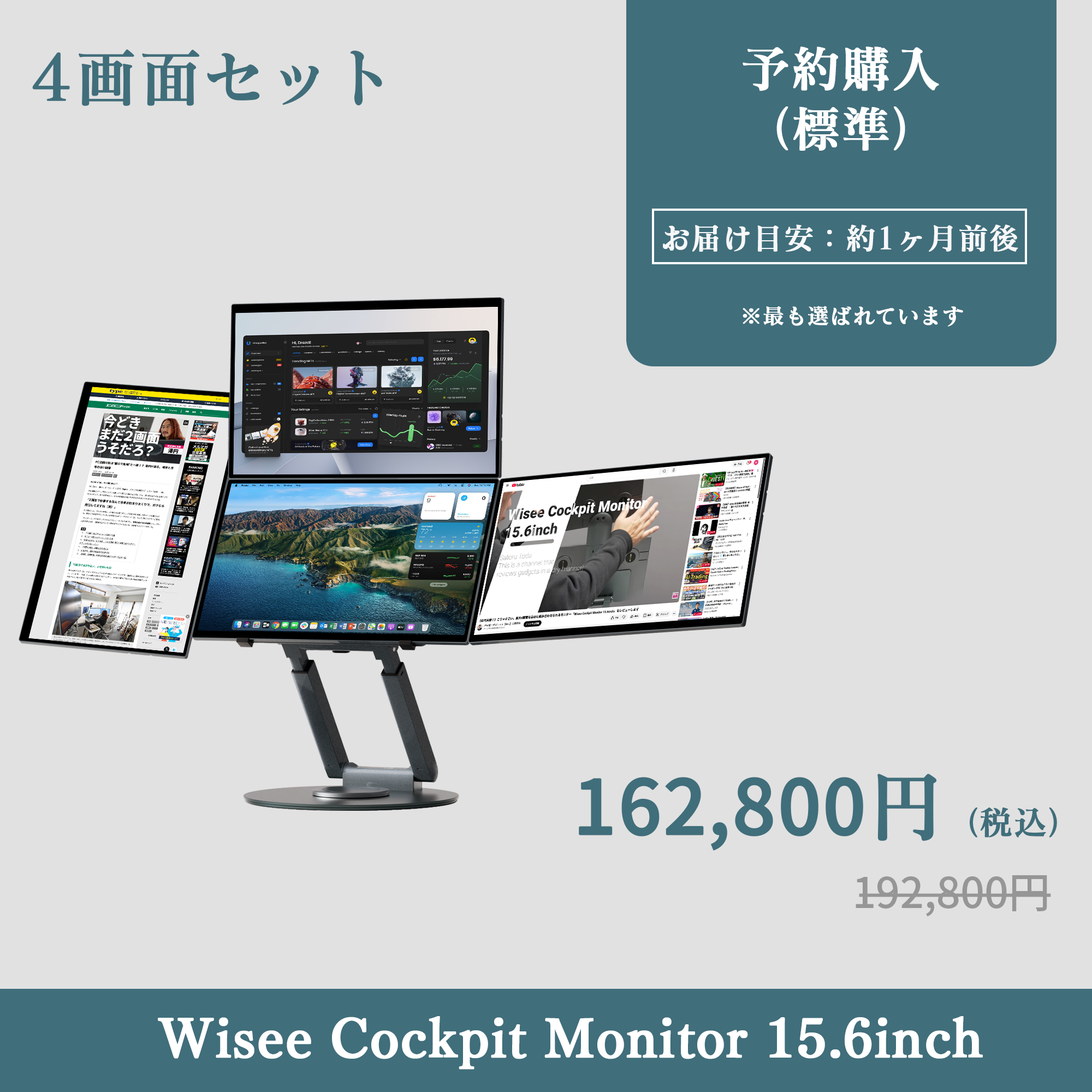
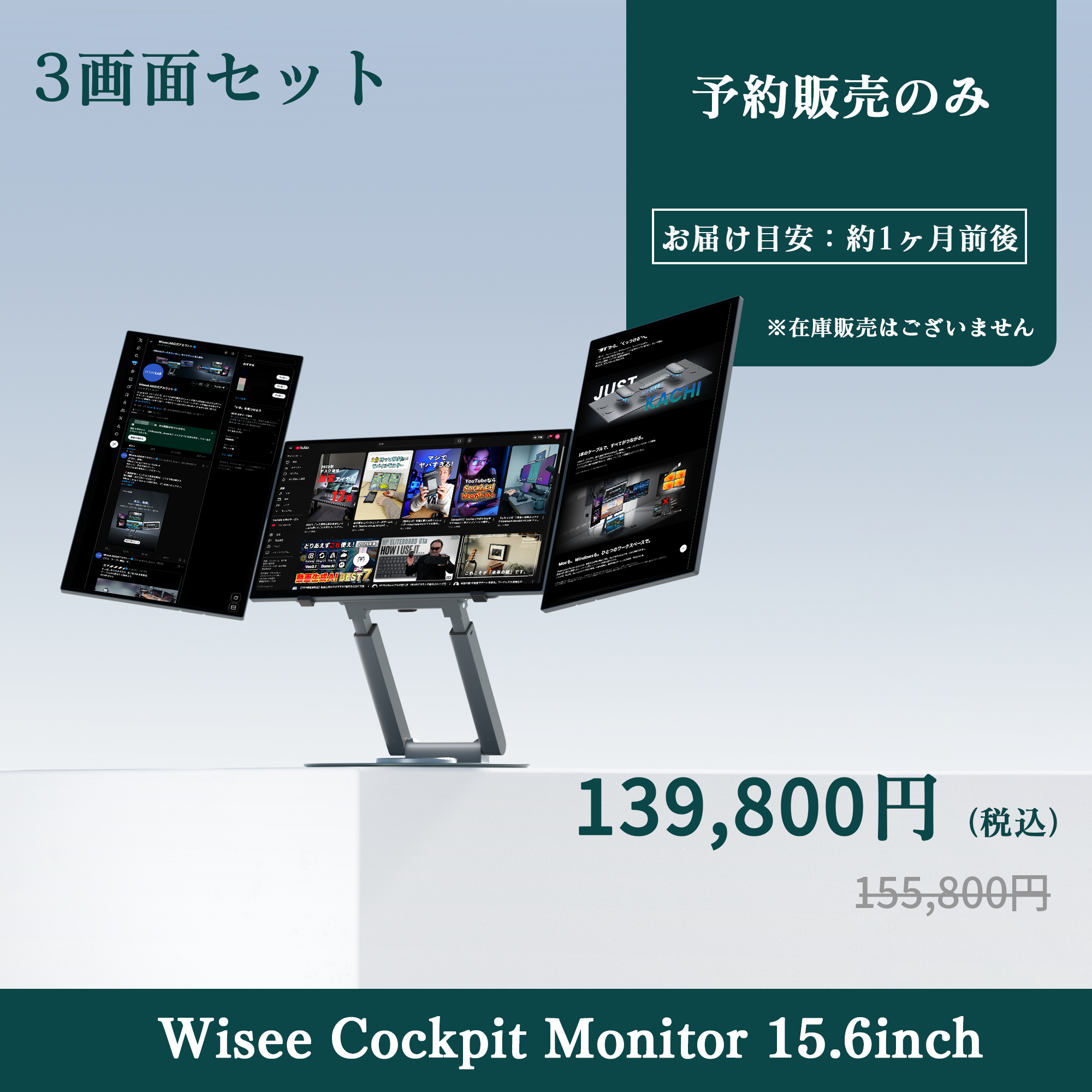
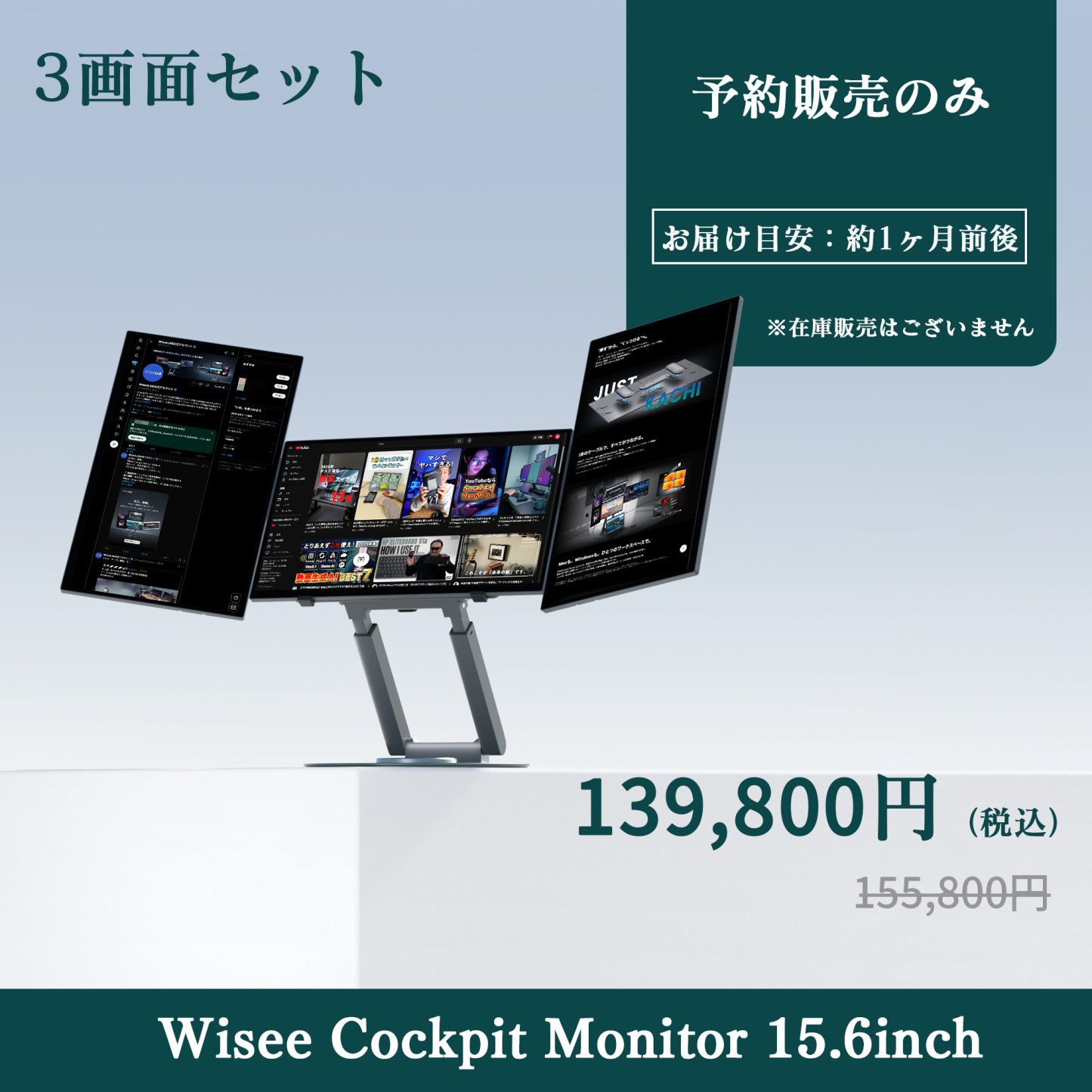
Advance Set
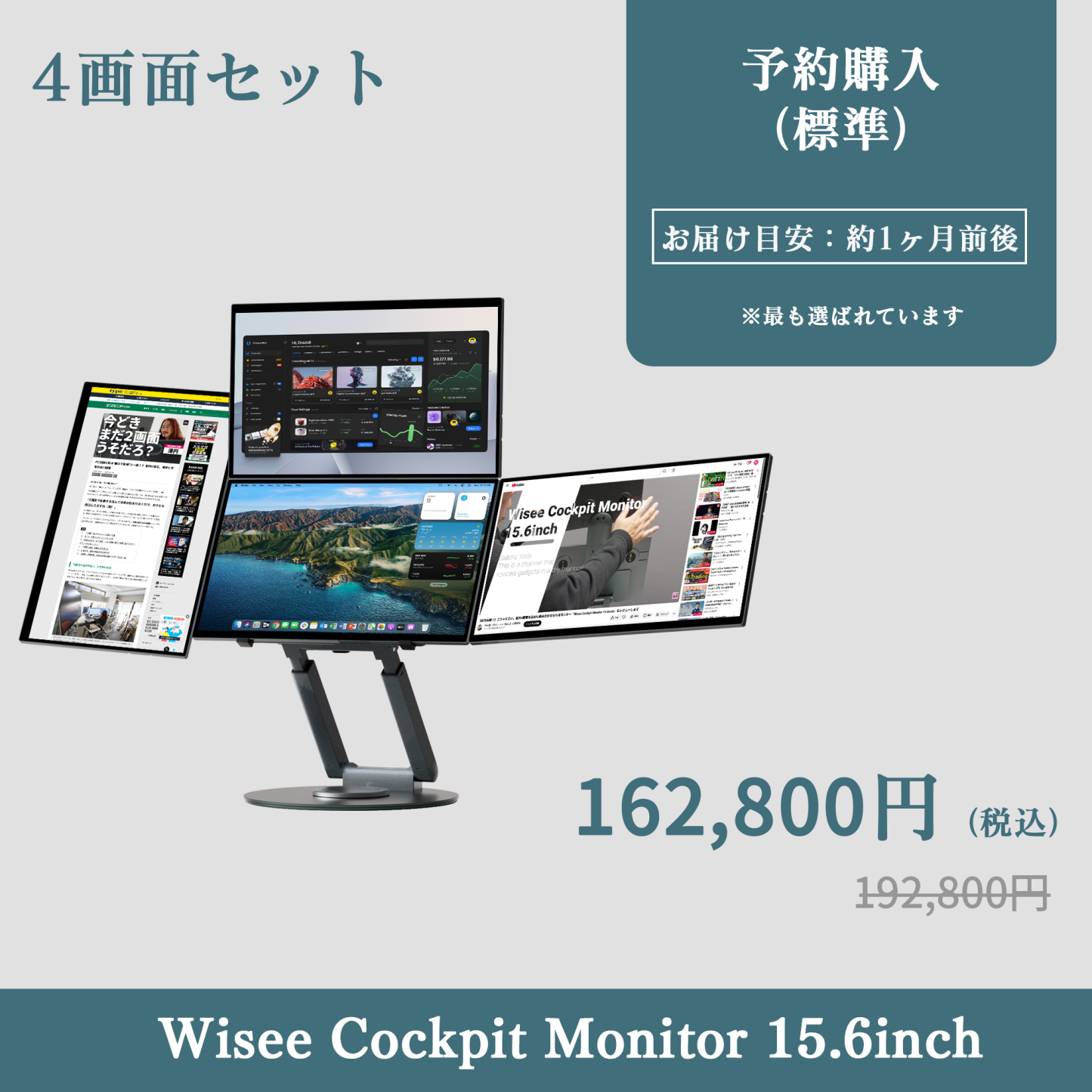
(3 Screens)
Item Name Quantity
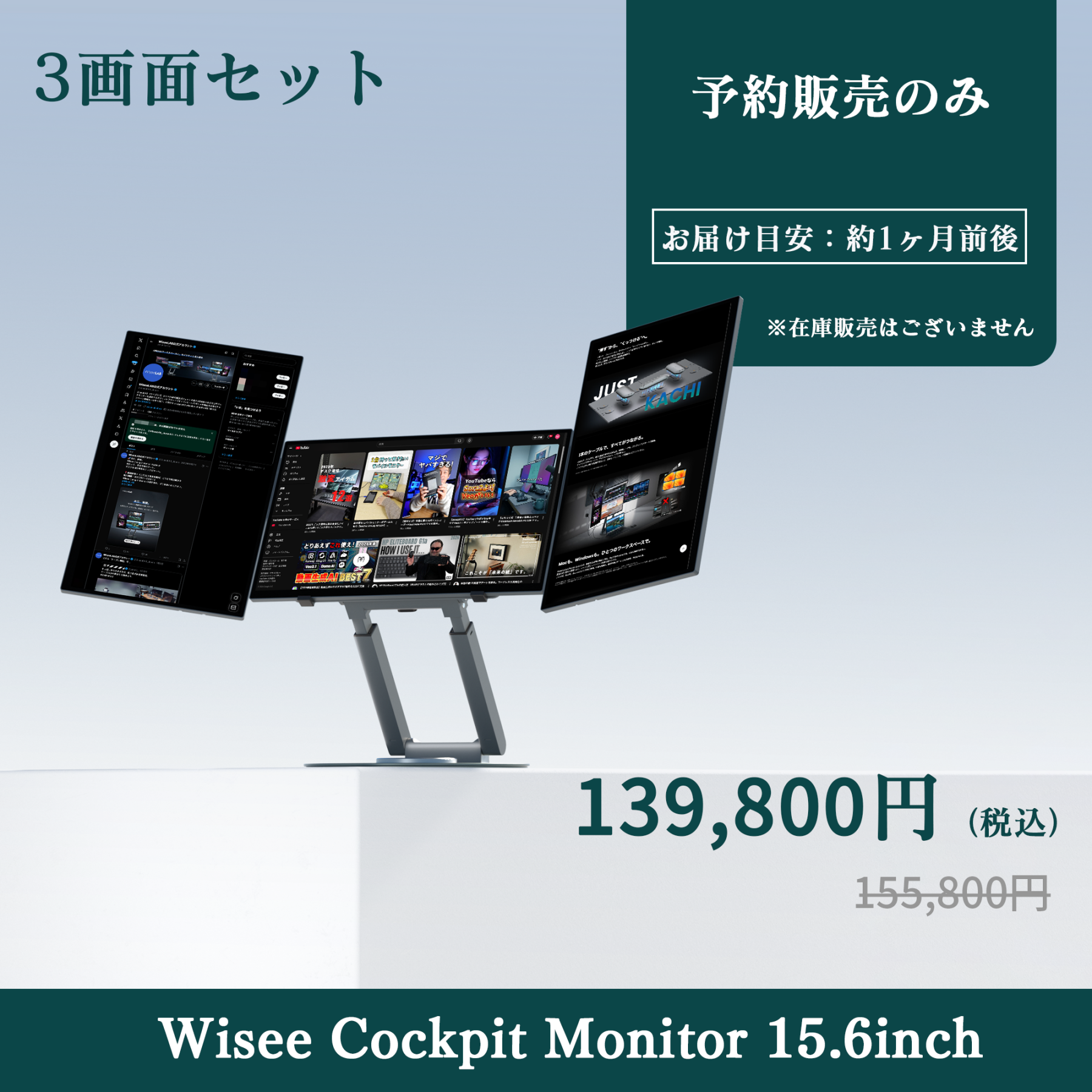
Monitor Body ×3
Main Magnet Hub ×1
Sub Magnet Hub ×1
Dedicated Magnetic Metal Stand ×1
Power Adapter ×1
USB-C to C Signal Cable ×1
USB-A to C Signal Cable ×1
User Manual ×1
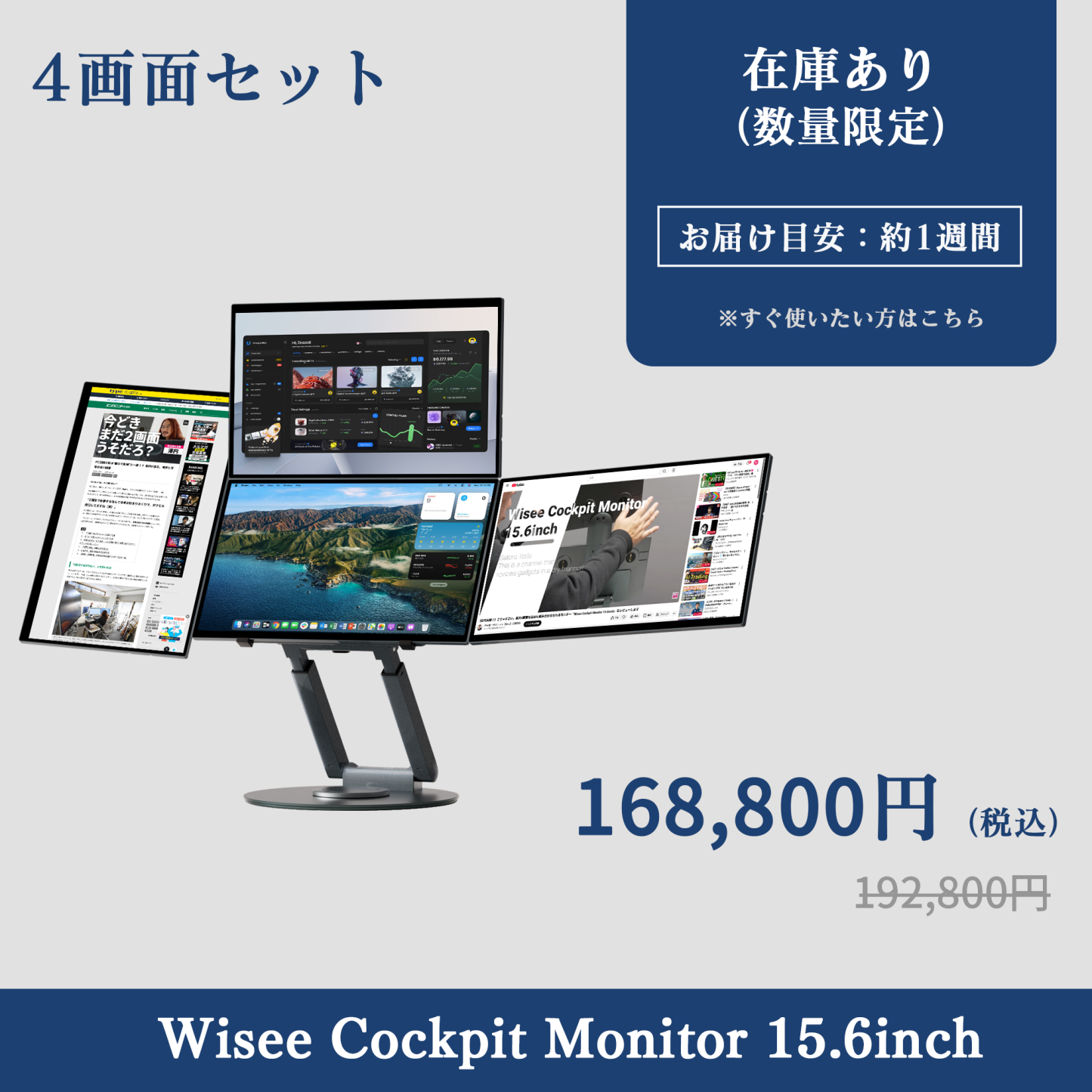
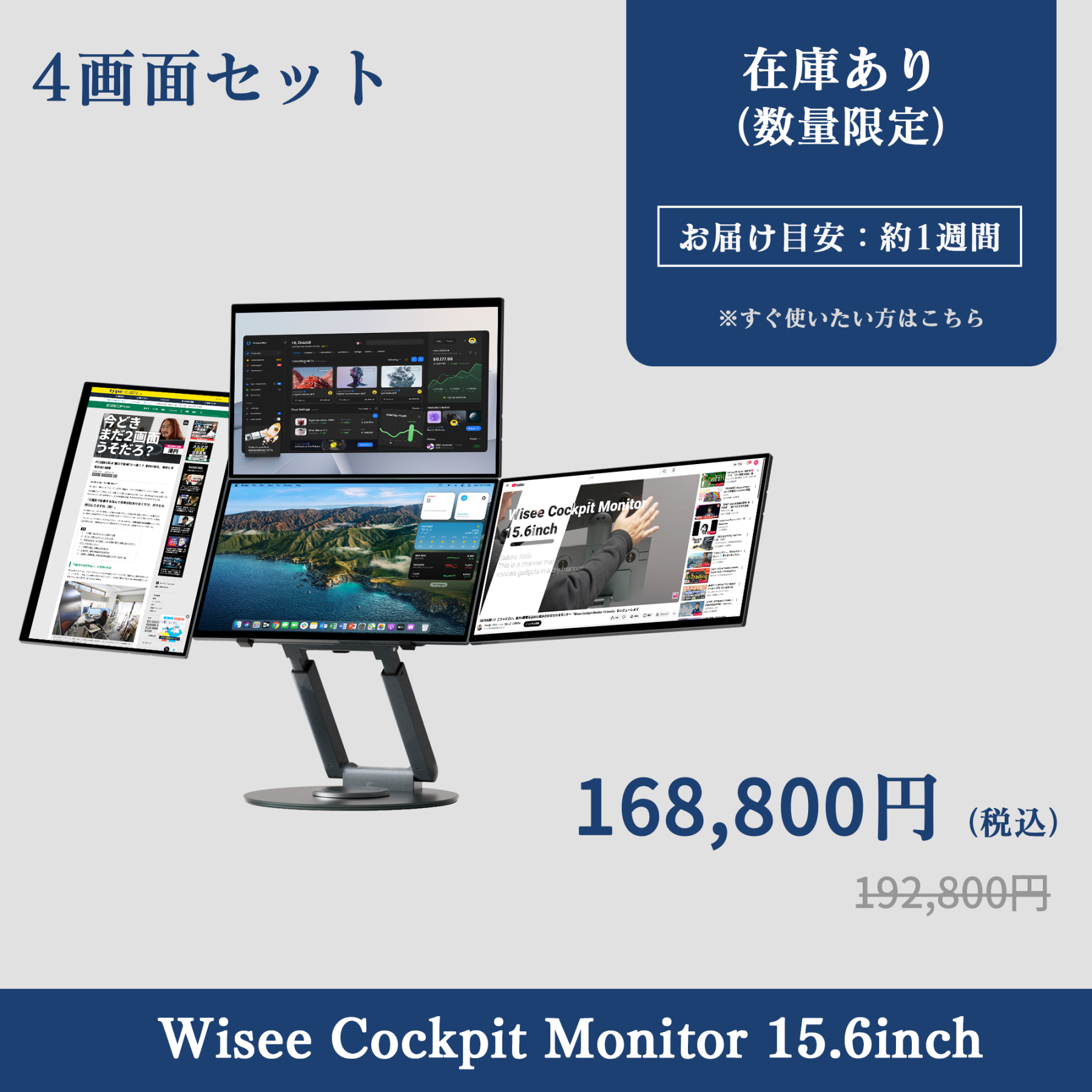
Flagship Set
(4
Screens)
Item Name Quantity
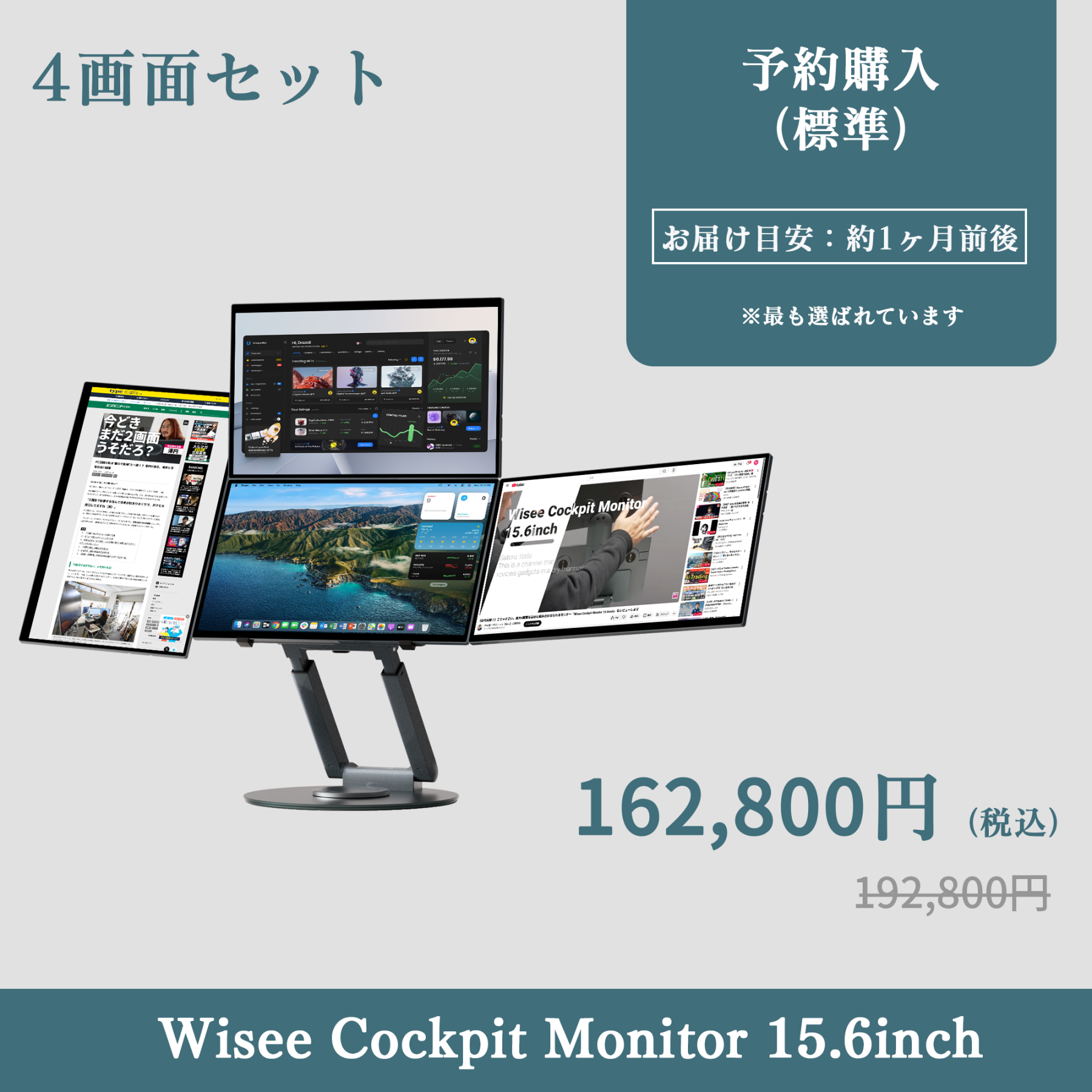
Monitor Body ×4
Main Magnet Hub ×1
Sub Magnet Hub ×2
Dedicated Magnetic Metal Stand ×1
Power Adapter ×1
USB-C to C Signal Cable ×1
USB-A to C Signal Cable ×1
User Manual ×1

Driver download

Safety and Usage Precautions

To use safely and comfortably, please check the following before use.

■ About installation and environment
• Do not use in places with high humidity or moisture.
Bathrooms, kitchens, and around pools can cause malfunction or electric shock.
• Install on a stable flat surface.
There is a risk of injury or damage due to tipping or falling.

■ About power and operation
• Please use the included adapter and cable.
Using products from other manufacturers may cause malfunction or overheating.
Always perform assembly and adjustments with the power OFF.
For safety, please turn the power button OFF or unplug the adapter before operating.
• Power operation:
Red LED lights up → Power ON (changes to green after holding for 2 seconds) / short press to OFF (returns to red).
• Auto OFF function:
The power will automatically turn OFF about 30 seconds after disconnecting from the PC.

■ About handling the monitor and stand
• The monitor and stand have a magnetic attachment structure.
Please ensure they are securely attached during assembly.

Please be sure to check before purchasing.

This product employs a unique structure and specifications, so please review the following information before purchasing.

■ Product Specifications
• The monitor uses a glass panel. Please be careful not to drop or impact it when setting it up or adjusting its angle.
The monitor and stand are connected by a magnetic attachment structure. Since it is not completely fixed, please support the monitor lightly while adjusting the angle or height.

■ Regarding use in a macOS environment
To use it, the dedicated driver "UsbDisplay" must be installed. The screen will not be displayed until the necessary dedicated driver is installed.
- You will be asked for "screen recording permission" during the initial setup, but the screen dataYour information will never be collected or transmitted.
If you are using a Mac mini, please make the settings when connecting to an existing monitor. If you do not have an existing monitor, you cannot use it.
Due to macOS security settings, permission to connect external accessories is required. Please set the connection permission to "Confirm for new accessories" or "Automatically allow if unlocked" in macOS under "Privacy & Security" → "External Accessories."

■ Regarding use in a Windows environment
If Windows Update is turned OFF, necessary drivers may not be automatically installed, and the screen may not be displayed.
The drivers provided through automatic updates may not be the latest, which could lead to unstable performance. Therefore, we recommend manually installing the latest driver "UsbDisplay" available on our official website.

■ Regarding your purchase
If you have any questions about the above, please contact customer support before purchasing.(support@wiseelab.shop)Please feel free to contact us.
We hope you will understand and choose our products with peace of mind.


Recommended Products